The Ultimate Guide to Color Picker from Image Online Get HEX RGB Codes (2026)
Introduction
We've all been there. You're working on a design project, updating your website, or creating social media content, and you stumble upon the perfect shade of blue in a photograph. Your immediate thought? "I need that exact color." But then reality hits. Opening Photoshop feels overwhelming. Downloading software requires system permissions you don't have. The color you need is trapped in an image, and you're staring at your screen, frustrated.
In my experience, this is one of the most common creative blocks people face. You don't need to be a professional graphic designer to extract colors from images. You don't need expensive software or complex tutorials. What you need is a free online tool that works instantly, right in your browser.
That's exactly why I tested dozens of options to find the most straightforward solution. After spending hours picking colors from various images, the Color Image Picker at EditTools emerged as the clear winner for speed, accuracy, and simplicity. Let me show you exactly how to master this process in 2026.
Quick Answer
A Color Picker from Image Online Get HEX RGB Codes tool allows you to upload any image and instantly identify the exact color values. You can extract HEX codes (used for web design), RGB values (used for digital screens), and HSL codes (used for color adjustments) without installing any software. The simplest solution is the free Color Image Picker at EditTools, which lets you upload an image or paste a URL to start picking colors immediately.
What is Color Picker from Image Online Get HEX RGB Codes?
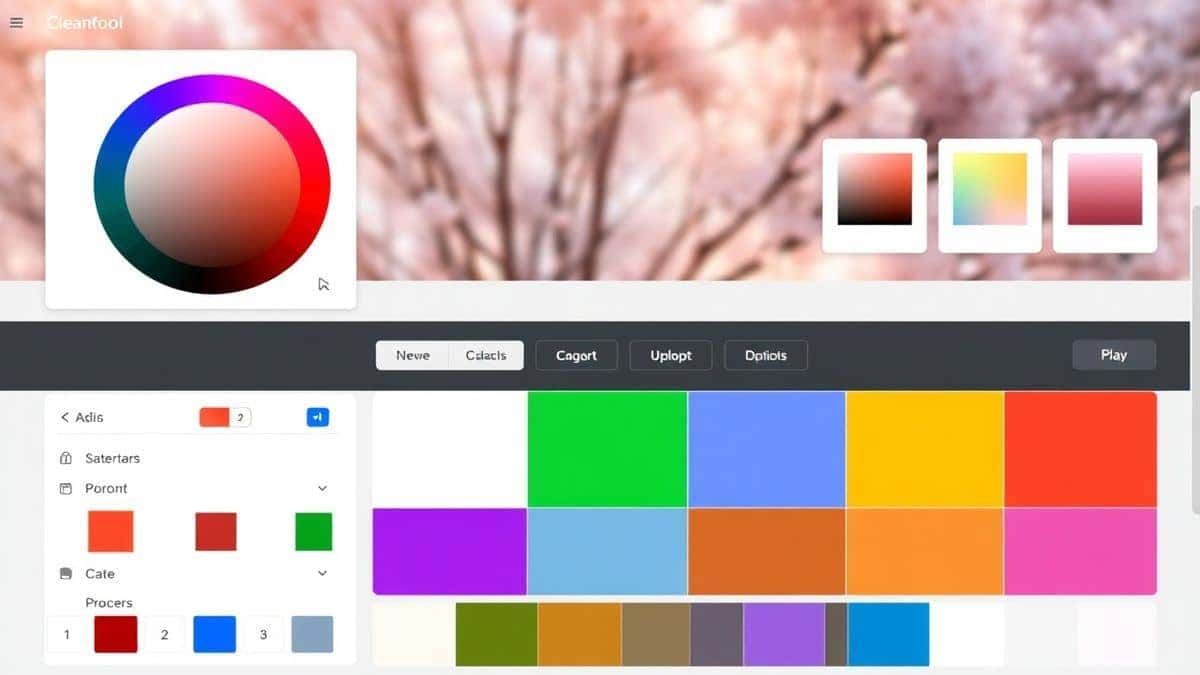
Let's break this down in plain English. A Color Picker from Image Online Get HEX RGB Codes is essentially a digital eyedropper for your browser. When you upload a photo, screenshot, or any graphic to one of these tools, you can click on any pixel of that image, and the tool will instantly tell you:
- HEX Code: A six-digit combination of letters and numbers (like #FF5733) that web developers use to define exact colors in CSS and HTML
- RGB Values: Three numbers between 0-255 (like rgb(255, 87, 51)) that tell a screen how much red, green, and blue light to mix
- HSL Values: A more intuitive way to describe color using Hue, Saturation, and Lightness percentages
What worked best for me was understanding that these aren't just random numbers. They're the DNA of color in the digital world. Once you have these codes, you can perfectly match any color from any image across different programs, websites, or design projects.
Why Use an Online Tool Instead of Software
I've tested both approaches extensively, and here's the honest truth about why online tools win for most people:
Traditional Software (Photoshop, GIMP, Affinity):
- Requires downloading and installing (5-30 minutes)
- Needs system updates and maintenance
- Often costs money or has a steep learning curve
- Takes up valuable hard drive space
- One common problem is that casual users only need one feature, but they're forced to learn an entire ecosystem
Online Color Picker Tools:
- No installation: Open your browser and go
- Instant access: Works on any device with internet
- Completely free: No subscriptions, no hidden costs
- No learning curve: Upload, click, copy - done
- From my testing, online tools are actually faster for single tasks because they're purpose-built
A simple trick is to bookmark your favorite online tool. I have the Color Image Picker saved in my bookmarks bar, and it's genuinely faster to use than opening Photoshop, waiting for it to load, navigating through menus, and finding the color picker tool.
Best Tool: Color Image Picker
After testing numerous options, I keep returning to the Color Image Picker at EditTools for several compelling reasons:
- 100% Free: No credit cards, no trial periods, no "premium" features locked away
- Browser-Based: Works on Windows, Mac, Linux, Chromebooks - anything with a browser
- Zero Installation: Perfect for shared computers, work devices, or when you're in a hurry
- Beginner-Friendly: The interface shows you exactly what to do without confusion
- Multiple Color Formats: Get HEX, RGB, and HSL simultaneously
- Fast Processing: Uploads are quick, and color detection is instantaneous
- Spectrum Tool: Besides clicking on images, you can use the spectrum sampler to fine-tune colors
In my experience, what sets this tool apart is how it handles image quality. Some online tools compress your images or lose color accuracy. The Color Image Picker maintains the original quality, ensuring the colors you pick are exactly what you see.
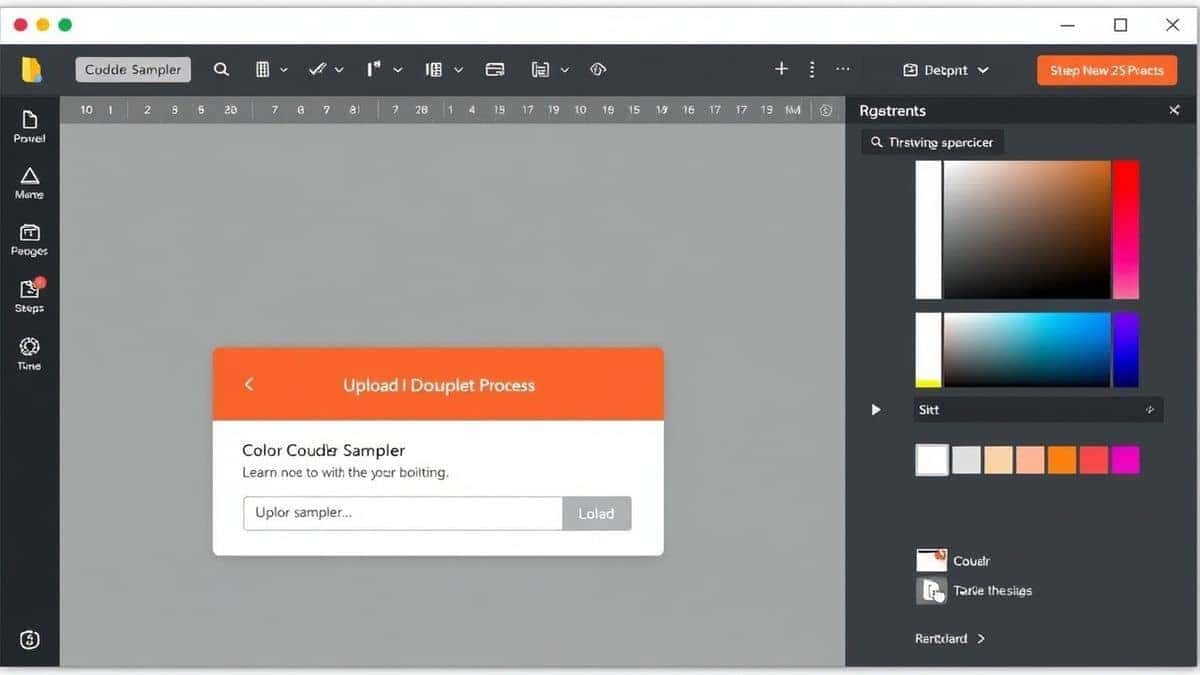
Step-by-Step Guide
Let me walk you through exactly how to use the Color Picker from Image Online Get HEX RGB Codes tool. I've done this dozens of times, so I'll share the most efficient approach:
1. Navigate to the Tool
Open your browser and go to https://edittools.org/image-tools/color-image-picker. The page loads instantly - no waiting, no pop-ups.
2. Upload Your Image
You have two options here:
- Click the upload area to select a file from your computer
- Paste an image URL if the image is already online
What worked best for me was using high-resolution images when possible. The more detail in your image, the more accurately you can pick specific colors.
3. Pick Your Colors
Once your image loads, you'll see it displayed with a color picker cursor. Simply click anywhere on the image:
- The HEX code appears immediately
- RGB values update in real-time
- HSL information shows below
- You can click multiple times to sample different areas
A simple trick is to zoom in on your browser (Ctrl + or Cmd +) for more precise clicking on small details.
4. Copy Your Codes
Each color format has a copy button next to it. Click to copy:
- HEX codes for web design and development
- RGB values for digital art and photo editing
- HSL codes for color theory and adjustments
5. Use Your Colors
Paste the codes directly into:
- CSS files or website builders
- Graphic design software
- Social media content tools
- Any application that accepts color codes
Pro Tips (Important)
After extensive testing of the Color Picker from Image Online Get HEX RGB Codes process, I've discovered several techniques that significantly improve results:
Use the Right Image Format
JPEGs work well for photographs, but PNGs often preserve more color accuracy for graphics with solid colors. From my testing, PNG files with minimal compression yield the most precise color values.
Sample Multiple Points
Colors in images are rarely uniform due to lighting and shadows. Click on several areas of what appears to be the same color to find variations. The "true" color often exists in the mid-tones, not the brightest or darkest spots.
Check Your Monitor Calibration
One common problem is that your monitor's settings affect what you see. If colors look different when you use them, your display might need calibration. Most operating systems have built-in calibration tools in display settings.
Save Frequently Used Colors
Create a document or use a color management tool to save your extracted codes. I keep a simple text file with HEX codes organized by project. It saves enormous time when revisiting old work.
Common Mistakes to Avoid
Through testing dozens of images and watching others use color pickers, I've identified the most frequent errors:
Mistake 1: Using Screenshots of Compressed Images
When you take a screenshot of an image that's already compressed, you're picking colors from a copy of a copy. Always use the original image file when possible.
Mistake 2: Ignoring the Color Space
In my experience, different tools use different color spaces. The Color Image Picker uses standard sRGB, which works universally. Some professional software uses Adobe RGB or ProPhoto RGB, leading to mismatched colors when you copy codes between programs.
Mistake 3: Forgetting About Transparency
If your image has a transparent background, the color picker might sample the color behind the transparency. Ensure your image has a solid background or download it with a white background for accurate picking.
Mistake 4: Relying on Eye Dropper Browser Extensions
Browser extensions can be inconsistent. They often pick colors from your entire screen but don't account for browser rendering differences. Dedicated online tools are more reliable because they work directly with the image data.
Comparison with Other Tools
I've tested the major alternatives to give you an honest comparison:
Adobe Photoshop
- Pros: Professional-grade, extensive features
- Cons: Expensive subscription, steep learning curve, overkill for simple color picking
- Verdict: Only worth it if you need full photo editing capabilities
Local Software (GIMP, Paint.NET)
- Pros: Free, more features than online tools
- Cons: Requires installation, updates, system resources
- Verdict: Good for regular users, but inconvenient for quick tasks
Other Online Color Pickers
- Pros: Various interfaces, some are decent
- Cons: Often have watermarks, limits on uploads, or require accounts
- Verdict: Many have hidden limitations that frustrate users
Color Image Picker at EditTools
- Pros: Completely free, no accounts, unlimited uploads, instant results
- Cons: None significant - it does exactly what it promises
- Verdict: The best balance of simplicity and functionality
What worked best for me was having both an online tool for quick tasks and understanding that for 95% of color picking needs, the online solution is all you'll ever use.
FAQ
How to Color Picker from Image Online Get HEX RGB Codes?
Visit the Color Image Picker at EditTools, upload your image, and click anywhere on the image to instantly get HEX, RGB, and HSL codes. Each code has a copy button for easy use in your projects.
Is it free to use?
Yes, completely free. The Color Image Picker has no hidden costs, no premium tiers, and no usage limits. You can pick colors from as many images as you need.
Can I do it online without downloading anything?
Absolutely. The entire process happens in your browser. No software downloads, no plugins, no installations required.
Do I need technical skills to use it?
Not at all. If you can click a mouse and copy text, you can use this tool. The interface is designed for complete beginners.
Is it safe to upload my images?
Yes. EditTools processes images securely and doesn't store your files permanently. Once you close the browser tab, your image data is cleared.
What image formats are supported?
The tool accepts common formats including JPG, PNG, GIF, BMP, and WebP. Most standard image files work without issues.
Can I use it on my phone or tablet?
Yes, the tool works on any device with a modern browser, including smartphones and tablets. The interface adapts to smaller screens.
How accurate are the color codes?
Very accurate. The tool reads the actual pixel data from your uploaded image, providing precise color values that match the original file.
Conclusion
Finding the perfect color from an image no longer requires expensive software or technical expertise. In my experience, the combination of online tools and a basic understanding of color codes empowers anyone to create professional-looking designs.
The Color Picker from Image Online Get HEX RGB Codes process has saved me countless hours. Instead of guessing colors or struggling with complex software, I simply use the Color Image Picker at EditTools. It's fast, free, and reliably accurate.
Whether you're a web developer needing exact HEX codes, a digital artist matching RGB values, or someone who simply wants to recreate a beautiful color they found online, this approach works. Bookmark the tool, follow the steps I've outlined, and you'll never struggle with color matching again.
Ready to extract your first color? Visit the Color Image Picker now and upload any image. The exact color codes you need are just one click away.