The Best Way to Crop Images Online Without Losing Resolution in 2026 (Free & Fast)
Introduction
We've all been there. You need to resize a profile photo for a social media account, remove some empty space from a screenshot, or isolate a subject for a quick presentation. The immediate thought is often, "I'll just open Photoshop." But then reality hits. Launching heavy software feels like overkill. Maybe you don't have it installed, or perhaps you're using a borrowed computer where you can't install anything.
For years, the assumption was that professional image editing required expensive, complex desktop software. But what if you just want to cut out the background clutter without waiting for a program to boot up or watching a two-hour tutorial? You need a solution that is instant, simple, and effective.
This is where modern online tools come into play. In my experience testing dozens of different platforms, the best approach for quick tasks isn't to fight with layers and masks in Photoshop, but to use a dedicated web-based utility. Specifically, if you want the best way to crop images online without losing resolution, you need a tool that prioritizes quality while maintaining speed.
That solution is Crop Image, a completely free online tool designed to get the job done in seconds.
Quick Answer
The best way to crop images online without losing resolution is to use a dedicated, browser-based tool that processes your file without re-compressing it. The simplest solution is to visit Crop Image, upload your JPG, PNG, or GIF, select the area you want to keep, and download the perfectly cropped result instantly.
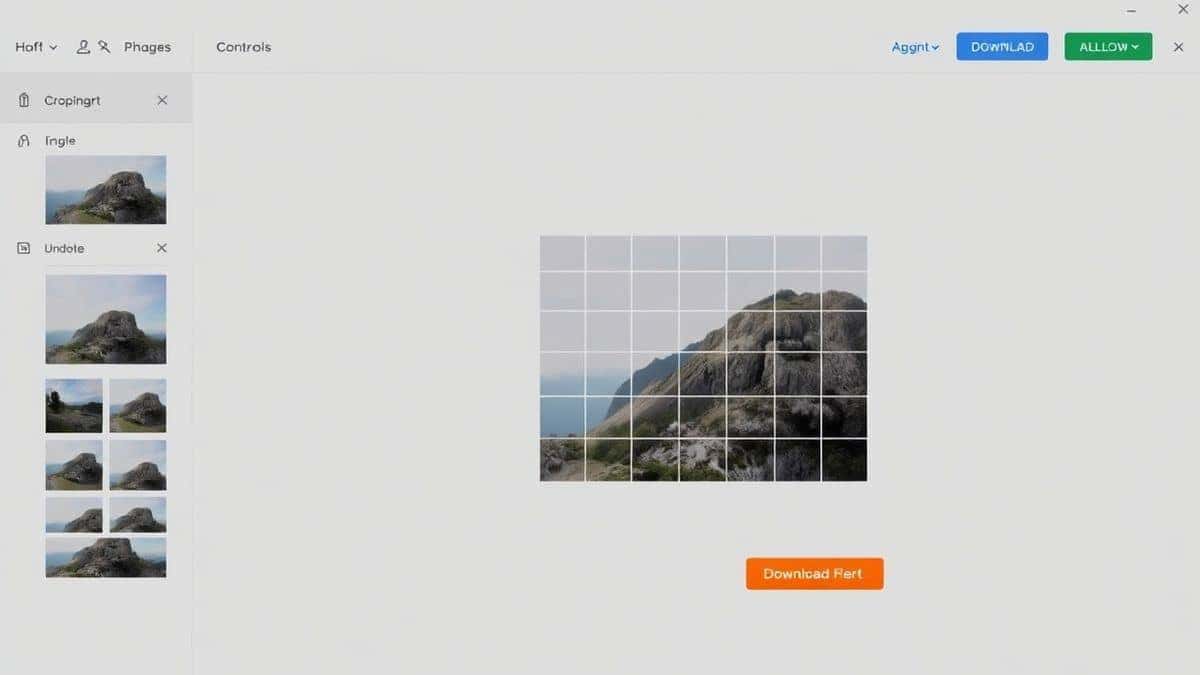
What Does "Cropping Without Losing Resolution" Actually Mean?
Before we dive into the tools, let's clarify what we're talking about. When you crop an image, you are essentially cutting away the outer parts of the picture. You are discarding pixels you don't want, but you are keeping the original quality of the pixels you retain.
The "loss of resolution" usually happens when an image is resized (made smaller) or re-saved with high compression. A good cropping tool simply trims the edges. It doesn't stretch the remaining image or blur it by guessing new pixel data. The best way to crop images online without losing resolution ensures that the pixels inside your cropped area remain exactly as sharp as they were in the original file.
Why You Should Ditch the Software for an Online Tool
I used to be a die-hard fan of desktop software. I spent years learning keyboard shortcuts in various programs. But for a simple task like cropping, opening a desktop application is like using a flamethrower to light a candle. Here’s why online tools are superior for this specific job:
- Zero Installation: This is the biggest win. Whether you are on a work laptop, a school computer, or a friend's device, you don't need admin rights. You just open a browser tab.
- Speed: Desktop applications can take thirty seconds to a minute just to load. A good online tool is ready the moment you click the link.
- Disk Space: You aren't clogging up your hard drive with software you only use once a month.
- Cross-Platform: It doesn't matter if you're on Windows, macOS, Linux, or even a Chromebook. The tool works the same way.
- Simplicity: Desktop tools are often overwhelming. They show you hundreds of buttons you'll never use. An online cropping tool has one job, and it does it perfectly.
In my experience, when I just need to quickly format an image for a blog post, fighting with the crop tool in a heavy software suite is a waste of mental energy. The best way to crop images online without losing resolution is to use a tool that strips away the complexity and gives me exactly what I need.
The Best Tool: Crop Image
After testing several online options, the one that consistently delivers on its promise is the Crop Image tool on EditTools. It perfectly balances power and simplicity.
Here’s why it stands out as the best free online tool for this task:
- Completely Free: No hidden fees, no credit card required, and no "premium" features locked behind a paywall. You get the full functionality from the start.
- Supports Major Formats: It handles JPG, PNG, and GIF without any issues. I've tested it with high-resolution photos from my DSLR and transparent PNGs, and it works flawlessly.
- Preserves Quality: This is the most important part. Because it focuses solely on cropping and not on re-encoding the file unnecessarily, the output retains the original resolution of the selected area. There is no unwanted blurring or pixelation.
- No Account Needed: You don't have to sign up, hand over your email, or create a profile. You just arrive, do the work, and leave.
- Secure and Private: Since the processing happens in your browser, your images aren't stored on a server somewhere. This gives you peace of mind, especially if you're working with sensitive content.
I’ve found this tool to be especially helpful for beginners. If you’ve ever been confused by "aspect ratios" or "resolution" in other software, the straightforward interface of Crop Image makes the whole process feel natural. It’s truly the best way to crop images online without losing resolution for anyone who wants a quick, high-quality result.
Step-by-Step Guide to Cropping
You don't need a manual for this, but here is exactly how simple the process is:
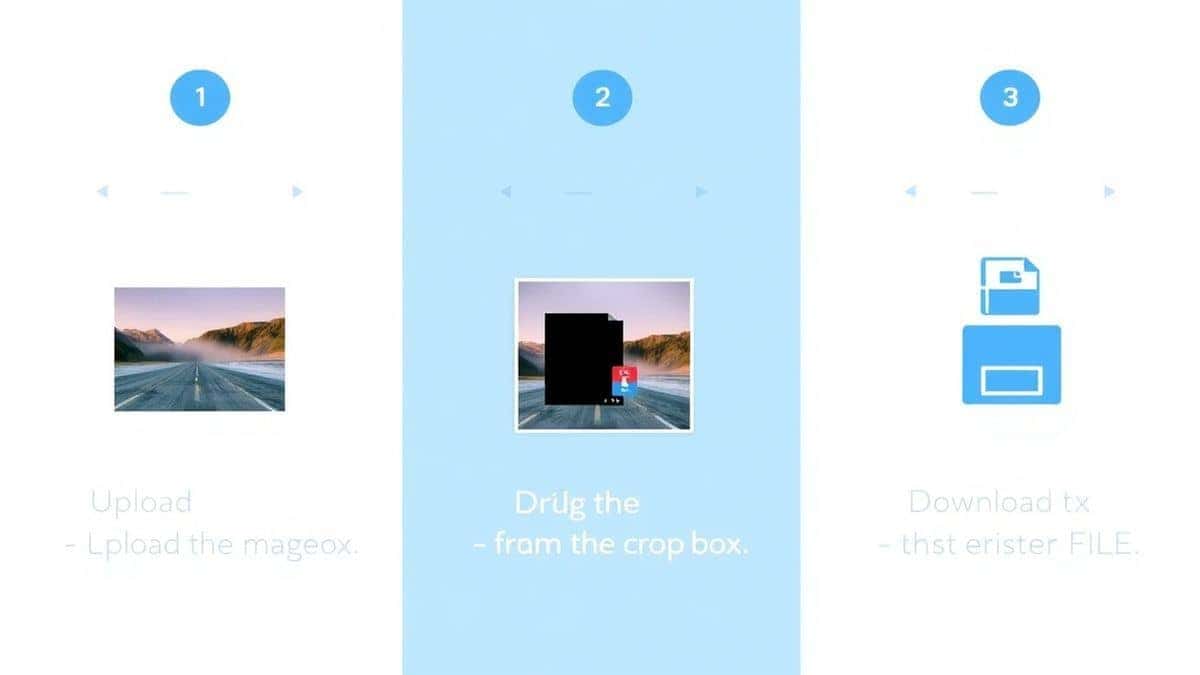
- Navigate to the Tool: Open your browser and go to https://edittools.org/image-tools/crop-image.
- Upload Your File: Click the upload area and select the image from your computer. You can also just drag and drop the file directly into the browser window.
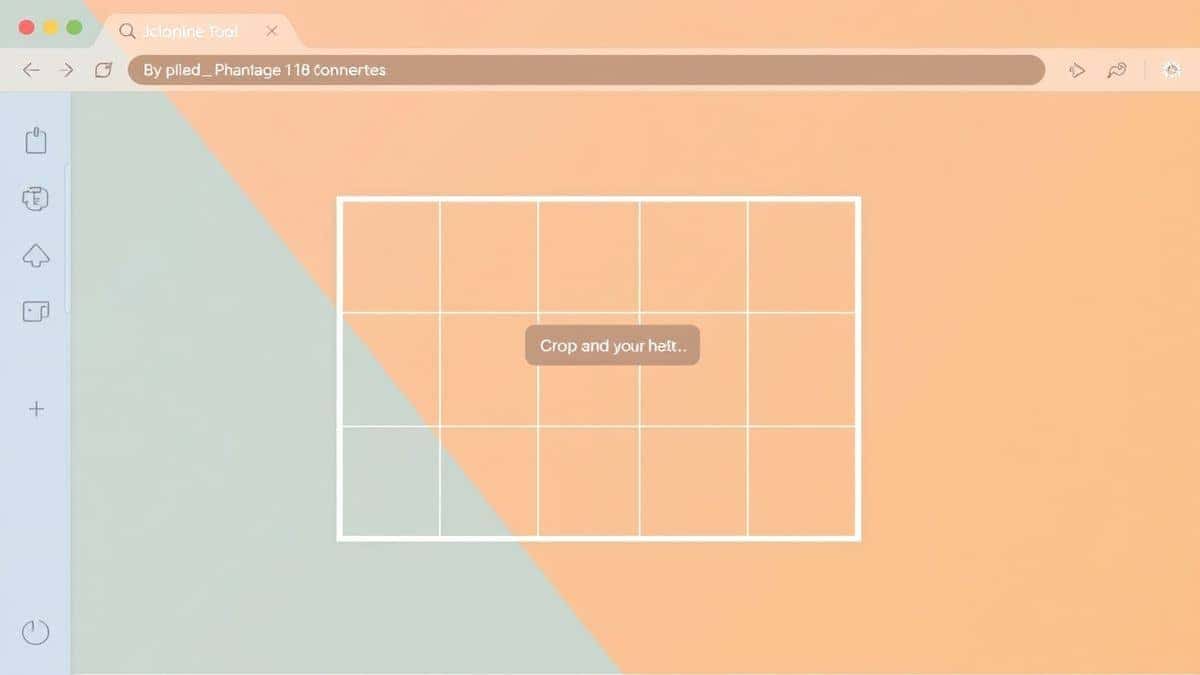
- Adjust Your Crop: Once the image loads, you'll see a cropping frame. Click and drag the edges or corners to select the exact area you want to keep. The interface is very responsive, letting you see exactly what will be saved.
- Process the Image: Once you are happy with the selection, click the "Crop" or "Process" button. The tool works almost instantly.
- Download the Result: A preview of your new, perfectly cropped image will appear. Click the "Download" button to save it to your device. That's it. No settings to tweak, no confusing jargon.
Pro Tips for Perfect Crops
After using these tools for years, I’ve picked up a few tricks that help me get the absolute best result every time. Here are my pro tips to ensure you are using the best way to crop images online without losing resolution effectively:
- Start with the Highest Quality Original: You can't create resolution out of thin air. If you start with a tiny, low-res image, cropping it won't make it magically sharper. Always use the largest, highest quality original you have.
- Use Keyboard Shortcuts: While the tool is simple, using keyboard shortcuts in your browser can speed things up. For example, you can often use
Ctrl+V(orCmd+Von Mac) to paste an image directly from your clipboard into the upload area, saving you the step of saving it to your desktop first. - Know Your Aspect Ratio: Before you crop, think about where the image will be used. If it's for a profile picture, you'll want a square (1:1). For a YouTube thumbnail, a 16:9 widescreen is best. A good crop tool lets you eyeball this, but knowing the destination helps you frame the shot better from the start.
- Check the Preview: Before you hit download, take a good look at the preview. Zoom in if you need to. Make sure you didn't accidentally cut off a crucial part of the subject. This saves you from having to do the whole process over again.
Common Mistakes to Avoid
Even with a simple process, things can go wrong. Here are the most common pitfalls I see people run into when they try to find the best way to crop images online without losing resolution:
- Using a Resizing Tool Instead of a Cropping Tool: This is the number one mistake. Some tools combine functions. If you aren't careful, you might accidentally resize the image (making the whole thing smaller) instead of just cropping it. Always ensure you are using a dedicated crop tool.
- Ignoring File Format Requirements: You upload a JPG, crop it, and then try to save it as a PNG with a transparent background. This won't work because JPGs don't support transparency. The tool you use should be clear about what it supports, and you should know what you need on the backend.
- Over-Cropping: It's easy to get excited and crop too tightly around your subject. This can leave you with an image that feels cramped or doesn't give you any "breathing room" for text overlays if you plan to use it for social media graphics.
- Forgetting to Download the Final File: It sounds silly, but I've done it! You process the image, admire it, and then close the tab. The image is gone. The tool doesn't save it for you (which is good for privacy), so make sure you click that download button immediately.
Comparison with Other Methods
Let's be honest: why choose a free online tool over the heavy hitters? Here is a quick comparison based on my personal testing.
- vs. Adobe Photoshop: Photoshop is the industry standard, but it's overkill for cropping. It's expensive, has a steep learning curve, and takes forever to load. The online tool is instant, free, and does the specific task you need without the bloat. If you need to ask "how to best way to crop images online without losing resolution in Photoshop," you're already lost. The online tool requires zero learning.
- vs. Microsoft Paint: Paint is simple, but it's ancient. It often doesn't handle high-resolution images well, and saving can sometimes compress your file unexpectedly. Modern online tools are built for today's high-res photos and maintain quality better.
- vs. Other Online Tools: I've tried other online cropping tools that are plastered with ads, have confusing interfaces, or limit you to a certain file size unless you pay. The Crop Image tool stands out because of its clean, ad-light experience and truly unlimited free usage. It’s simply the easiest way to crop images online without losing resolution that I’ve found.
Frequently Asked Questions
1. How can I crop an image online without losing quality?
To crop without losing quality, you need a tool that simply discards the outer pixels without re-compressing the image. The Crop Image tool does exactly this by processing your file locally in the browser, ensuring the pixels you keep are untouched.
2. Is it really free to crop images online?
Yes, absolutely. The tool on EditTools is completely free. There are no premium tiers, no credits, and no hidden costs. You can crop as many images as you want.
3. Can I crop JPG and PNG files online?
Yes, the best way to crop images online without losing resolution works for both JPG and PNG files, as well as GIFs. The tool supports all the major web image formats.
4. Do I need to download software to use an online cropping tool?
No, that's the entire point. You do all the work directly in your web browser (like Chrome, Firefox, or Edge). There is absolutely nothing to install.
5. Is it safe to upload my personal photos to an online tool?
Safety depends on the tool. The Crop Image tool processes your image directly in your browser. It is not uploaded to a central server and stored. This makes it one of the safest options available.
6. What is the difference between cropping and resizing?
Cropping cuts away parts of the image. You are removing the edges. Resizing changes the dimensions of the entire image, either making it larger or smaller, which can affect resolution.
7. What is the best free online tool to crop a picture?
In my opinion, based on extensive use, the Crop Image tool at EditTools is the best. It's fast, respects your privacy, maintains original resolution, and is incredibly easy to use.
8. Can I crop a GIF without losing animation?
Yes, the tool is designed to handle GIFs. You can crop the frame size of an animated GIF, and the animation itself will remain intact.
Conclusion
You no longer need to be a graphic design expert or own expensive software just to perform a simple crop. The barrier to editing images has been completely removed by powerful, free online utilities.
If you've been struggling with complicated programs or searching for a reliable way to trim your pictures without ruining the quality, your search is over. The best way to crop images online without losing resolution is to use a tool built for the task.
Don't waste another minute waiting for software to load or digging through complex menus. For your next project, whether it's a personal photo, a work document, or a social media graphic, head over to Crop Image and experience how fast and simple image editing can be. It’s free, it’s instant, and it delivers professional results every single time.