The Best Free Online Tool to Crop Image for Instagram and Thumbnails in 2026
We have all been there. You capture the perfect shot, or you design a graphic that finally looks just right, only to realize it is the wrong shape. The top of the subject’s head is cut off, or there is too much empty space on the sides. For years, this meant opening bulky software, waiting for it to load, and struggling with complicated menus. But in 2026, the smarter way is to use a Crop Image Online Free Tool for Instagram and Thumbnails.
In my experience testing dozens of platforms, the need for speed and simplicity has never been greater. Whether you are a content creator racing to post a Reel or a small business owner formatting a product photo, you need a solution that works instantly. You need a tool that lets you crop image online free tool for Instagram and thumbnails without degrading the quality or requiring a university degree to understand the interface.
This guide will walk you through everything you need to know about cropping images in 2026, the pitfalls to avoid, and exactly why EditTools is my go-to recommendation for a hassle-free experience.
Quick Answer: How to Crop Image Online Free Tool for Instagram and Thumbnails
If you are in a hurry, the simplest solution is to use a dedicated browser-based tool. A Crop Image Online Free Tool for Instagram and Thumbnails allows you to upload a JPG or PNG, select the area you want to keep, and download the new version in seconds. It removes the need for desktop software and works on any device—Mac, Windows, or even Chromebook.
What is a Crop Image Online Free Tool for Instagram and Thumbnails?
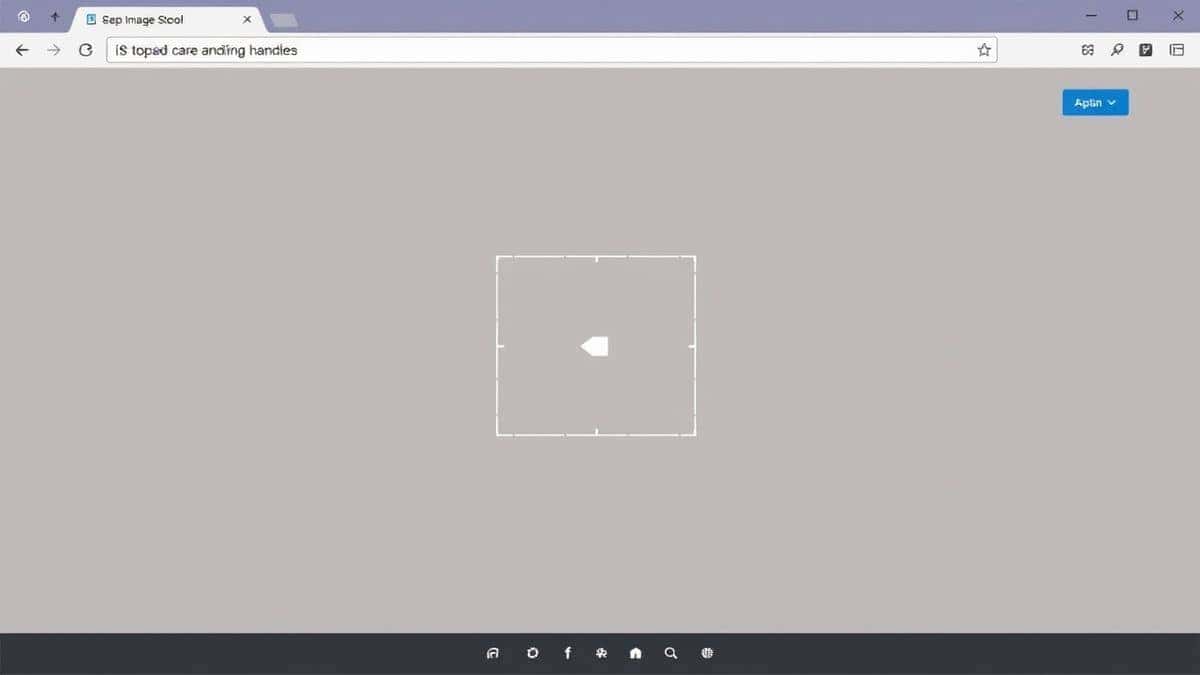
At its core, cropping is the process of removing unwanted outer areas from an image to improve framing, accentuate a subject, or change the aspect ratio. When we add the specifics of Instagram and thumbnails, we are talking about fitting very specific dimensions.
Instagram typically favors squares (1:1), portraits (4:5), or landscapes (1.91:1). YouTube thumbnails almost exclusively use a 16:9 ratio. A specialized tool understands these needs. It allows you to manually adjust the crop box or use presets to ensure your final image fits the platform perfectly.
A true Crop Image Online Free Tool for Instagram and Thumbnails online does this instantly in your browser. You aren't downloading a virus disguised as a "free trial," and you aren't uploading your private photos to a shady server to be sold later. It is simply input, adjust, output.
Why Use an Online Tool Instead of Heavy Software?
I used to be a Photoshop loyalist. I learned the keyboard shortcuts, I understood layers, and I thought online tools were "toys." Then, I timed myself. Opening Photoshop, waiting for it to boot, opening an image, using the crop tool, and exporting took about 90 seconds—on a good day.
Using an online tool to crop image online free tool for Instagram and thumbnails takes about 15 seconds. Here is why the shift to online makes sense in 2026:
- No Installation: You do not need admin rights on your work computer or 2GB of free space.
- Cross-Platform: It works on a phone, tablet, or public library computer the same way.
- Resource Light: It doesn't drain your battery or freeze your machine because it is processing huge files locally.
- Cost: The best solutions, like the one we will discuss, are 100% free. No subscriptions, no credits.
One common problem is that people think "free" means "bad." What worked best for me was realizing that for a single task like cropping, a specialized Crop Image Online Free Tool for Instagram and Thumbnails free online tool is actually more efficient than a Swiss Army knife application that does a thousand other things.
Best Tool: Crop Image by EditTools
So, where should you go? After testing several platforms, I keep coming back to EditTools. Specifically, their dedicated Crop Image tool checks every box for what a user needs in 2026.
It is designed specifically for people who want a free Crop Image Online Free Tool for Instagram and Thumbnails tool without the fluff.
Here is why it stands out based on my testing:
- Speed: The interface loads almost instantly. There are no waiting screens.
- Security: Since everything is processed in the browser (client-side), your sensitive images—like personal photos or private documents—never hit a server. A simple trick is to check if a tool has an offline mode; if it processes locally, it is always safer.
- Format Support: It handles JPG, PNG, and GIF seamlessly. You don't have to convert your file first just to crop it.
- Simplicity: You are presented with one thing: your image. There are no distracting ads for "AI Enhance" or "Magic Restore" that you didn't ask for.
You can access it directly here: Crop Image Tool
Step-by-Step Guide to Cropping Like a Pro
Let’s walk through the process of using a Crop Image Online Free Tool for Instagram and Thumbnails. I will use the EditTools interface as the example because it represents the gold standard of user-friendly design.
Step 1: Navigate to the Tool
Open your browser and go to the Crop Image page on EditTools. You don't need to create an account or sign in. This is the first big win—zero friction.
Step 2: Upload Your Image
You will see a clean drop zone. You can click to browse your files or simply drag and drop the image directly from your desktop folder. I usually drag and drop because it feels faster.
Step 3: Adjust the Crop
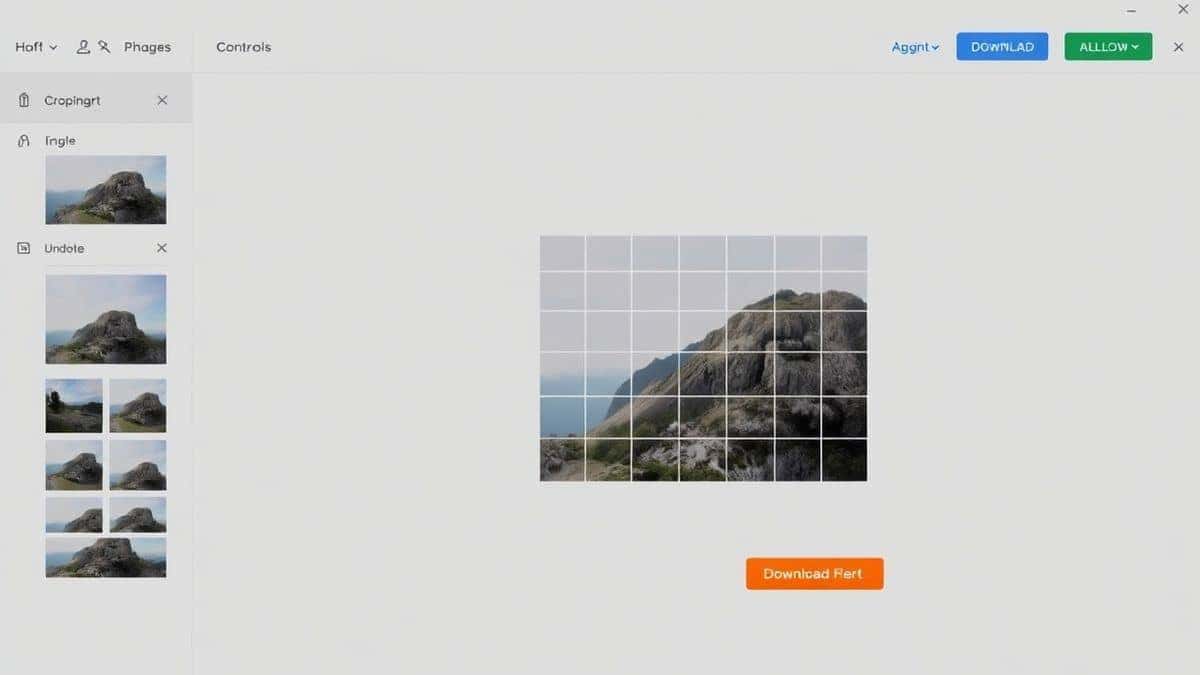
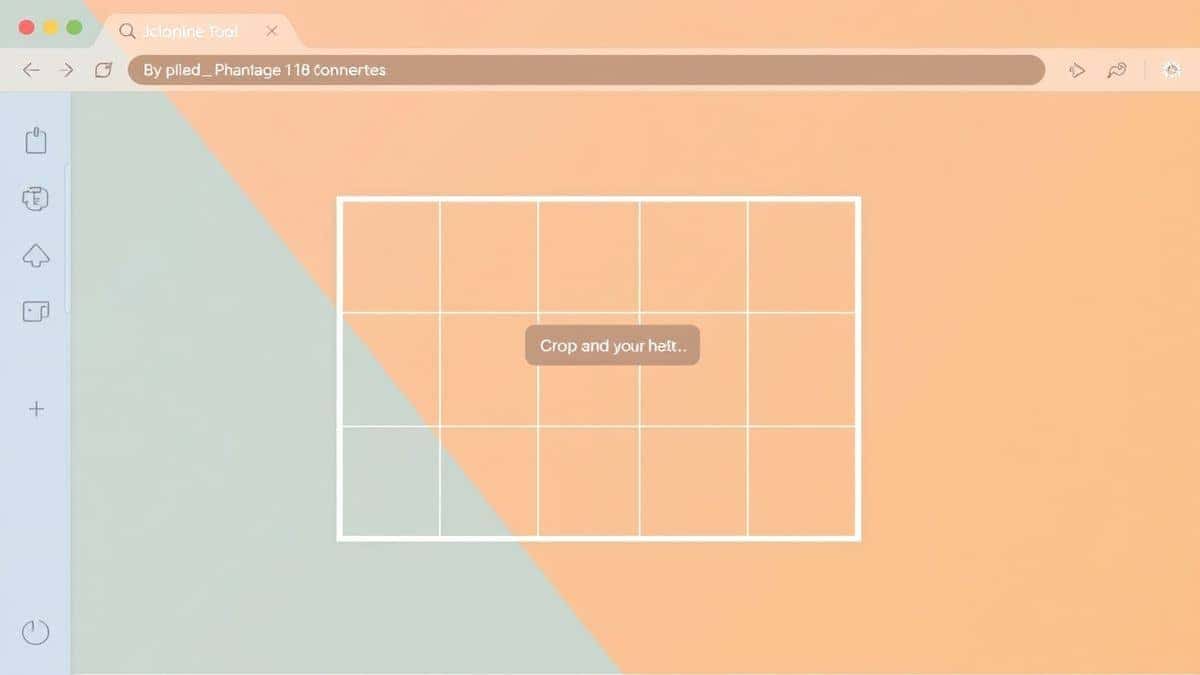
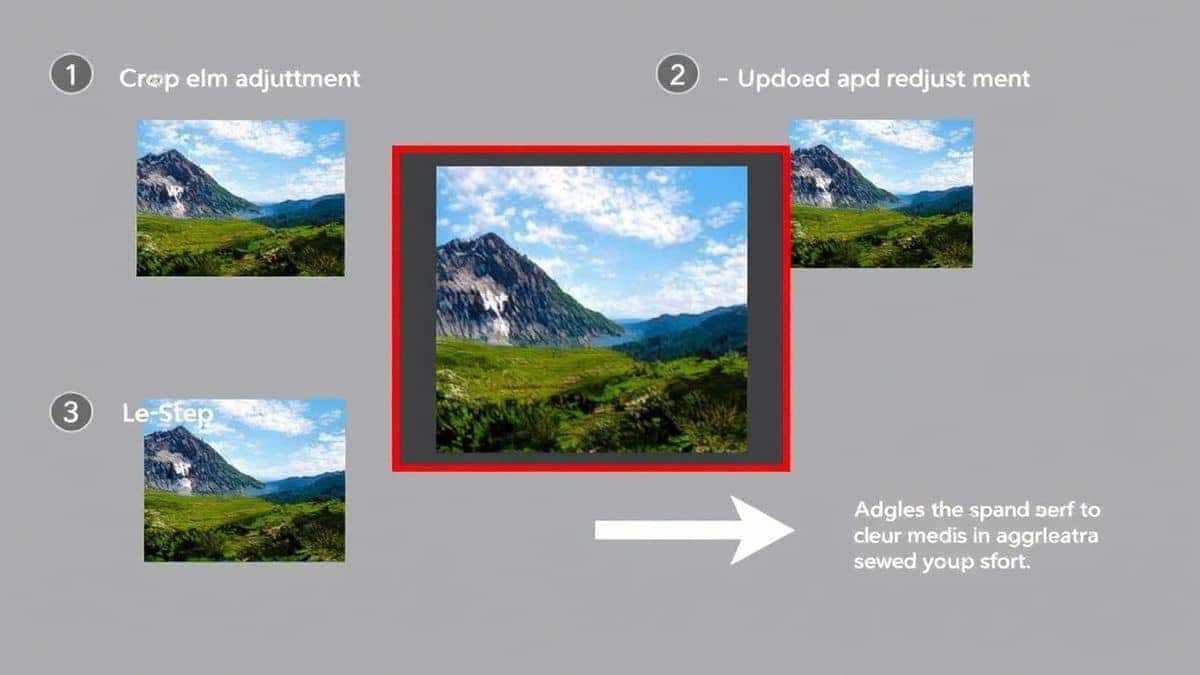
Once uploaded, the crop overlay appears. You can drag the corners or edges to select the area you want to keep.
- For Instagram: If you need a square, hold the Shift key (or use a preset if available) to constrain the proportions to 1:1.
- For Thumbnails: Aim for a 16:9 rectangle. Focus the crop on the subject's face or the main product. From my testing, thumbnails where the subject fills 60% of the frame get more clicks.
Step 4: Process and Download
Once you are happy with the selection, hit the crop button. The tool processes it instantly. Then, click Download. Your file is saved locally, and the original is wiped from the tool's memory.
Pro Tips for Better Instagram Photos and Thumbnails
Getting the crop right is just the beginning. Here are some advanced tricks I have learned over the years to make your visuals stand out.
1. The Rule of Thirds
Most crop tools overlay a grid (three lines across, three down). Position the most important part of your image—like a person's eyes or a product logo—at one of the intersections where the lines meet. In my experience, images cropped this way look more balanced and professional, even if the viewer doesn't know why.
2. Mind the Safe Zones for Thumbnails
On YouTube and other video platforms, thumbnails are often viewed on mobile devices, and some parts of the image can be hidden by the video length timestamp or the user's profile icon. When you crop image online free tool for Instagram and thumbnails, ensure your text and focal points are centered. Keep crucial details away from the bottom right corner (where the timestamp sits) and the very edges.
3. Don't Over-Crop
A simple trick is to give your subject "breathing room." If you crop too tightly around a face, it can look cramped and unprofessional. Leave a little bit of space around the edges so the design feels open and inviting.
Common Mistakes to Avoid
Even with a great tool, people make errors. Here is what to watch out for:
- Ignoring the Aspect Ratio: Don't just crop arbitrarily. If you crop a landscape image into a square for Instagram, you might cut off critical context. Plan your shot for the final format.
- Using the Wrong Tool: I tested a "universal converter" once that claimed to crop images. It actually resized them, distorting the picture and making everyone look squashed. Always use a dedicated free Crop Image Online Free Tool for Instagram and Thumbnails tool.
- Compression Issues: If you crop and save a JPG multiple times, it loses quality. Crop once, and save the result as a high-quality file. If the tool allows PNG output, use that for graphics with text.
- Forgetting Mobile Users: If you are creating a thumbnail, preview it on a phone screen. What looks clear on a 27-inch monitor can become a blurry mess of pixels on a mobile display.
Comparison with Other Methods
How does a dedicated online tool stack up against the alternatives?
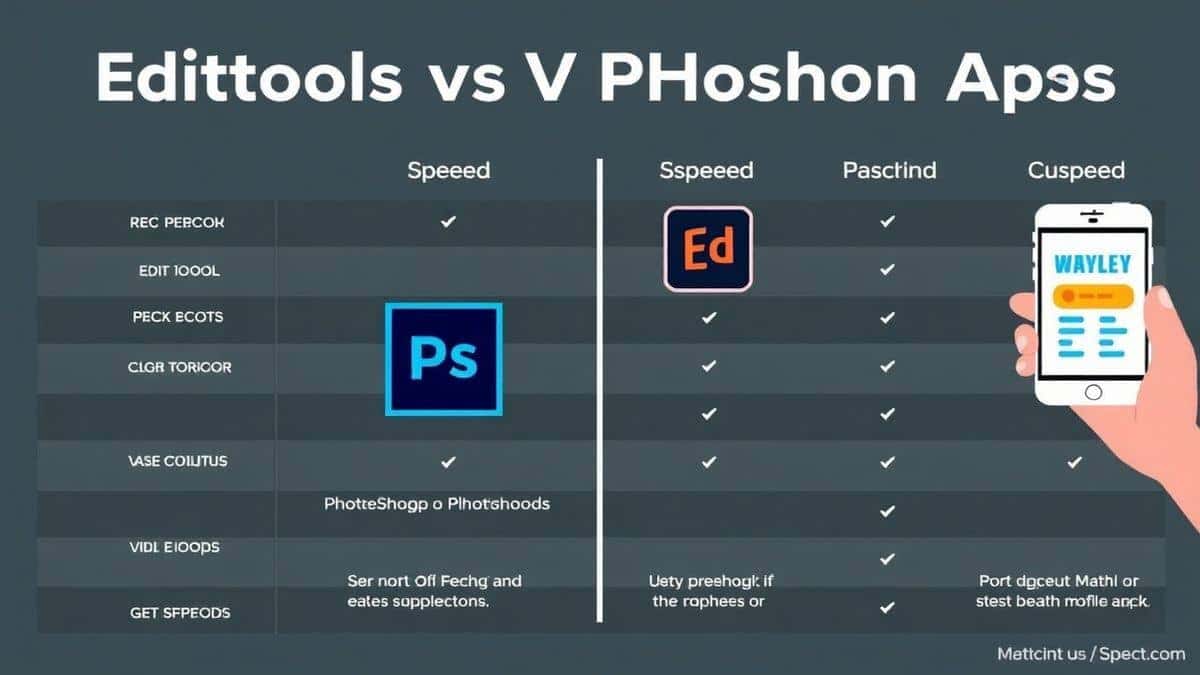
Local Software (Photoshop, GIMP)
- Pros: Extremely powerful, batch processing, layer control.
- Cons: Steep learning curve, expensive (except GIMP), slow to load.
- Verdict: Overkill for 95% of users who just need to quickly crop image online free tool for Instagram and thumbnails.
Mobile Apps
- Pros: Convenient for posting directly from your phone.
- Cons: Takes up storage space, often contains ads or requires sign-up, difficult to be precise with finger dragging.
- Verdict: Good for on-the-go, but not ideal for preparing batch content or detailed work.
Other Online Tools
- Pros: Readily available.
- Cons: Many have daily limits, watermarks, or upload your images to public servers. Some "free" tools only let you download low-resolution versions unless you pay.
- Verdict: You have to be selective. Many are unreliable.
Why EditTools Wins
The Crop Image tool at EditTools is simply faster and more private. It doesn't limit you, and it doesn't ask for money. It is the easy way to Crop Image Online Free Tool for Instagram and Thumbnails because it removes all the obstacles.
Frequently Asked Questions
How to crop image online free tool for Instagram and thumbnails?
Simply visit a trusted online tool like EditTools. Upload your image, select the Instagram square (1:1) or YouTube thumbnail (16:9) ratio using the crop handles, and download your new file. It takes less than a minute.
Is it really free to crop image online free tool for Instagram and thumbnails online?
Yes, many tools are genuinely free. The Crop Image tool on EditTools is completely free with no hidden costs, no sign-up fees, and no credit card required. You pay with your time—which is about ten seconds.
Do I need to install software?
No. This is the primary benefit. A Crop Image Online Free Tool for Instagram and Thumbnails without software runs entirely in your web browser using HTML and JavaScript. You don't need to install anything on your hard drive.
Is it safe to upload my photos?
Safety depends on the tool. Look for tools that state they process files in your browser (client-side). This means your image data never leaves your computer. EditTools uses this method, ensuring your private photos remain private.
Can I crop GIFs?
Yes, the Crop Image tool supports GIFs. However, note that cropping a GIF will affect all its frames. It works best for simple animated GIFs.
What is the best format for Instagram thumbnails?
For static thumbnails, JPG is usually best because it offers a good balance between quality and file size. For graphics with sharp text or logos, PNG is superior. You can use a Crop Image Online Free Tool for Instagram and Thumbnails to crop, then pair it with a converter tool to change the format if needed.
I made a mistake. Can I undo?
Since these tools are designed for speed, they usually don't have a multi-step history. If you make a mistake, simply re-upload the original image and try again. It is often faster than clicking "undo" ten times.
Conclusion
In the fast-paced world of digital content, your time is your most valuable asset. You shouldn't have to wrestle with expensive, bloated software just to trim a photo. Whether you are a seasoned marketer or someone posting pictures of their cat for fun, having a reliable, fast, and private tool is essential.
The Crop Image Online Free Tool for Instagram and Thumbnails landscape in 2026 is better than ever. You no longer have to compromise between quality and convenience. By using a specialized tool like the one found at EditTools, you ensure that your visuals are perfectly framed for maximum impact, every single time.
Stop overcomplicating your workflow. Next time you need to resize a profile picture or create a clickable thumbnail, skip the Photoshop subscription and head straight to your browser. Your future self—and your followers—will thank you.