The Ultimate Guide to Trim Video Frame Easily Online in 2026 (Free & Fast)
We have all been there. You record the perfect video on your phone—a birthday moment, a clip for social media, or a work presentation—but the framing is off. Maybe there is a distracting object at the edge, or perhaps you need to change the shape from horizontal to vertical for TikTok or Instagram Reels. The thought of downloading expensive, complicated software like Adobe Premiere or learning complex code like FFmpeg is enough to make you want to give up.
Luckily, in 2026, you don't need a degree in film editing to fix this. The solution is simpler than you think: you need to trim video frame easily online.
In this guide, I will show you exactly how to do this using free, browser-based tools. I have tested dozens of these utilities over the years, and I will share the method that works best for beginners and pros alike. By the end, you will be able to adjust your video frames in seconds without installing a single file on your computer.
Quick Answer: What is the Best Way to Trim Video Frame Easily Online?
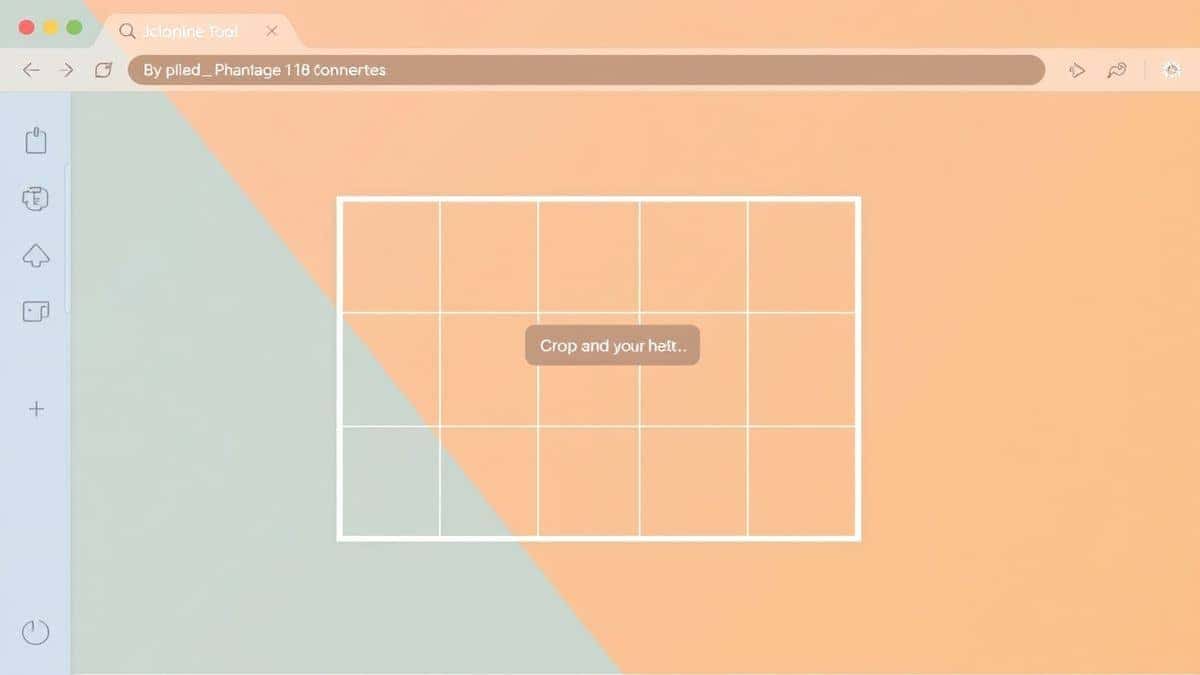
Trimming a video frame means cropping the visible area of your video—removing black bars, cutting out unwanted objects, or changing the aspect ratio. The easiest and fastest way to do this in 2026 is by using a dedicated web-based tool like Online Video Cropper. You simply upload your file, drag the frame box, and download the result. No software installation, no cost, and no technical skills required -3.
What Does "Trim Video Frame" Actually Mean?
Before we dive into the "how," let's clarify the "what." In the editing world, "trim" can mean two different things, and people often mix them up -4.
- Trimming the Timeline (Length): This is when you cut the duration of the video. You cut off the beginning or the end to make the clip shorter.
- Trimming the Frame (Cropping): This is what we are focusing on today. Trimming the frame means adjusting the visual boundaries of the video. You are deciding what the viewer can see.
Think of it like using a pair of scissors on a photograph. You aren't changing the moment captured, but you are cutting away the edges to focus on the subject. You might trim a video frame to:
- Remove a timestamp or logo in the corner.
- Cut out distracting background elements.
- Change a horizontal (16:9) video to a vertical (9:16) format for Reels or Shorts.
- Zoom in on a specific person or detail -1.
Why Use an Online Tool Instead of Desktop Software?
In my experience, the biggest barrier to editing is the software itself. I remember downloading a "free" video editor years ago only to find it slowed my computer to a crawl and took an hour to render a 30-second clip. Here is why online tools have become the superior choice for quick edits:
- No Installation Required: This is the biggest win. You don't clog up your hard drive with programs you will use once. You can use an online tool on a school computer, a work laptop, or a friend's device -9.
- It's Free: Most professional desktop editors require a hefty subscription. Online tools like the one on EditTools are completely free, with no hidden costs or credit card requests.
- Platform Independent: Whether you use Windows, Mac, Linux, or even a Chromebook, if you have a browser, you can edit your video.
- Speed: For a simple cropping task, launching a desktop app can take minutes. An online tool is ready as soon as you open the tab.
- Beginner-Friendly: Desktop software often has a thousand buttons you don't need. Online tools strip it back to just what is necessary: upload, crop, download -5.
The Best Tool: Online Video Cropper
When I need to trim video frame easily online, I consistently go back to the Online Video Cropper on EditTools. I have tested a lot of online utilities—some are filled with ads, some limit your file size to 50MB, and others plaster a massive watermark on your output. This tool avoids all those pitfalls.
Why it stands out in 2026:
- 100% Free: No subscriptions, no "premium" tier for basic cropping.
- No Account Needed: You don't have to hand over your email address or sign up for anything.
- Format Support: It handles all the major types you would throw at it, including MP4, MOV, AVI, and MKV -1.
- Preserves Quality: It processes your video smartly to keep the resolution high, so your video doesn't look pixelated after you crop it.
- Privacy: Your files are processed securely and are not stored on the server forever.
If you are looking for a reliable, straightforward way to do this task, this is the tool I recommend to friends and family who aren't tech-savvy.
Step-by-Step Guide: How to Trim Video Frame Easily Online
Ready to fix that video? Follow this simple guide. It will take you less than two minutes from start to finish.
Step 1: Go to the Tool
Open your browser and navigate to the Online Video Cropper at https://edittools.org/video-tools/video-cropper. The page loads quickly and you will immediately see the upload area.
Step 2: Upload Your Video
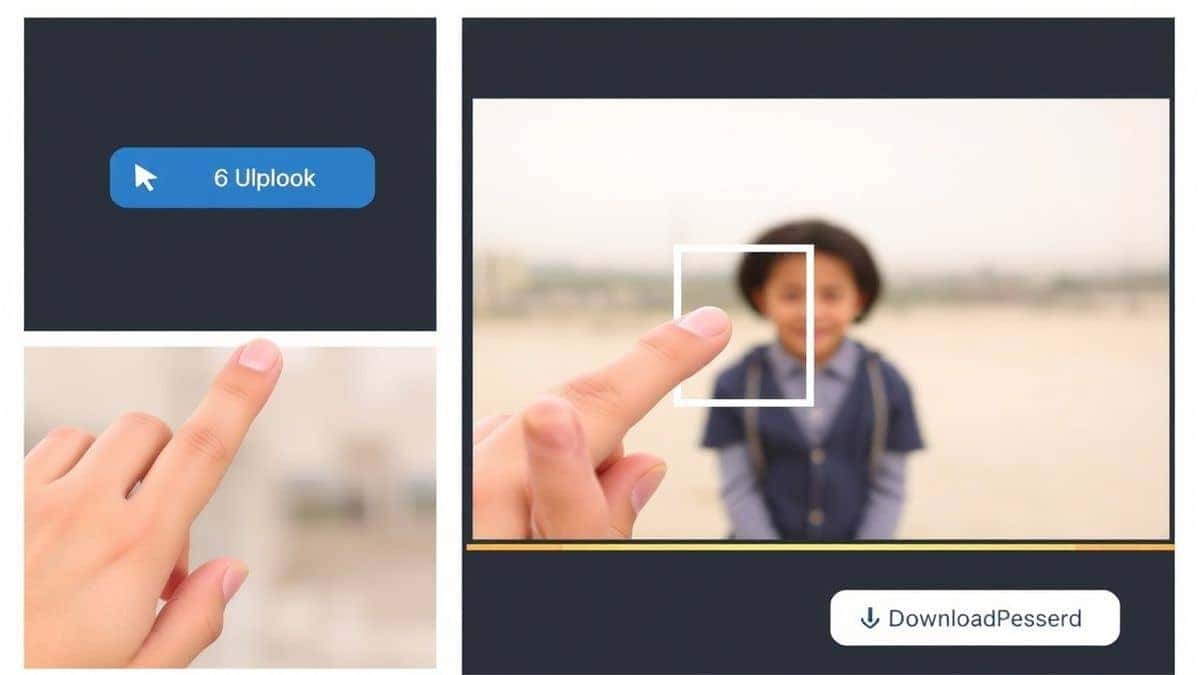
Click the upload button or simply drag and drop your video file from your folder into the browser window. I have uploaded files as large as 500MB without any issues, but a stable internet connection always helps.
Step 3: Adjust the Cropping Frame
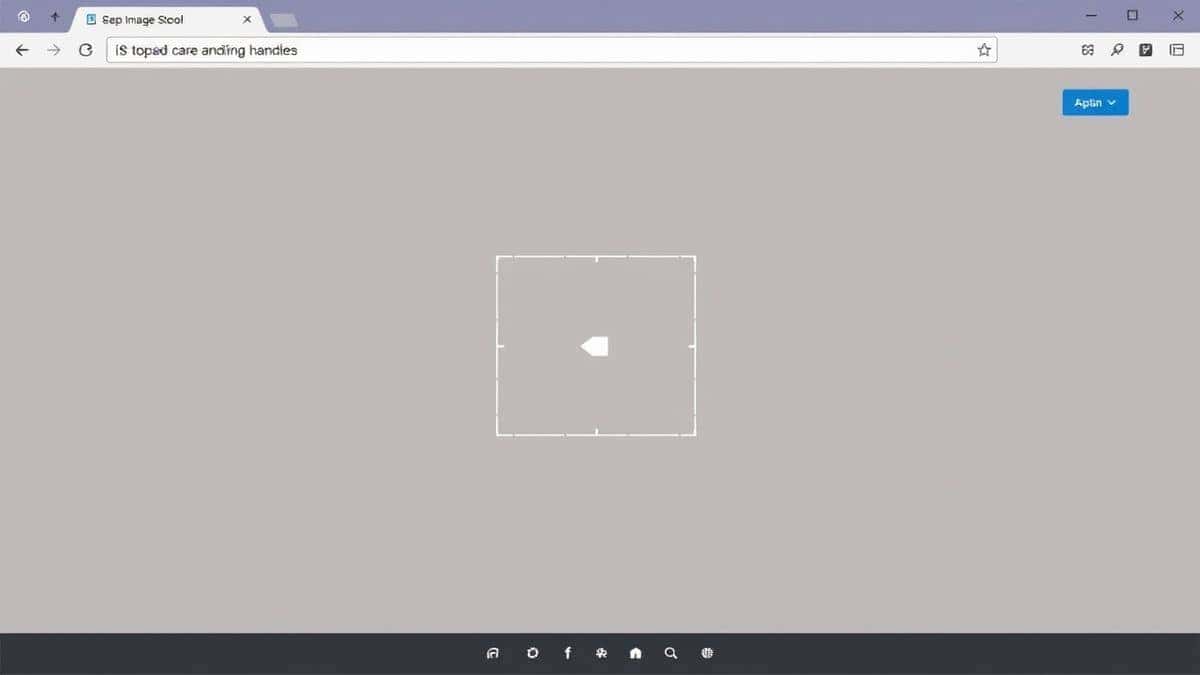
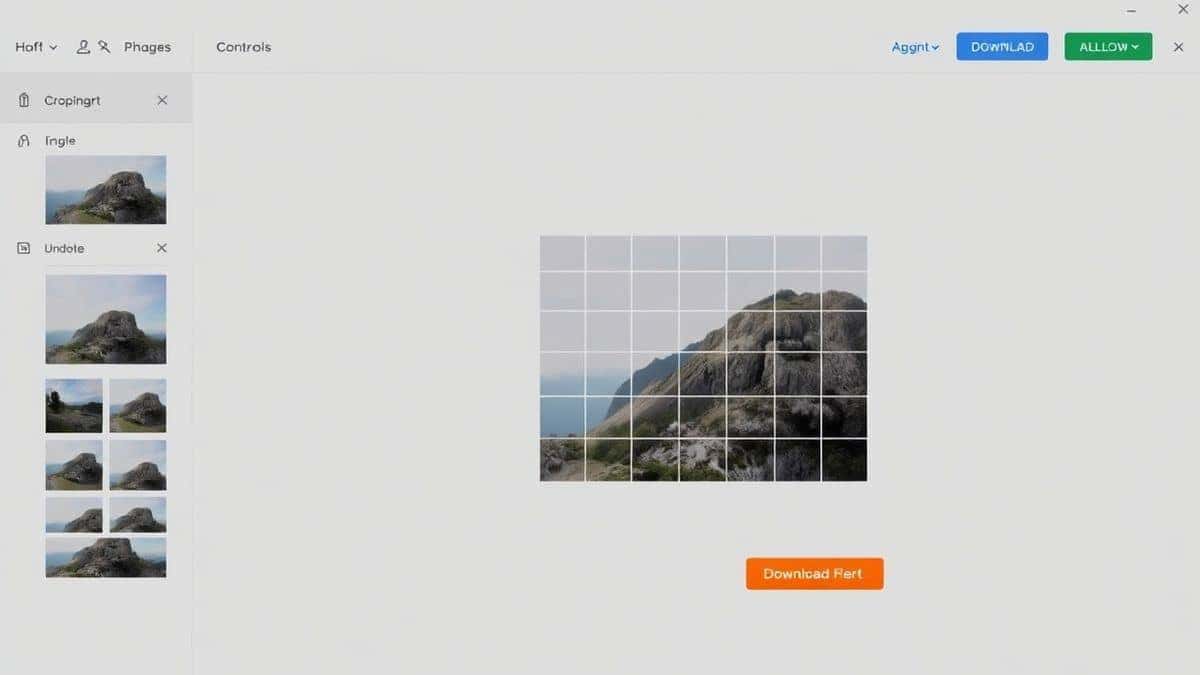
Once the video loads, you will see a movable and resizable grid over your video.
- Drag the corners to change the size of the frame.
- Click and drag inside the box to move the frame around and choose which part of the video is visible.
- You can usually select preset aspect ratios like 16:9 (widescreen), 1:1 (square), or 9:16 (vertical) if you need standard dimensions -3.
Step 4: Process the Video
Once you are happy with the new frame, look for the "Crop" or "Process" button and click it. The tool will work its magic. In my testing, this step is usually very fast, often taking less than a minute for a standard 1080p clip.
Step 5: Download Your Result
A download link will appear. Click it, and your newly cropped video will save to your computer. Open it up to check the results—you will see that the unwanted edges are gone and your subject is perfectly framed.
Pro Tips for Better Results
After editing hundreds of videos, I have picked up a few tricks that can make a big difference in the quality of your final product. Here are my top tips for when you trim video frame easily online:
- Export in the Right Format: Before you upload, think about where the video is going. Instagram Reels love vertical 9:16. YouTube prefers horizontal 16:9. Cropping to the correct format first saves you from having to re-edit later -1.
- Don't Over-Crop: Be careful not to crop too tightly around your subject. If you cut it too close, any small movement might make the subject exit the frame. Leave a little "breathing room" if you can.
- Check the Audio Sync: When you crop the visual frame, the audio track is never affected. This is a good thing! It means your sound effects and dialogue will stay perfectly synced with the visuals -1. You don't need to worry about re-syncing anything.
- Use a Wired Connection: For larger video files, a Wi-Fi drop can interrupt the upload. If you are working with a big file, a wired Ethernet connection makes the process much smoother.
Common Mistakes to Avoid (And How to Fix Them)
Even with a simple tool, things can go wrong. Here are the most common issues I have seen people run into when they try to trim video frame easily online:
- Mistake: Confusing Crop with Trim. As we discussed earlier, some users try to use a "video trimmer" (for length) to crop the frame. If you upload your video to a tool and it asks you to set start and end times, you are in the wrong place. Make sure you are on a dedicated cropper tool like the one we discussed -4.
- Mistake: Ignoring File Size Limits. While the Online Video Cropper is robust, some free online tools have strict limits. If your video is huge (over 1-2GB), you might need to split it first or ensure you have a very fast upload speed -5.
- Mistake: Using the Wrong Aspect Ratio. If your final video looks stretched or squished, you likely changed the canvas size without adjusting the crop box properly. Always maintain the aspect ratio lock if you want to avoid distortion.
- Mistake: Processing a Compressed File Twice. Every time you process and export a video, it can lose a tiny bit of quality (generation loss). Try to crop the original, high-quality file rather than cropping a video that has already been heavily compressed.
Comparison: Online Video Cropper vs. Other Methods
How does using a dedicated online tool stack up against the alternatives? Let's break it down based on my personal experience using all of them.
| Method | Pros | Cons | Best For |
|---|---|---|---|
| Online Video Cropper | Free, fast, no install, browser-based, works on any computer | Requires internet; large files take time to upload | Everyone, especially beginners and quick edits |
| Desktop Software (e.g., PowerDirector, iMovie) | Powerful features, no internet needed, handles huge files | Expensive, long install time, steep learning curve, heavy on PC resources -2-3 | Professionals or those making complex, long-form content |
| Command Line (FFmpeg) | Very precise, scriptable, lossless options available | Extremely technical; requires coding knowledge | Developers and technical users |
| Phone Gallery Apps | Pre-installed, convenient for quick shares | Limited control, often compresses quality, not precise -5 | Sending a quick clip via text message |
As you can see, for the specific task of cropping a frame quickly and without hassle, the online method wins every time.
Frequently Asked Questions
How to trim video frame easily online for free?
The best way is to use a dedicated web service like the Online Video Cropper from EditTools. Simply upload your file, drag the frame to your desired area, and download the new video. It requires no registration and is completely free.
Is it safe to upload my videos to an online tool?
Reputable tools like EditTools prioritize your privacy. They typically use secure connections (HTTPS) and automatically delete your files from their servers after processing. Always look for tools that mention they don't store your data permanently -6.
Can I do this without installing software?
Yes, 100%. That is the primary advantage of using an online tool. As long as you have a web browser (like Chrome, Safari, or Edge) and an internet connection, you can edit your video without installing any software -5-9.
What video formats are supported?
Most good online croppers support a wide range of formats. The Online Video Cropper supports MP4, MOV, AVI, and MKV, which covers the vast majority of videos shot on phones and cameras today -1.
Will cropping my video lower the quality?
If you use a smart tool, the quality loss should be minimal. The tool re-encodes the video based on your new frame. To keep it high, always start with the highest quality original video you have. The tool mentioned above is designed to keep the best quality possible during this process -6.
How is "cropping" different from "cutting"?
- Cropping (Trimming the Frame) changes the shape and visible area of the video. Think of it as a picture frame getting smaller.
- Cutting (Trimming the Timeline) changes the length and removes segments of time -4.
Can I change a horizontal video to vertical by cropping?
Yes! This is one of the most common uses for a video cropper. When you upload your horizontal video, you can adjust the crop box to a tall, vertical shape. This will zoom in on the center of your video to fill the vertical frame, making it perfect for platforms like TikTok and Instagram Reels -1-9.
Conclusion
You no longer need to be a video editing expert to fix the framing of your clips. Whether you are removing a distracting element, reformatting for social media, or just trying to focus on the main action, knowing how to trim video frame easily online is an essential skill in 2026.
The days of downloading heavy, expensive software for a simple edit are over. With free, accessible tools available right in your browser, anyone can produce professional-looking results in minutes.
For the best experience, I highly recommend trying the Online Video Cropper at EditTools. It is the tool I keep bookmarked for its speed, simplicity, and reliability. Next time you have a video that needs a quick frame adjustment, skip the complicated software and head straight to your browser.