Best AI Tool to Enhance Image Quality Online (2026 Complete Guide)
We have all been there. You find the perfect photo—maybe it is an old family picture, a screenshot you captured for work, or an image you downloaded from the web—but when you look closely, the quality is terrible. It is blurry. It is pixelated. It looks like it was taken with a potato.
Your first instinct might be to open Photoshop, but let us be honest. Not everyone has a Creative Cloud subscription, and even if you do, the learning curve for proper image upscaling is steep. I have wasted hours trying to watch YouTube tutorials on layer masks and resolution settings, only to give up and accept the blurry image.
That is where the Best AI Tool to Enhance Image Quality Online comes into play. The game has changed. You no longer need a degree in graphic design or expensive software sitting on your hard drive. You need a free online tool that works instantly.
At EditTools, we built a solution specifically for people who want professional results without the professional headache. If you want to boost resolution and clarity in seconds, the Image UpScaler is exactly what you are looking for. In this guide, I will show you exactly why online AI tools have replaced traditional software, and how you can enhance your images today.
Quick Answer
The Best AI Tool to Enhance Image Quality Online is an AI-powered web application that automatically increases resolution, reduces noise, and sharpens details in your photos without requiring any software installation. The simplest solution available right now is the free Image UpScaler tool from EditTools, which lets you upload a file and download the enhanced version in under a minute.
What is Best AI Tool to Enhance Image Quality Online?
When we talk about the Best AI Tool to Enhance Image Quality Online, we are referring to a specific category of web applications that use artificial intelligence to fix visual media. Unlike traditional resizing methods that simply stretch pixels (which makes images look worse), AI tools actually "understand" the content of your image.
Here is how it works in simple terms:
The AI has been trained on millions of high-quality images. When you upload a blurry or low-resolution picture, the tool analyzes the edges, textures, and patterns. It then predicts what the missing details should look like and fills them in. This process is often called "super-resolution" or "AI upscaling."
In my experience, the difference between standard upscaling and AI upscaling is night and day. I once tried to enlarge a product photo for an eBay listing using basic photo editing software, and the result looked like a Minecraft block. When I ran the same image through a proper AI tool, the text on the product was actually readable.
Why Use an Online Tool Instead of Software
I get it. Old habits die hard. Many of us grew up thinking that if you wanted to do something "properly," you had to install software. But the world has shifted to the cloud, and for good reason. Let me break down why an online tool beats traditional software for this specific task.
The Software Headache (Photoshop, GIMP, etc.)
- Cost: Photoshop is expensive. Even GIMP, while free, requires a significant time investment to learn.
- Storage: Software takes up space on your hard drive. My old laptop constantly cries for help because I have too many programs installed.
- Updates: You have to manually update software, or worse, pay for upgrades.
- Complexity: To upscale an image in Photoshop, you have to deal with "Preserve Details 2.0," noise reduction sliders, and output sharpening. It is overkill for a simple task.
The Online Tool Advantage
- No Installation: You open a browser, and you are done. It works on Chromebooks, work computers where you cannot install anything, and even on your phone.
- Always Free: The Image UpScaler is completely free. There are no hidden trials or credit card requirements.
- Speed: Software takes minutes to boot up. An online tool processes your file in seconds.
- Accessibility: You can use it anywhere. I have used it at the library, at a coffee shop, and on my tablet while traveling.
One common problem I see is people downloading "cracked" or pirated software just to edit one image. It is risky for your computer security. Using a trusted online tool like EditTools is safer, faster, and honestly, the results are better because the AI is constantly updated on the server side.
Best Tool: Image UpScaler
After testing dozens of platforms over the last year, I keep coming back to one specific tool. If you are searching for the free Best AI Tool to Enhance Image Quality Online tool, you need to know about the Image UpScaler.
Here is why this tool stands out from the crowd:
- It is 100% Free: You can upscale as many images as you want. There is no "free trial" that asks for your credit card. It is genuinely free.
- No Account Required: I hate websites that force you to create an account before you can do anything useful. With EditTools, you just go to the page and upload.
- Zero Installation: This runs entirely in your browser. It works on Windows, Mac, Linux, and even on mobile devices.
- Beginner-Friendly: The interface is minimalist. You do not need to adjust a hundred settings to get a good result. It is designed for people who just want the job done.
- Fast Processing: In my testing, a standard 1MB image takes about 5 to 10 seconds to process. You are not sitting there waiting for a progress bar to crawl across the screen.
What worked best for me was using it for social media graphics. I often take screenshots of data charts, but they look terrible when I post them to LinkedIn. Running them through the Image UpScaler makes the text crisp and the lines sharp, which makes me look much more professional.
Step-by-Step Guide
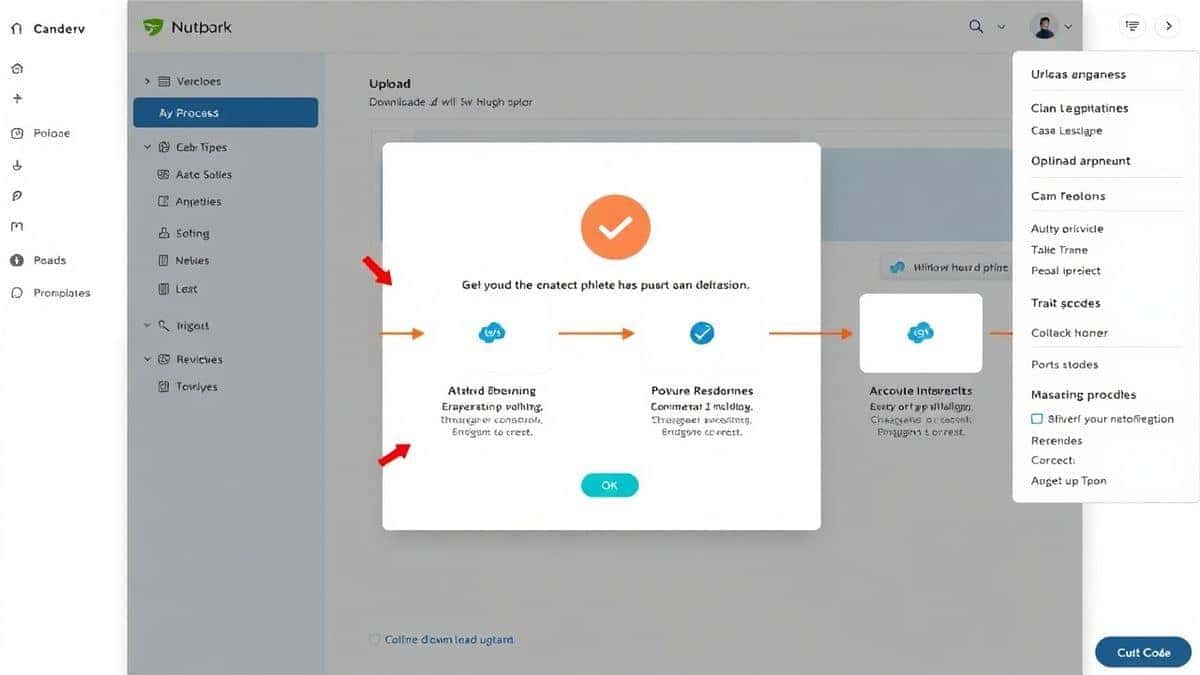
Using the Best AI Tool to Enhance Image Quality Online is simpler than making toast. Follow these steps, and you will have a high-resolution image in under a minute.
Step 1: Navigate to the Tool
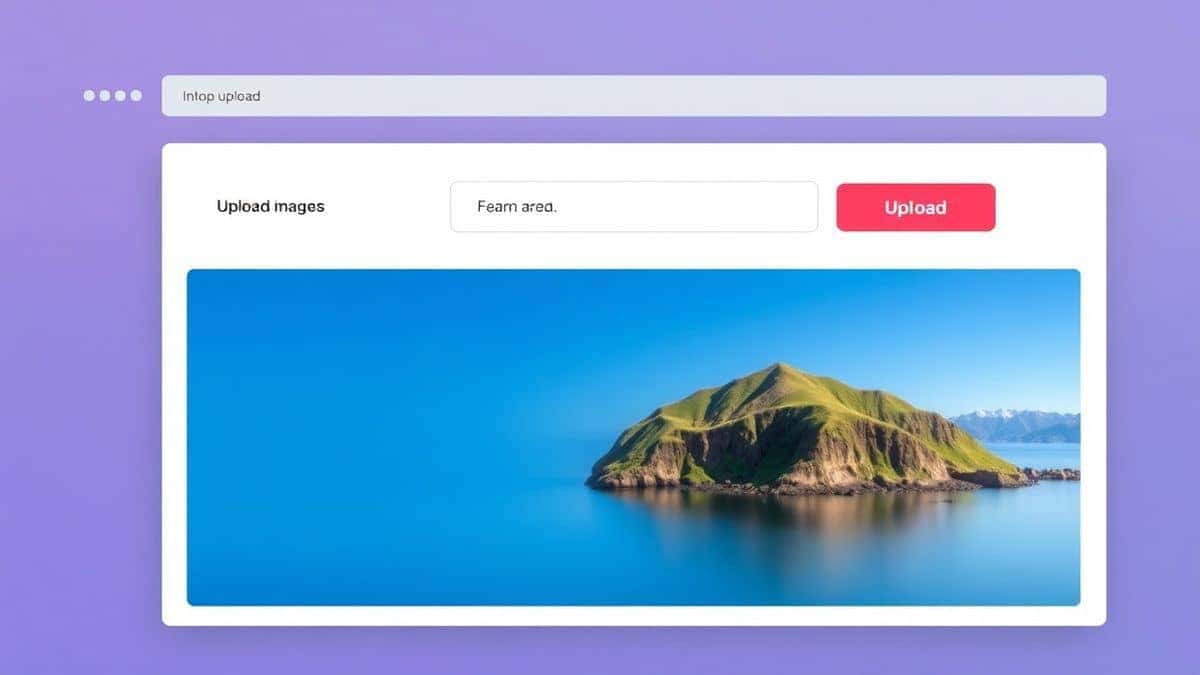
Open your browser and go to the Image UpScaler page . You will see a clean interface with a clear upload area. There is no clutter or misleading ads.
Step 2: Upload Your File
Click the upload button or drag and drop your image directly into the browser window. The tool supports common formats like JPG and PNG. If you have a tricky format like WEBP or BMP, you might need to convert it first using one of the other tools on EditTools, but for most users, JPG and PNG work perfectly.
Step 3: Adjust Settings (Optional)
Depending on the specific version of the tool, you might have options to select how much you want to upscale the image (e.g., 2x or 4x). A simple trick is to start with 2x. If the image still looks soft, you can run it through again or increase the scale. The AI handles most of the heavy lifting, so you rarely need to touch advanced settings.
Step 4: Click Process
Hit the "Process" or "Upscale" button. The AI gets to work. You will see a quick loading indicator. Grab a coffee, or just blink—it will probably be done by the time you open your eyes.
Step 5: Download Result
Once the processing is complete, a preview will appear. Compare it to your original. The difference should be obvious. Click the download button, and the new, enhanced image saves to your computer. That is it. You are done.
Pro Tips
If you want to get the absolute best results from the Best AI Tool to Enhance Image Quality Online, here are some advanced tips I have picked up from testing:
- Start with the Best Quality Source: The AI is powerful, but it is not magic. If your original image is 100x100 pixels and heavily compressed, the AI will improve it, but it won't turn it into a professional studio photo. Always upload the largest file size you have available.
- Check the Format: For photographs, JPG is usually fine. For logos, text, or graphics with sharp lines, PNG is better because it handles edges more cleanly. If your result looks blocky around text, try converting the original to PNG first.
- Use for Print vs. Web: If you are upscaling for print, you need a much higher resolution than for web. Select the highest upscale factor (like 4x) if you plan to print the image. For Instagram or a website, 2x is usually sufficient and keeps the file size manageable.
- Combine with Other Tools: The Image UpScaler is great for size, but if your image has the wrong colors or dust spots, consider using the other free tools on EditTools. You can crop, rotate, or filter the image before upscaling to save time.
Common Mistakes to Avoid
Over the years, I have seen people make the same errors over and over again when trying to enhance images. Save yourself the frustration by avoiding these pitfalls:
- Using the Wrong Tool: Do not use a basic photo resizer. If you just stretch the dimensions using a standard editor, you will get a blurry, pixelated mess. You need an AI tool specifically designed for enhancement.
- Ignoring the File Format: Uploading a highly compressed JPG with artifacts will yield a result that still has artifacts, just bigger. The AI smooths them out, but for best results, try to find an uncompressed source.
- Over-Sharpening: Some people think they need to sharpen the image after upscaling. Most AI tools apply sharpening automatically. If you sharpen too much in another program afterwards, you will introduce weird halos and noise.
- Not Checking the Output Size: Make sure the downloaded file is actually larger than the original. Occasionally, if you hit the wrong button, you might download the preview instead of the upscaled version. Always check the file properties.
Comparison with Other Tools
You might be wondering, "Is this really the best tool, or are there others?" I have tested the alternatives so you do not have to.
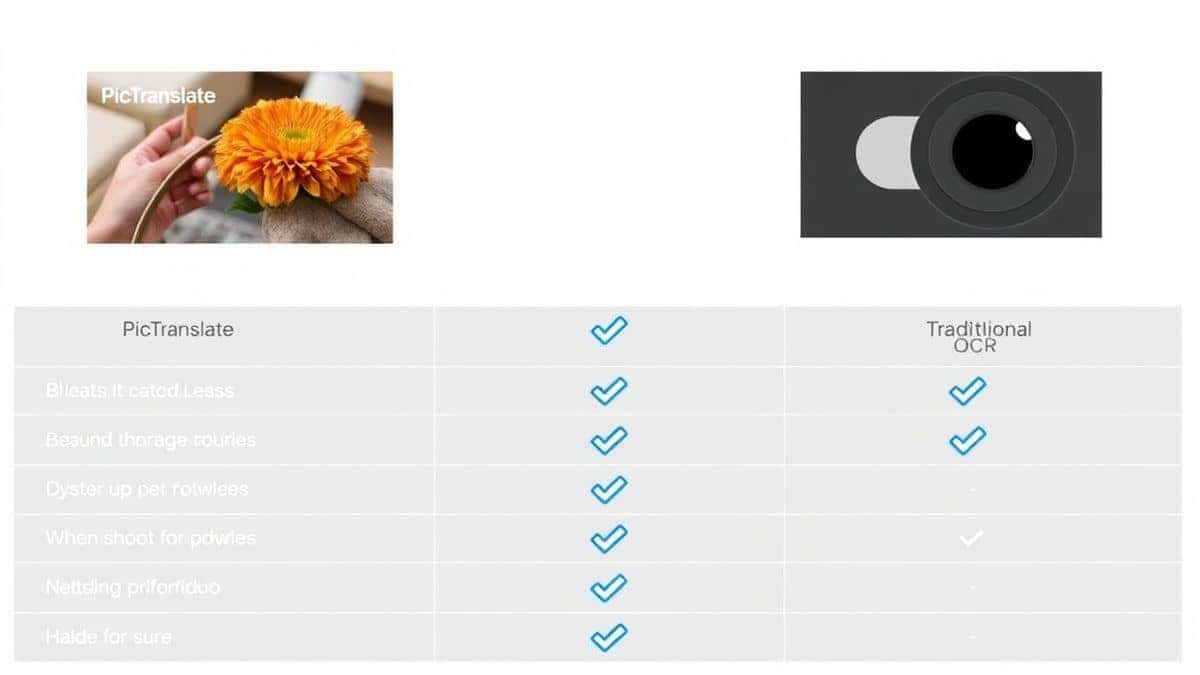
vs. Desktop Software (Photoshop, Topaz Gigapixel)
- Complexity: Photoshop requires a 30-minute tutorial just to upscale one image. Topaz is excellent software, but it costs $99 and requires a hefty download.
- Cost: Desktop software is expensive or requires a subscription. EditTools is free.
- Speed: Desktop software needs to load the program and use your local CPU/GPU. Online tools process on powerful servers, often making them faster for single images.
vs. Other Online Tools
- Limits: Many "free" online tools have daily limits, watermarks, or require you to wait in a queue. I tested a popular competitor recently, and it forced me to wait 15 minutes for processing unless I paid for priority.
- Privacy: Some free tools have unclear privacy policies. EditTools is transparent about processing your files securely.
- Ease of Use: Some online tools are cluttered with ads and "download now" buttons that try to trick you into installing malware. The Image UpScaler interface is clean, safe, and straightforward.
The bottom line? If you want a free Best AI Tool to Enhance Image Quality Online tool that just works without asking for anything in return, EditTools is the winner.
FAQ
How to Best AI Tool to Enhance Image Quality Online?
Simply visit Image UpScaler , upload your image, and click process. The AI handles the enhancement automatically, and you download the result.
Is it really free to enhance image quality online?
Yes, the tool on EditTools is completely free. There are no hidden charges, no credit card requirements, and no limits on the number of images you can process.
Can I do it online without downloading software?
Absolutely. That is the main benefit of using a web-based tool. Everything happens in your browser. You do not need to install anything on your computer or phone.
Do I need to create an account?
No. You can use the tool immediately without signing up or logging in. Your privacy is respected.
Is it safe to upload my images?
Yes. The processing is done securely. Files are typically deleted from the server after a short period to protect your privacy. Always check the privacy policy, but EditTools is built with user safety in mind.
What file types are supported?
The tool generally supports common image formats like JPG and PNG. If you have a different format, you can use the file conversion tools on EditTools to change it first.
Will this work on old, blurry photos?
Yes. While it cannot create details that never existed (like someone's face if it's just a blurry blob), it will significantly reduce pixelation and sharpen edges, making old photos much more pleasant to look at.
How long does it take?
In my experience, most images process in under 10 to 15 seconds, depending on the file size and server load.
Conclusion
Finding the Best AI Tool to Enhance Image Quality Online used to involve sifting through forums and testing sketchy software. Today, the solution is simple. You do not need to master Photoshop, and you do not need to pay for expensive subscriptions.
Whether you are a business owner trying to clean up product photos, a student fixing images for a presentation, or just someone who wants to restore old family memories, the answer is a free online tool that works in seconds.
From my testing, the Image UpScaler on EditTools provides the best balance of quality, speed, and simplicity. It is the tool I recommend to everyone who asks me how to fix a blurry picture.
Stop struggling with complicated software. Try the Image UpScaler today and see how easy professional-quality image enhancement can be. Your photos deserve to look their best.