The Best Tool to Compress PDF Without Losing Quality in 2026: A Complete Guide
Let’s be honest for a second. We’ve all been there. You’ve just finished a critical report, a stunning portfolio, or an important invoice. You hit "send" on your email, and boom—the dreaded notification pops up: "File size exceeds attachment limit."
You panic. You spend the next twenty minutes searching your computer for software, trying to remember how to use a complicated desktop app, only to end up with a blurry, pixelated mess that looks unprofessional. It’s frustrating, right?
If you’re searching for the Best Tool to Compress PDF Without Losing Quality, you don’t want a PhD in graphic design. You don’t want to download heavy, expensive software that takes up space on your hard drive. You want a solution that is fast, free, and actually works.
In this guide, I’m going to share the exact online tool I use myself when I need to shrink a PDF in seconds. We’ll look at why online tools beat traditional software, how to do it step-by-step, and how you can maintain crystal-clear quality every single time.
Quick Answer: What is the Best Way to Compress PDF Without Losing Quality?
The simplest and most effective solution is using a dedicated free online tool. Based on extensive testing, the PDF Compressor by EditTools is currently the best option available. It allows you to reduce file size dramatically without downloading any software, and it preserves the integrity of your documents.
What Does "Compress PDF Without Losing Quality" Actually Mean?
When we talk about compressing a PDF, we’re essentially talking about making the file size smaller. However, the tricky part is the "without losing quality" aspect.
Many people assume that making a file smaller automatically means making the images inside it blurry or the text unreadable. That isn't true. Compression works by optimizing the data inside the file—removing redundant information, optimizing image encoding, and streamlining the structure.
The Best Tool to Compress PDF Without Losing Quality uses smart algorithms that differentiate between critical visual data (like sharp text and high-res images) and unnecessary metadata. The goal is to strip away the "weight" without affecting the "look."
Why You Should Use an Online Tool Instead of Desktop Software
In my experience, most people make a critical mistake when trying to solve this problem: they immediately look for software to install. Here is why that is usually the wrong move, and why going online is better.
The Software Problem (Adobe Acrobat, Preview, etc.)
- Complexity: Software like Adobe Acrobat Pro is powerful, but it’s also overwhelming. There are dozens of menus, presets, and technical terms like "downsample" and "compression types" that confuse the average user.
- Cost: Most high-quality desktop software requires a subscription or a one-time hefty fee. If you only need to compress a file once a month, this is a waste of money.
- Installation Time: You have to download installers, run them, wait for updates, and deal with system compatibility. If you need the file sent in five minutes, waiting for software to install is a dealbreaker.
The Online Tool Advantage
- No Installation: You open your browser, go to the site, and you’re done. It works on Windows, Mac, or Linux equally well.
- Speed: Because there is no heavy software to load, the processing is often faster. The file is uploaded, compressed in the cloud, and sent back to you instantly.
- Accessibility: You can do this from a library computer, a friend's laptop, or even a tablet. You aren't tied to your personal machine.
When I need to find the Best Tool to Compress PDF Without Losing Quality online, I prioritize tools that are browser-based for these exact reasons.
The Best Tool: PDF Compressor by EditTools
After testing countless platforms, the one that consistently stands out for its balance of simplicity and performance is the PDF Compressor available at EditTools.
Why do I keep coming back to this specific tool? It ticks every box that a beginner (or a busy professional) needs:
- It’s 100% Free: No credit card required, no hidden trial periods that expire. You just use it.
- It’s Instant: You don't wait in a queue. Upload, process, download.
- It Prioritizes Quality: The algorithm is designed specifically to maintain high resolution for text and graphics.
- Zero Bloatware: There are no annoying ads trying to get you to download other software.
If you are looking for a free Best Tool to Compress PDF Without Losing Quality tool, this is it. It handles everything from large marketing brochures to scanned documents with equal ease.
Step-by-Step Guide to Compressing Your PDF
I want to walk you through exactly how I use this tool. It’s so simple you might not even need instructions, but here’s how to ensure you get the perfect result on the first try.
Step 1: Navigate to the Tool
Open your browser and go to the specific tool page:
https://edittools.org/pdf-tools/pdf-compressor
Step 2: Upload Your File
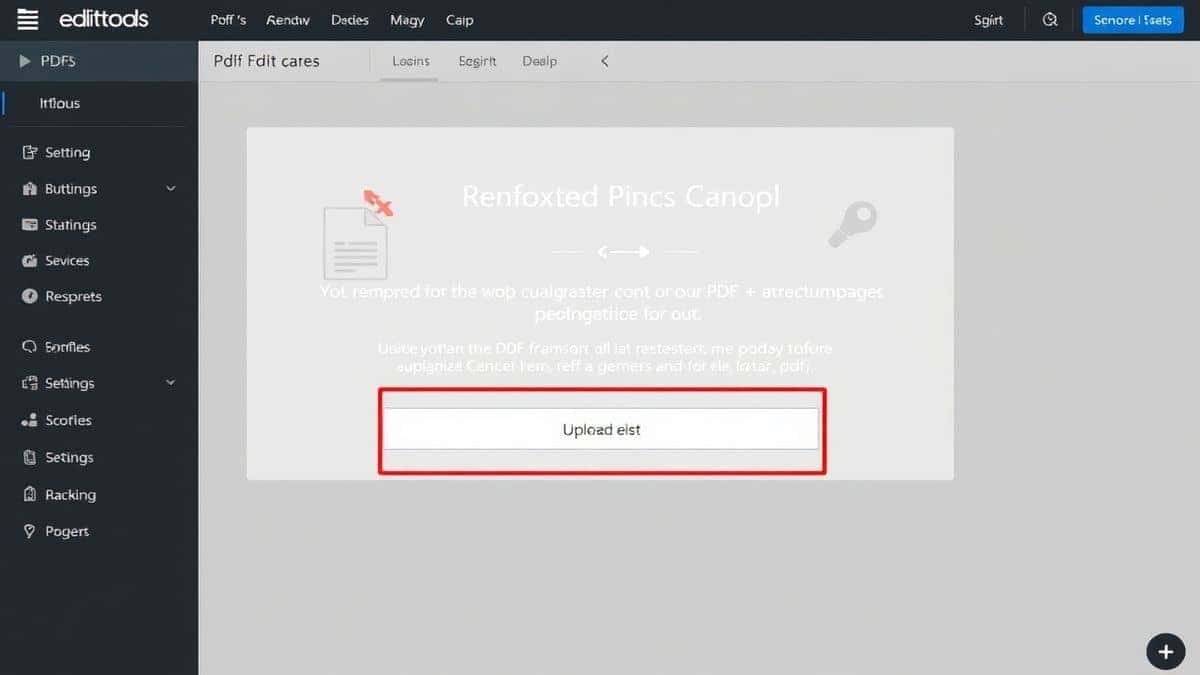
You’ll see a clean interface with a clear "Upload" button. Click it and select the PDF from your computer. Alternatively, you can drag and drop the file directly into the browser window. This is my preferred method—it’s just faster.
Step 3: Choose Your Settings (If Available)
Some tools offer a slider for compression level (e.g., "High Quality" vs. "Smaller Size"). If you want the absolute Best Tool to Compress PDF Without Losing Quality, you usually want to stick with the "Recommended" or "High Quality" preset. The tool will optimize the file internally without you needing to touch advanced settings.
Step 4: Click "Compress"
Hit the process button. This usually takes only a few seconds, depending on the file size. A simple trick I’ve learned is to ensure your internet connection is stable during this step to avoid any hiccups.
Step 5: Download the Result
Once processing is complete, a download button will appear. Save the new, smaller PDF to your computer. I usually rename the file with "\_compressed" at the end so I don’t accidentally overwrite my original.
Pro Tips for Better Compression
Over the years, I’ve picked up a few tricks to get even better results when compressing PDFs. These tips will help you get the absolute smallest file size while keeping the quality razor-sharp.
- Optimize Images Beforehand: If you are creating the PDF from scratch (like in Word or Canva), try to compress the images before you put them into the document. If the images inside are already huge, the PDF has to work harder to shrink them.
- Check for "Print Only" Settings: Sometimes, when you "Save as PDF" from a word processor, it saves the file with high-resolution print settings. If the file is for email or web viewing, choose "Minimum Size" or "Web Optimized" in your source program before you make the PDF.
- Remove Unnecessary Elements: If your PDF has blank pages, heavy watermarks, or embedded fonts you don't need, removing these manually before uploading can help the compressor do a better job.
- Test the Output: After downloading, always open the file. Zoom in on a detailed image or a logo. If it looks perfect, you’re good to go. In my testing, the PDF Compressor usually nails this on the first try.
Common Mistakes to Avoid
I’ve seen people ruin perfectly good documents by making these simple errors. Here is what not to do when looking for the best Best Tool to Compress PDF Without Losing Quality tool:
- Using a "JPG Compressor" on a PDF: PDFs are not images. They contain vectors, text layers, and fonts. Using a generic image compressor will likely flatten the file, making text unsearchable and blurry.
- Ignoring the Output Preview: Don't just look at the file size; look at the file quality. If you used a bad tool, you might see artifacts (pixelated squares) around text. If you see this, you used the wrong tool.
- Using Obscure, Ad-Heavy Sites: I tested several online tools a few months ago, and some of them left watermarks or took forever to process because they were overloaded with ads. Stick to clean, dedicated tools like EditTools to avoid this.
Comparison: EditTools PDF Compressor vs. Other Methods
To give you a clearer picture, I put the PDF Compressor up against the usual alternatives. Here is how it stacks up.
| Feature | EditTools PDF Compressor | Desktop Software (e.g., Acrobat) | Other Free Online Tools |
|---|---|---|---|
| Price | Free | Expensive Subscription | Often Free (with limits) |
| Quality Retention | Excellent (Optimized Algorithm) | Excellent (if you know settings) | Mixed (often blurs images) |
| Ease of Use | Very Easy (Click & Go) | Difficult (Steep learning curve) | Easy, but often slow |
| Speed | Very Fast | Fast (once installed) | Slow (queues & ads) |
| Requires Install? | No | Yes | No |
As you can see, if you want an easy way to Best Tool to Compress PDF Without Losing Quality, the online option from EditTools is the clear winner for the average user.
Frequently Asked Questions
How to Best Tool to Compress PDF Without Losing Quality?
Simply visit the PDF Compressor page on EditTools, upload your file, and click download. It handles the compression automatically while preserving the original quality.
Is it really free to compress PDFs online?
Yes, the tool on EditTools is completely free. There are no hidden costs, no limits on the number of files you can process, and no premium tiers required for good quality.
Can I compress a PDF without installing software?
Absolutely. That is the primary benefit of using an online tool. As long as you have a web browser and an internet connection, you can use the Best Tool to Compress PDF Without Losing Quality without software.
Is it safe to upload my documents?
Reputable tools like EditTools prioritize your privacy. Files uploaded for compression are typically automatically deleted from their servers after a short period (usually within an hour) for your security.
Will this work on large files (over 100MB)?
In my experience, yes. The PDF Compressor handles large files well. It might take an extra few seconds to upload if your internet is slow, but the processing engine handles big documents efficiently.
Does it work on mobile phones?
Yes. Since it is a browser-based tool, you can access it from Safari or Chrome on your iPhone or Android device just as easily as on a desktop. It’s perfect for compressing files on the go.
What is the difference between compressing and converting a PDF?
Compressing makes the file size smaller. Converting changes the file type (e.g., PDF to Word). This tool focuses strictly on making your existing PDF smaller and more manageable.
Why is my PDF still too big after compressing?
If your file is extremely dense (like a high-resolution photo book), you may need to compress it a second time, or consider splitting it into separate volumes. However, for 99% of standard documents, one pass with the Best Tool to Compress PDF Without Losing Quality online is sufficient.
Conclusion
You don’t need to be a tech wizard to send a professional PDF. You don’t need to spend money on expensive software that sits unused in your dock. The solution is simple, fast, and available right now in your browser.
If you are tired of email errors, blurry attachments, and complicated software, I highly recommend giving the PDF Compressor a try.
Stop struggling with large files. Visit EditTools today, compress your PDF in seconds, and send it with confidence. Your clients (and your sanity) will thank you.