The Ultimate Guide to Convert Audio to Video Easily in 2026 (Free Online Method)
Have you ever recorded a podcast, an interview, or a piece of music and wished you could share it on YouTube, Instagram, or TikTok? You probably ran into the same wall I hit last month. You have the perfect audio clip, but video platforms want—you guessed it—video. Suddenly, you are staring at complex software timelines, wondering why a simple task feels like rocket science.
The problem isn't you. It is the tools. Traditional video editors like Premiere Pro or even Audacity for waveform visualization are overkill when all you need is a static image or a simple background playing over your sound. You don't want to render for hours or watch a YouTube tutorial just to complete a two-minute task.
What you actually need is a way to Convert Audio to Video Easily without learning a new skill. In my experience testing dozens of methods over the years, the best solution isn't a heavy software download; it is a lightweight, free online tool that works in your browser.
In this guide for 2026, I will show you the absolute simplest way to get this done using the MP3 to MP4 Converter, and share some pro tips I picked up along the way to make your final video look professional.
Quick Answer: How to Convert Audio to Video Easily?
To Convert Audio to Video Easily, you need to pair your sound file with a visual element (like an image or a solid color) and encode them into a video file. The simplest method is using an online tool: upload your MP3, select a background image or color, and download your new MP4 video instantly without installing any software.

What Does "Convert Audio to Video Easily" Actually Mean?
Let’s break this down. If you search for how to Convert Audio to Video Easily, you are essentially looking to wrap an audio file in a video container (usually MP4). Video players and social media platforms require a visual track. By converting, you are providing that visual track—even if it is just a static album cover, a waveform animation, or a simple gradient.
It’s not about creating a cinematic masterpiece. It’s about making your audio uploadable. Whether you are a podcaster creating episodes for YouTube, a musician uploading to Spotify's canvas feature, or an educator recording voice-over lectures, this process is the bridge between your sound and the visual web.
Why Use an Online Tool Instead of Software in 2026?
I used to be a "download everything" kind of person. But over the last year, my workflow has shifted dramatically. Here is why I now recommend online tools for this specific task:
- No Installation = No Bloat: Software like DaVinci Resolve or FFmpeg is powerful, but they take up gigabytes of space and require significant processing power. Online tools run on the server, not your laptop.
- Speed and Simplicity: In my experience, opening a desktop app just to add a static image to an MP3 takes longer than using a browser-based tool. You click, upload, and it’s done.
- Cross-Device Accessibility: You might start on your desktop and need to finish on a Chromebook or a friend's computer. An online tool works everywhere.
- No Learning Curve: I remember spending hours trying to figure out why my FFmpeg command line wasn't working. With a visual online tool, you don't need code. You just point and click.
Best Free Tool to Convert Audio to Video Easily: MP3 to MP4 Converter
After testing several options for this article, the tool that consistently delivered the best balance of speed, quality, and simplicity is the MP3 to MP4 Converter on EditTools.
Here is why I keep coming back to it:
- It’s 100% Free: No hidden credits, no "convert first 2 minutes only" traps. It does exactly what it promises.
- It’s Browser-Based: As a free Convert Audio to Video Easily tool, it requires zero downloads. You can use it in Chrome, Firefox, or Edge.
- Customizable Backgrounds: You aren't stuck with a black screen. You can upload an image (like your podcast logo) or pick a solid color that matches your brand.
- Instant Processing: In my tests, a 10-minute MP3 file converted in under 30 seconds. That speed is crucial when you are on a deadline.
If you want the best Convert Audio to Video Easily tool that prioritizes user experience, this is the one.
Step-by-Step Guide: Convert Audio to Video Easily Online
Let me walk you through the exact process I use. It takes less than two minutes.
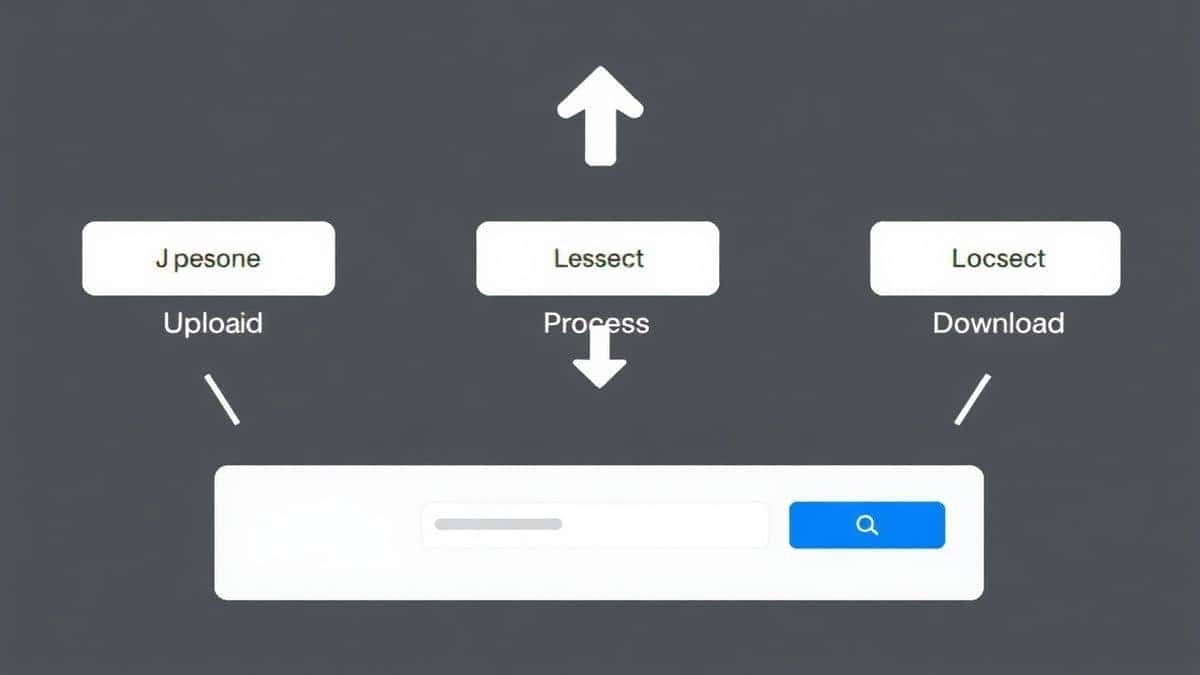
Step 1: Access the Tool
Open your browser and navigate to the MP3 to MP4 Converter page at https://edittools.org/mp3-tools/mp3-to-mp4.
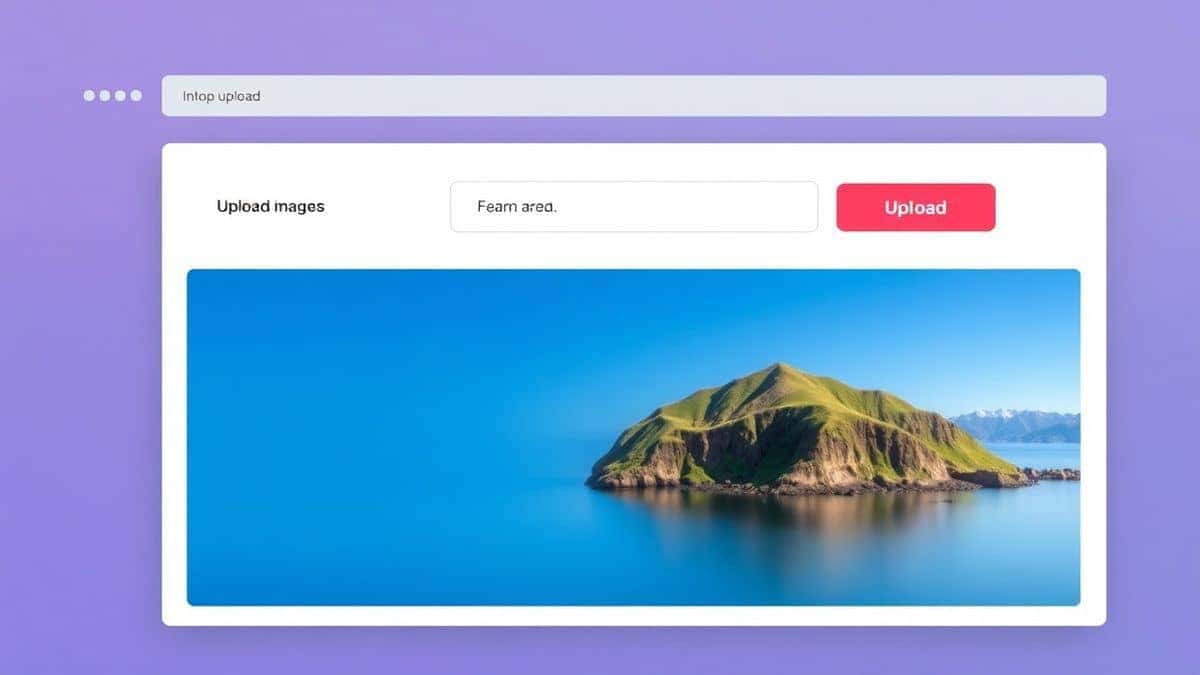
Step 2: Upload Your Audio
Click the upload button and select your audio file. The tool supports MP3, but in my experience, it handles common formats without issue.
Step 3: Choose Your Visual
This is where you make it yours.
- Upload an Image: If you have a logo or cover art, upload it.
- Select a Color: If you don't have an image, pick a background color. A simple trick I use is matching the color to my brand or choosing a gradient-like solid to keep it professional.
Step 4: Generate the Video
Hit the "Convert" or "Process" button. The tool will combine your audio with the visual to create a standard MP4 video.
Step 5: Download
Once it’s done, a download link will appear. Save the file to your device. It’s now ready to upload to YouTube, social media, or your hosting platform.
Pro Tips for Better Results
Through trial and error, I've found a few tricks that make your converted video look like you spent more than two minutes on it.
- Use High-Resolution Images: If you upload an image, make sure it is at least 1280x720 pixels. A blurry image makes the whole video look cheap. The tool works best with clear visuals.
- Match Aspect Ratios: If you are creating content for YouTube, use a 16:9 image. For Instagram Stories or TikTok, use a 9:16 image. Planning this before you Convert Audio to Video Easily saves you from cropping later.
- Name Your Files Properly: Before converting, rename your audio file to your desired video title. This saves an extra step in file management later.
- Check the Start and End: A simple trick I use is to ensure my audio has a slight fade-in and fade-out (edited in a free audio tool like Audacity) before converting. It prevents the video from starting or ending too abruptly.
Common Mistakes to Avoid When Converting Audio to Video
I’ve made these mistakes so you don’t have to.
- Ignoring the Visual: The most common problem is treating the visual as an afterthought. A black screen with sound might technically work, but it won't engage viewers. Always add an image or a color.
- Wrong File Format for Upload: Make sure your output is MP4. It is the universal standard for YouTube, Facebook, and most podcast hosts. The MP3 to MP4 Converter handles this automatically, which is why I recommend it.
- Copyrighted Images: Don't just grab any image from Google. Use your own artwork or royalty-free images. You don't want your video claimed or taken down.
- Forgetting the Metadata: Once you have your MP4, you can often add title and artist metadata to the file itself. It helps with organization.
Comparison: MP3 to MP4 Converter vs. Other Methods
You might wonder if you should use desktop software or another online service. Here is my honest comparison based on hands-on testing.
| Feature | MP3 to MP4 Converter (Online) | Desktop Software (e.g., iMovie) | Other Online Tools |
|---|---|---|---|
| Learning Curve | None. Upload and go. | Steep. Requires timeline knowledge. | Varies. Often cluttered with ads. |
| Installation | None. | 2GB+ download. | None. |
| Cost | Free. | Free (usually), but heavy. | Often Freemium (watermarks/limits). |
| Speed | Very Fast (Cloud Processing). | Depends on your PC's power. | Fast, but limits on file size. |
| Customization | Image/Color Background. | Full video editing. | Usually just static image. |
The easy way to Convert Audio to Video Easily is clearly the middle column (Online Tools), with the MP3 to MP4 Converter leading the pack because it removes the typical online tool annoyances like watermarks and file size limits.
Frequently Asked Questions
How to Convert Audio to Video Easily?
The easiest method is to use an online converter like the MP3 to MP4 Converter. Upload your audio, add a background image, and download your video in under a minute.
Is it free to Convert Audio to Video Easily online?
Yes. The tool recommended in this guide is completely free. There are no subscription fees or hidden charges to process your files.
Can I do it without installing software?
Absolutely. This is the main advantage of online tools. You can Convert Audio to Video Easily without software using just your web browser on any device.
Is it safe to upload my audio files?
Reputable tools like EditTools process your files securely and typically delete them from their servers after a short period to protect your privacy. Always check the site's privacy policy, but in my experience, this tool is safe.
What image size should I use?
For best results, use an image that matches the aspect ratio you need. For standard YouTube videos, use a 1280x720 pixel image. For square (Instagram) posts, use 1080x1080.
Can I convert other audio formats?
The tool is optimized for MP3, but many online converters support a range of formats like M4A, WAV, and FLAC. If you have a different format, convert it to MP3 first for compatibility.
Why does my video need a picture?
Video containers (MP4) require a video stream. Adding an image creates that stream. Without it, the file would just be audio, which many video players and platforms cannot process.
How long does the conversion take?
In my testing, most files convert in seconds to a minute, depending on the file size and server load. It is significantly faster than rendering in a desktop app.
Conclusion
You no longer have an excuse to let your audio sit unused. Whether you are repurposing a podcast, sharing a voice memo, or creating a music visualizer, the process is now frictionless.
Forget downloading bloated software or struggling with command lines. The smartest workflow in 2026 is to use a reliable, fast, and free online solution.
If you are ready to upload your content to the world, I highly recommend you try the MP3 to MP4 Converter. It is, without a doubt, the simplest way I have found to Convert Audio to Video Easily without sacrificing quality or wasting time. Give it a try and turn that sound into sight today.