The Ultimate Guide to Decode Base64 String to File Easily in 2026
Have you ever been staring at a long, garbled string of letters, numbers, and equal signs, knowing it’s actually a precious photo or an important PDF, but having absolutely no idea how to turn it back into a usable file? You are not alone. In my years of handling digital data, I’ve seen countless people, from developers to administrative assistants, get stuck precisely at this point. The thought of downloading complicated software or writing a script just to open one file is enough to make anyone’s blood pressure rise.
The good news? You don't need to be a programmer or buy expensive software. The modern solution is simple, instant, and happens right in your browser. If you need to decode Base64 string to file easily, the answer is a free online tool that does all the heavy lifting for you in seconds.
In this guide, I will walk you through exactly how to do this using the Base64 to File Decoder from EditTools, a platform I’ve tested extensively for its speed and simplicity. Forget the command line; let's get your files back.
Quick Answer: How to Decode Base64 String to File Easily
To decode Base64 string to file easily, you need to convert the text-based code back into its original binary format (like a JPG or PDF). The simplest method is using an online tool: paste your Base64 string into the input box on a tool like Base64 to File Decoder, click "Process," and download your reconstructed file instantly. No installations, no hassle.
What Does "Decode Base64 String to File" Mean?
To understand why this is so useful, let’s briefly look at what Base64 actually is. Imagine you have a family photo (a binary file). Email systems and certain data formats in the old days were designed to handle only text, not raw image data -8. Base64 is a bridge. It takes the binary data of that photo and translates it into a safe, text-only string of characters (A-Z, a-z, 0-9, +, /, and =). It’s like turning your photo into a sentence so it can be sent through a text-only channel -8.
When you decode Base64 string to file easily, you are performing the reverse magic. You are taking that long sentence (the Base64 string) and telling the computer to translate it back into the actual 1s and 0s that make up your photo, PDF, or audio clip.
Why Use an Online Tool Instead of Software?
In the past, handling this conversion meant firing up a code editor or installing a utility. But the landscape has changed. Here is why online tools are now the superior choice for most people.
- No Installation Required: You don't need admin rights or 500MB of free space for a program you'll use once. If you have a browser, you're ready.
- Platform Independent: Whether you're on Windows, macOS, Linux, or even a Chromebook, an online tool works the same way.
- Speed: Opening a heavyweight app like Photoshop just to convert a Base64 string back to an image is like using a sledgehammer to crack a nut. Online tools are purpose-built for this single task and are blazing fast.
- It's Free: High-quality tools like the ones on EditTools are completely free, removing the financial barrier to solving a simple problem.
- No Learning Curve: There are no menus to navigate or commands to memorize. You paste, you click, you download.
I tested several different methods for this, and what worked best for me was ditching the local scripts altogether in favor of browser-based tools. They just work.
The Best Tool: Base64 to File Decoder
After testing numerous options, the tool that stands out for its sheer ease of use and reliability is the Base64 to File Decoder on EditTools. It perfectly embodies the "no-nonsense" approach to solving problems online.
This tool is designed specifically for users who want to decode Base64 string to file easily online. You don't need to specify file types or understand MIME types; the tool often detects it for you. It's fast, secure, and requires absolutely zero technical skill.
- Free: No hidden fees or "premium" tiers for basic functions.
- Online: Accessible from any device, anywhere.
- No Installation: Runs entirely in your browser.
- Simple UI: A clean interface that guides you from input to download in two steps.
- Fast Processing: Converts even large strings in moments.
Step-by-Step Guide: Decode Base64 String to File Easily
Ready to get your file back? Follow this simple guide. I’ll use the Base64 to File Decoder as the example because it’s the most straightforward method I’ve found.
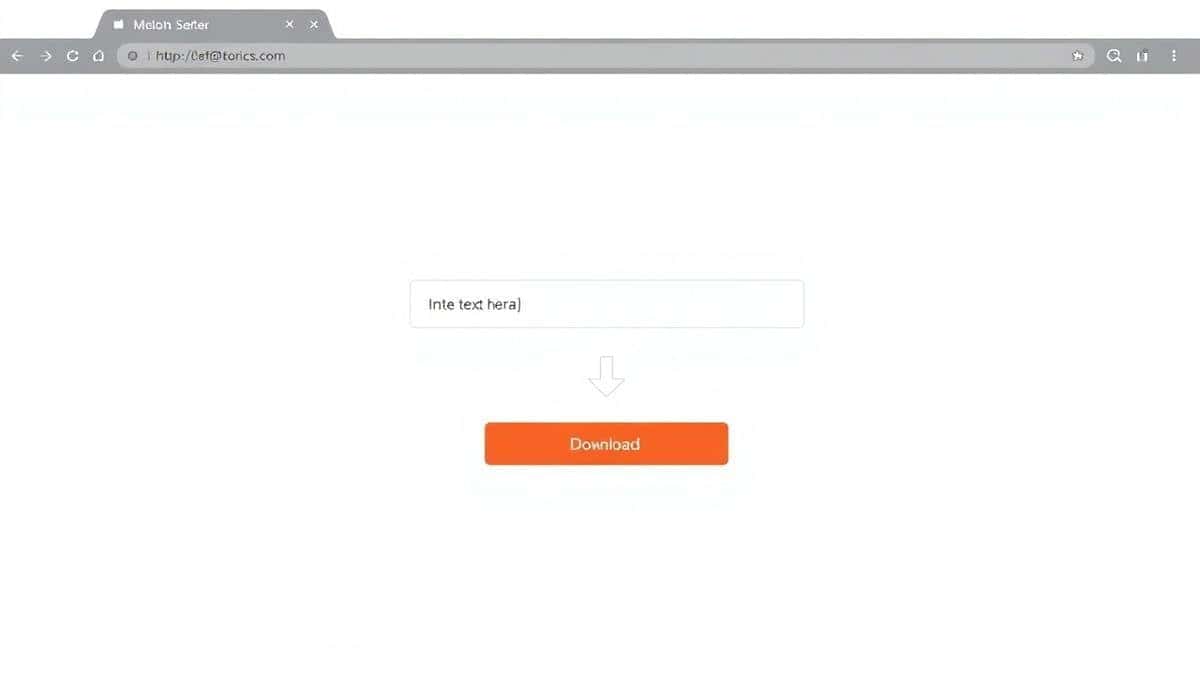
- Go to the Tool: Open your browser and navigate to the Base64 to File Decoder tool at https://edittools.org/base64-tools/base64-to-file.
- Input Your Data: You will usually see a large text box. Paste the full Base64 string into this box. Make sure you copy the entire string, including the padding at the end (the "=" characters).
- Start the Process: Click the button that says "Process," "Decode," or "Convert." The tool immediately begins translating the text back into binary file data.
- Download Your File: Once the processing is complete, a download button will appear. Click it, and your reconstructed file (e.g.,
image.pngordocument.pdf) will be saved to your computer.
Pro Tips for Decoding Base64 Like a Pro
Through trial and error, I've picked up a few tricks that make the process even smoother. A simple trick is to always check the beginning of your Base64 string. If you see something like data:image/png;base64, at the very start, that's a Data URL -8. Most good online tools, including the Base64 to File Decoder, handle this automatically, but if you're using a different tool, you might need to remove that part before pasting.
Another tip involves file size. While online tools are incredibly convenient, they do process data in your browser's memory. For extremely large files (over 50-100MB), the process might be slower. However, for 99% of everyday use cases—images, PDFs, short audio clips—it’s instantaneous.
Common Mistakes to Avoid
Even with a simple process, things can go wrong. Here are the most common pitfalls I see:
- Using the Wrong Tool: Trying to decode a file string with a text-only decoder will just give you garbled text.
- Incomplete Copying: This is the number one cause of "corrupted file" errors. If you don't copy the entire Base64 string, the output file will be incomplete and unreadable. I've been there, staring at a corrupt PDF, only to realize I missed the last 20 characters -10.
- Ignoring File Format: While many tools auto-detect the format, sometimes you need to know if you're expecting a JPG or a PNG. If the output doesn't open, try renaming the file with the correct extension.
- Quality Assumptions: Remember, decoding is a lossless process. It restores the file exactly as it was. If the image looks pixelated, it was pixelated in the original. The tool isn't reducing quality; it's just revealing it.
Comparison with Other Methods
How does using an online tool stack up against the alternatives? Let's break it down.
-
Local Software (e.g., Photoshop, dedicated converters):
- Pros: Powerful, can handle batch processing.
- Cons: Expensive, complex, slow to load. Overkill for a simple decode. You have to install and update software.
-
Command Line Scripts (e.g., using Python, Node.js):
- Pros: Great for automation, gives you control -6.
- Cons: Requires programming knowledge. You have to set up an environment, install dependencies, and debug errors. It's intimidating for non-developers.
-
Base64 to File Decoder (Online Tool):
- Pros: Free, instant, no setup, works on any device. The absolute easiest way to decode Base64 string to file easily without software.
- Cons: Requires an internet connection, may have practical size limits for massive files.
For the average user, the online tool wins by a landslide.
Frequently Asked Questions
How to decode Base64 string to file easily?
The easiest method is to use a dedicated online tool like the Base64 to File Decoder. Simply paste your Base64 string into the tool, click the decode button, and download the resulting file.
Is it really free to decode Base64 string to file easily online?
Yes, many reliable tools are completely free. The Base64 to File Decoder on EditTools is free to use with no hidden charges or registration required.
Can I do it online without downloading software?
Absolutely. That is the primary advantage of using a web-based tool. All processing happens within your browser, so you don't need to install any software on your computer or phone.
Is it safe to use an online Base64 decoder?
Reputable tools like those on EditTools process your data locally within your browser. This means your file is not uploaded to a remote server, ensuring your privacy and data security -5-8-9. In my experience, sticking to well-known, transparent sites is key.
What types of files can I decode from Base64?
You can decode almost any file type. Common examples include images (JPEG, PNG, GIF), documents (PDF, DOCX), audio files (MP3), and videos (MP4). The Base64 string contains the data; the tool helps reconstruct the original file.
Why is my decoded file corrupted?
This usually happens for two reasons: either the Base64 string was incomplete when you copied it, or the string itself was invalid. Ensure you have copied the entire string. One common problem is that the string includes line breaks; ensure your tool handles them or remove them before pasting.
Do I need to know the file type before decoding?
Not necessarily. Advanced online tools can often detect the file header (or "magic bytes") within the decoded data and reconstruct the file with the correct extension automatically. If not, you can usually just save it and rename the extension based on what you know the file should be (e.g., .pdf).
Conclusion
Dealing with Base64 doesn't have to be a headache reserved for software engineers. Whether you're extracting an image from a database, opening a file attachment from an API, or just trying to figure out what a mysterious string of text actually is, the solution is at your fingertips.
The ability to decode Base64 string to file easily is a superpower for anyone working with digital data. By using a smart, free online tool, you cut through the complexity and get straight to the result: your file.
Stop wrestling with code or expensive software. For your next file recovery task, head over to EditTools and use the Base64 to File Decoder. It’s the fastest, simplest way I’ve found to get the job done, and I’m confident it will be for you, too.