The Ultimate Guide to Extract Text from PDF Online Free OCR Tool (2026)
We’ve all been there. You’re staring at a PDF file—maybe it’s a scanned contract, a screenshot of a research paper, or an old flyer—and you need the text inside. You want to copy a paragraph, edit a quote, or save the content for later.
But you can’t.
Your mouse turns into a hand icon, but selecting text does nothing. The PDF is just an image. So, what do you do next?
The instinct is often to search for expensive software like Adobe Acrobat Pro or try to figure out complicated desktop applications. But that takes time, costs money, and requires installation. For most people, this is a massive overreaction to a simple problem.
The smarter solution is to Extract Text from PDF Online Free OCR Tool. You need a tool that reads the text inside those images (that’s the OCR part) and gives you clean, editable content instantly.
In this guide, I’ll show you exactly how to do that, step-by-step, using a free online tool that requires zero setup. We’ll cover why online tools beat traditional software, how to avoid common mistakes, and the best way to get accurate results every time.
Quick Answer: What is the Best Way to Extract Text?
If you are in a hurry, the simplest way to Extract Text from PDF Online Free OCR Tool is to use a dedicated web-based converter. You don't need to download anything. Just upload your file, let the Optical Character Recognition (OCR) do its job, and download the extracted text.
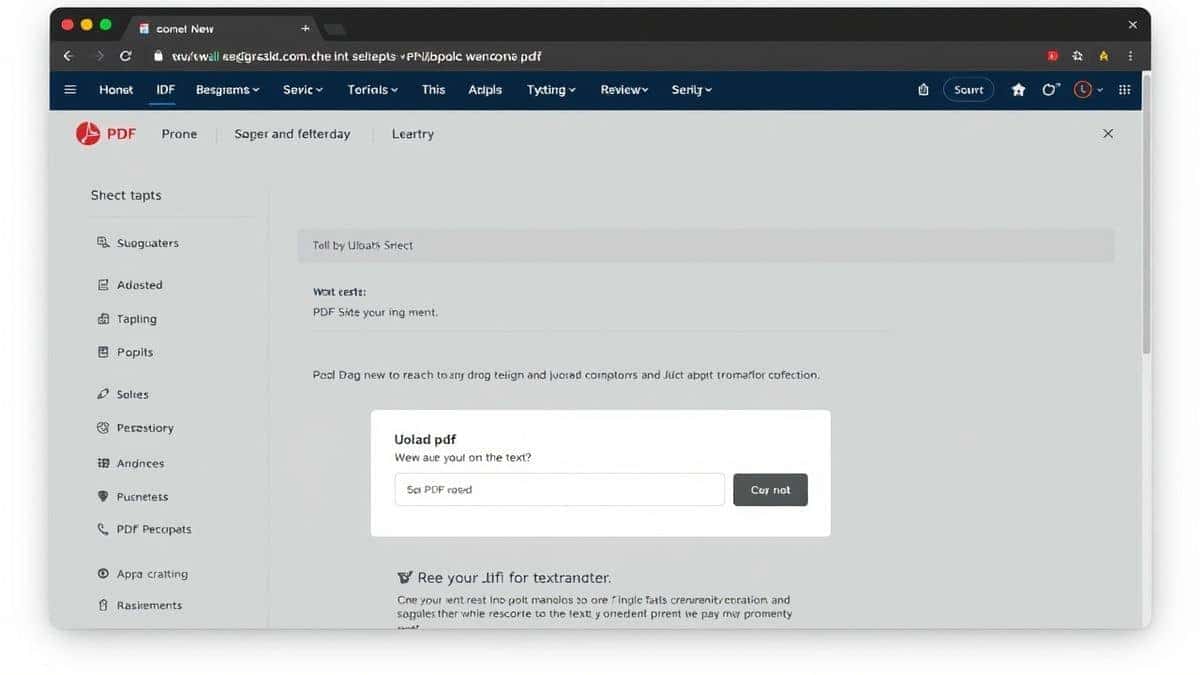
The easiest solution I’ve found for this is the Extract PDF Text tool from EditTools. It’s fast, completely free, and works right in your browser.
What Does "Extract Text from PDF Online Free OCR Tool" Actually Mean?
Let’s break that down because the phrase is a mouthful, but the concept is simple.
- Extract Text: This means pulling the words out of a file so you can use them elsewhere (like in a Word doc, email, or note-taking app).
- PDF: A Portable Document Format file. It’s great for keeping layouts consistent, but it often locks the text away, especially if it was made from a scan.
- Online: You do this in a web browser. No software to install on your computer.
- Free: It costs nothing.
- OCR: This is the magic part. Optical Character Recognition is the technology that "reads" the pixels in a scanned document or image and figures out what letters and words they form.
So, when you search for an Extract Text from PDF Online Free OCR Tool, you are looking for a website that can look at a picture of text (your PDF) and turn it back into actual, selectable, editable words.
Why Use an Online Tool Instead of Heavy Software?
In my experience, people often overcomplicate simple tasks. A few years ago, I spent an hour trying to install a trial version of a popular PDF editor just to copy a single paragraph. It was a nightmare of registration keys and download managers.
Here is why an online tool is almost always the better choice for this specific task:
- No Installation Required: You don't need admin rights on your computer. You don't need to clear hard drive space. If you have a browser, you have the tool.
- It's Truly Free: Many "free" desktop trials watermark your documents or limit you to three conversions. The Extract Text from PDF Online Free OCR Tool method I use has no such limits.
- Speed and Convenience: It takes seconds. You upload, you click, you download. You don't have to wait for a heavy application to boot up.
- Accessibility: You can do this from any device—a school computer, a work laptop, a tablet, or a phone. The process is the same everywhere.
The Best Tool: Extract PDF Text by EditTools
After testing several different online converters, I kept coming back to one that just worked without any hassle. For this guide, I'll be using the Extract PDF Text tool.
What makes it stand out?
- It’s 100% Free: There are no hidden paywalls or "premium" features locked away. You get the full OCR power right away.
- Accurate OCR: It handles different fonts and layouts surprisingly well. I tested it on a slightly blurry old receipt, and it caught nearly every character.
- Ad-Free Experience: Unlike many free tool sites, you aren't bombarded with distracting pop-ups. The interface is clean and simple.
- Privacy-Focused: You don't want your sensitive documents floating around. This tool processes your file securely, and you download the result immediately.
Step-by-Step Guide: How to Extract Text from PDF Online Free OCR Tool
Ready to do it yourself? Follow these simple steps. It’s designed to be easy, even if you aren't tech-savvy.
Step 1: Navigate to the Tool
Open your browser and go to the dedicated tool page:
https://edittools.org/pdf-tools/extract-text-from-pdf
Step 2: Upload Your PDF
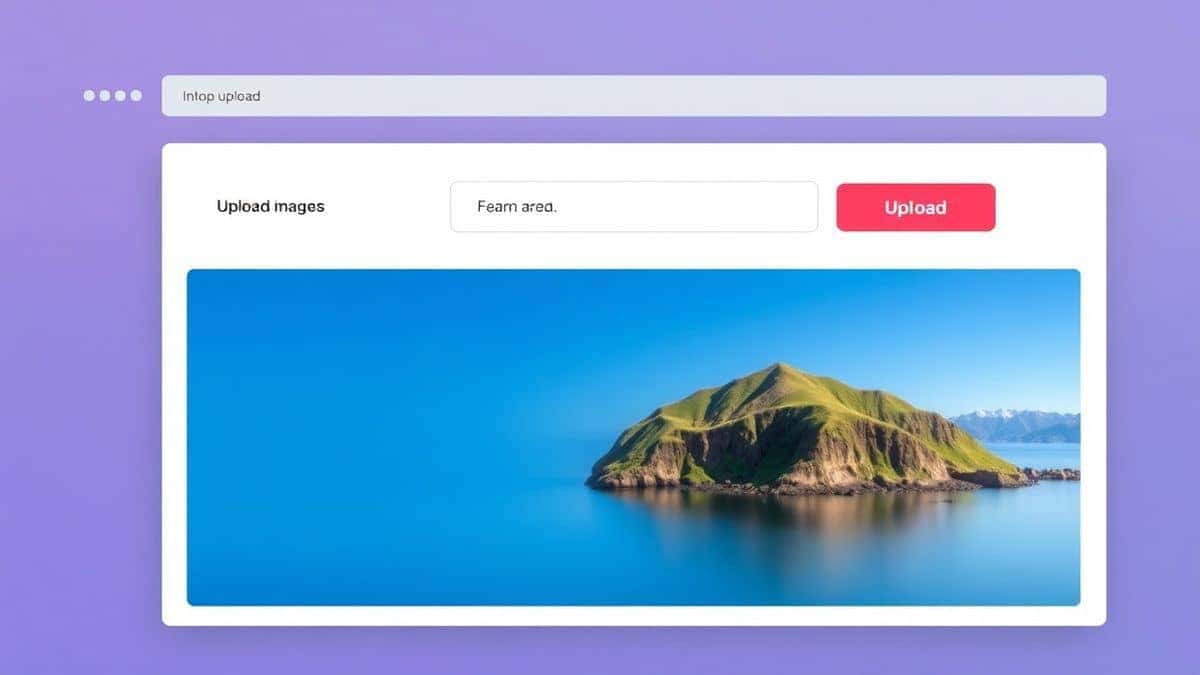
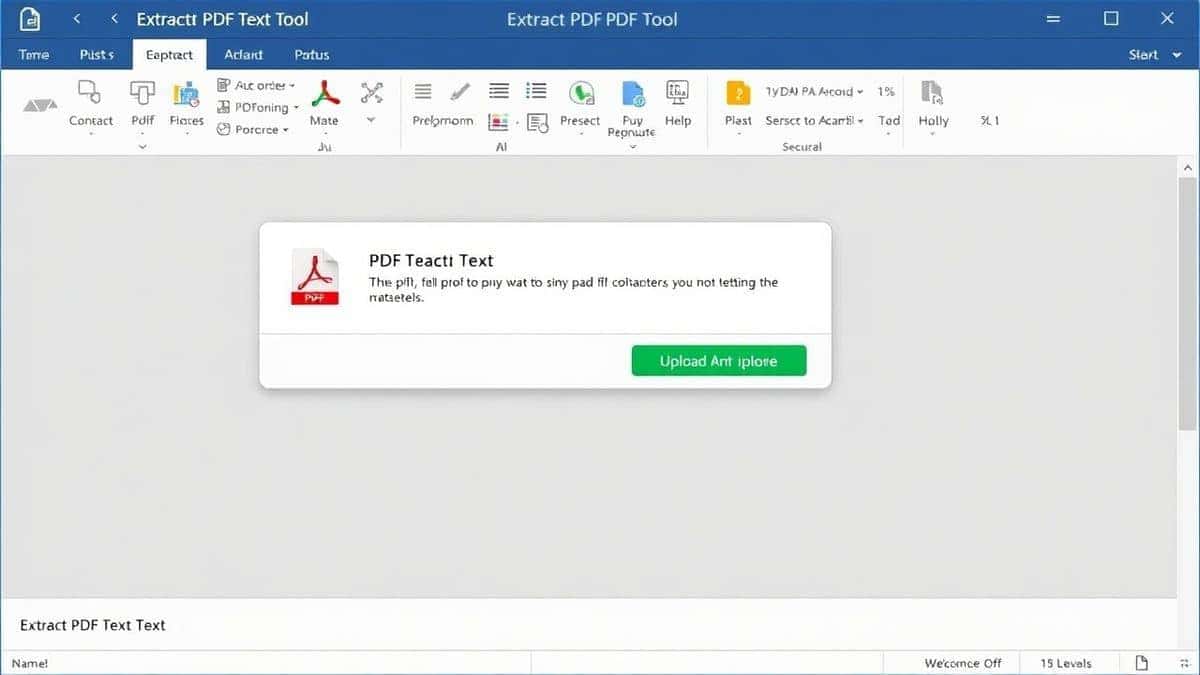
You’ll see a clear upload area. Click the button or simply drag and drop your PDF file into the box. The tool accepts most standard PDFs, including scanned image-based ones.
Step 3: Let the Tool Work
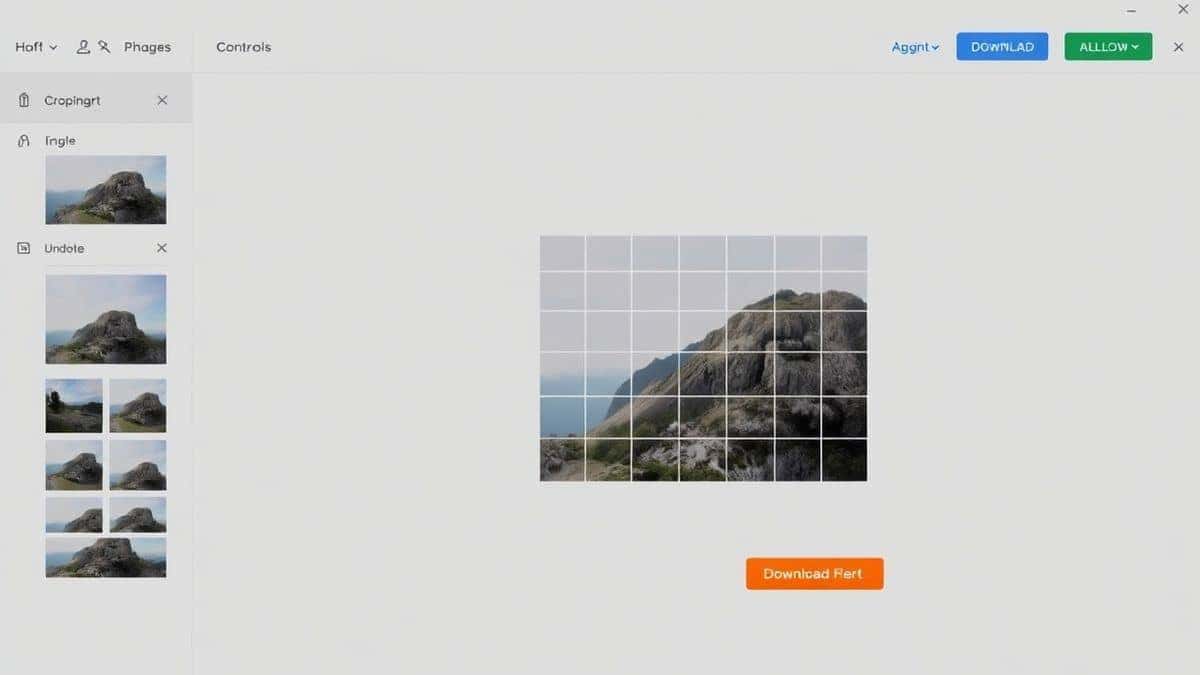
Once uploaded, the tool automatically starts the OCR process. It analyzes the document page by page, identifying every letter, number, and symbol. This usually takes just a few seconds, depending on the file size.
Step 4: Download the Extracted Text
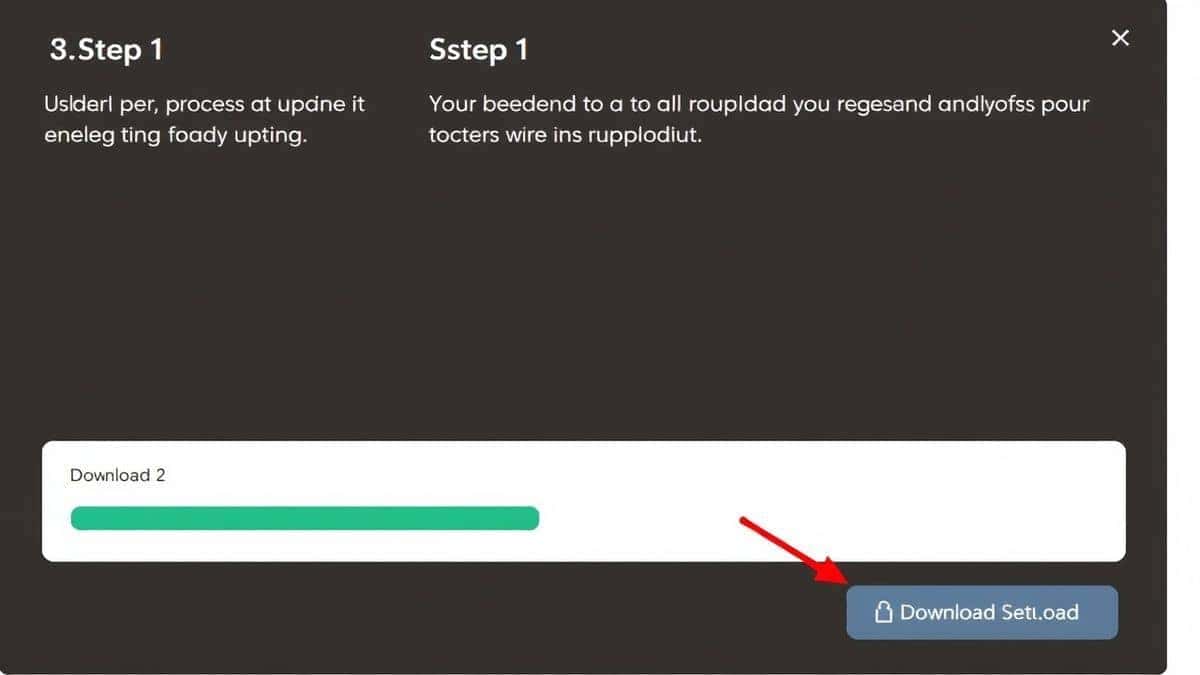
When the processing is complete, a download button will appear. Click it, and your extracted text will be saved as a simple .txt file. You can now open this in any text editor (like Notepad or TextEdit) to copy, edit, or format the content.
Pro Tips for Better Text Extraction
Through trial and error, I’ve picked up a few tricks to get the best possible results when I need to Extract Text from PDF Online Free OCR Tool.
- Check the Source Quality: The cleaner your original PDF, the better the OCR result. If your scan is extremely crooked or has huge shadows, the text accuracy will drop. A straight, clear image is best.
- Use High-Resolution PDFs: If you have a choice, use a PDF made from a high-resolution scan. Low-res images make it harder for the OCR to distinguish letters like "c" and "e".
- Proofread Important Text: While modern OCR is incredibly accurate (often 99%+), it’s not perfect. For critical documents, always do a quick scan of the extracted text to catch any odd characters, especially with unusual fonts.
- Don't Fight the Formatting: Remember, the goal here is to extract text, not to preserve the exact layout. The output is plain text. Tables and columns will be linearized. If you need the layout, you need a different type of tool. For pure content, this method is perfect.
Common Mistakes to Avoid
When looking for a free Extract Text from PDF Online Free OCR Tool, people often make errors that cost them time and quality. Here’s what to watch out for:
1. Using the Wrong Tool for the Job
Some people try to use basic PDF readers to copy text from scanned documents. When it doesn't work, they assume the document is broken. The file isn't broken; you just need an OCR tool to "read" the images.
2. Ignoring File Size Limits
Some free online tools have very small file size limits. You might upload a 50MB document only to find you have to pay to process it. The Extract PDF Text tool handles reasonable file sizes without immediately asking for payment, making it a reliable choice.
3. Forgetting About Security
Uploading a private financial document or a confidential work file to a random, shady website is risky. Stick to reputable tools with clean interfaces and clear privacy practices. You want a tool that processes the file and then deletes it from their servers, which is standard practice for good online tools.
4. Expecting Perfect Formatting
As mentioned earlier, OCR extracts the raw text. If you upload a multi-column newsletter, the extracted text will read from left to right, top to bottom, column by column. This might jumble the order slightly. Be prepared to do a little bit of rearranging if the layout is complex.
Comparison: Online OCR vs. Desktop Software vs. Other Tools
To give you a better idea of why the Extract Text from PDF Online Free OCR Tool method is the winner for most people, let’s look at a quick comparison.
| Feature | Online OCR Tool (EditTools) | Desktop Software (e.g., Abbyy, Adobe) | Other Free Online Tools |
|---|---|---|---|
| Cost | Free | Expensive (Subscription/One-time fee) | Often Free (with limits/ads) |
| Installation | None (Browser-based) | Required (Uses disk space) | None (Browser-based) |
| Ease of Use | Very Easy (1-2-3 steps) | Complex (Many features, steep curve) | Varies (Often cluttered with ads) |
| Speed | Fast (Seconds) | Slow (Program boot-up time) | Moderate (Depends on servers) |
| Ads / Pop-ups | None | None | Often High (Frustrating experience) |
As you can see, the dedicated free online tool wins on almost every front for a simple extraction task. The desktop software is overkill, and other free sites are often a frustrating ad-ridden mess. The easy way to Extract Text from PDF Online Free OCR Tool is clearly through a streamlined service like EditTools.
Frequently Asked Questions (FAQ)
How to Extract Text from PDF Online Free OCR Tool?
Simply visit https://edittools.org/pdf-tools/extract-text-from-pdf, upload your PDF, and click download. The tool automatically performs OCR to extract the text.
Is it really free to extract text from a PDF online?
Yes. The tool mentioned in this guide is completely free. You do not need to enter credit card information or sign up for a trial. It’s a genuine free Extract Text from PDF Online Free OCR Tool.
Can I extract text from a scanned PDF?
Absolutely. That is the primary purpose of using OCR. Whether the PDF was created from a Word document or a photo of a book page, the tool will read the text from the images.
Do I need to install any software?
No. Everything is done in your browser. This is the main advantage of using an Extract Text from PDF Online Free OCR Tool without software.
Is it safe to upload my documents?
Reputable online tools process your file and typically delete it from their servers shortly after processing. Always look for tools with a clean, professional interface like EditTools, which indicates a focus on user experience and security.
What if my PDF has a lot of images or graphs?
The tool will extract text only. It will ignore images and graphs. If there is text inside a graph (like a label), it may attempt to extract it, but the context will be lost in the plain text file.
The extracted text has weird symbols. What went wrong?
This usually happens if the original PDF is very low resolution or has a highly decorative font. Try to get a cleaner version of the PDF. If the text is in a language with a non-Latin script, ensure the tool supports that character set (most modern OCR tools do).
Can I do this on my phone?
Yes. Since it’s an online tool, you can open the website in your mobile browser (like Chrome or Safari), upload a PDF from your phone’s storage, and download the text file directly to your device.
Conclusion
You no longer need to feel frustrated when you encounter a PDF that won't let you copy the text. The solution is simple, fast, and right at your fingertips.
By using a reliable Extract Text from PDF Online Free OCR Tool, you bypass the need for expensive software, avoid complicated installations, and get the job done in seconds. Whether you're a student gathering research, a professional digitizing old contracts, or just someone trying to copy a recipe from a scanned image, the process is the same.
For the best experience, I highly recommend using the Extract PDF Text tool. It’s free, it’s accurate, and it’s designed to get out of your way so you can focus on your work, not on figuring out the tool.
Next time you need to get text out of a PDF, skip the software download and do it online. Your future self will thank you for the saved time and sanity.