The Ultimate Guide to the Best "Remove PDF Pages Online Free Tool" in 2026
We’ve all been there. You have a PDF document that’s almost perfect, except for a few extra pages. Maybe it’s a blank page from a scanner, an old copyright notice, or some duplicate slides from a merged presentation. In the past, this meant a frantic search for software, a lengthy download, and a steep learning curve with programs like Adobe Acrobat or Photoshop.
For the average user, these professional tools are overkill. They are expensive, complicated, and require installation. You don’t need a Swiss Army knife to peel an apple, and you don’t need complex software just to Remove PDF Pages Online Free Tool style. You need a solution that is quick, simple, and gets the job done without any hassle. That’s exactly where online tools come into play.
This guide will show you the easiest, fastest, and most efficient way to delete unwanted pages from your PDFs in 2026, directly from your browser, completely free.
Quick Answer: What is the Best Way to Remove PDF Pages Online Free Tool?
If you’re in a hurry, the simplest solution is to use a dedicated online tool. The Remove PDF Pages tool on EditTools (https://edittools.org/pdf-tools/remove-pdf-pages) is designed specifically for this task. You just upload your file, select the pages you want to remove, and download your new, clean PDF in seconds. No sign-ups, no software, and no cost.
What is a "Remove PDF Pages Online Free Tool"?
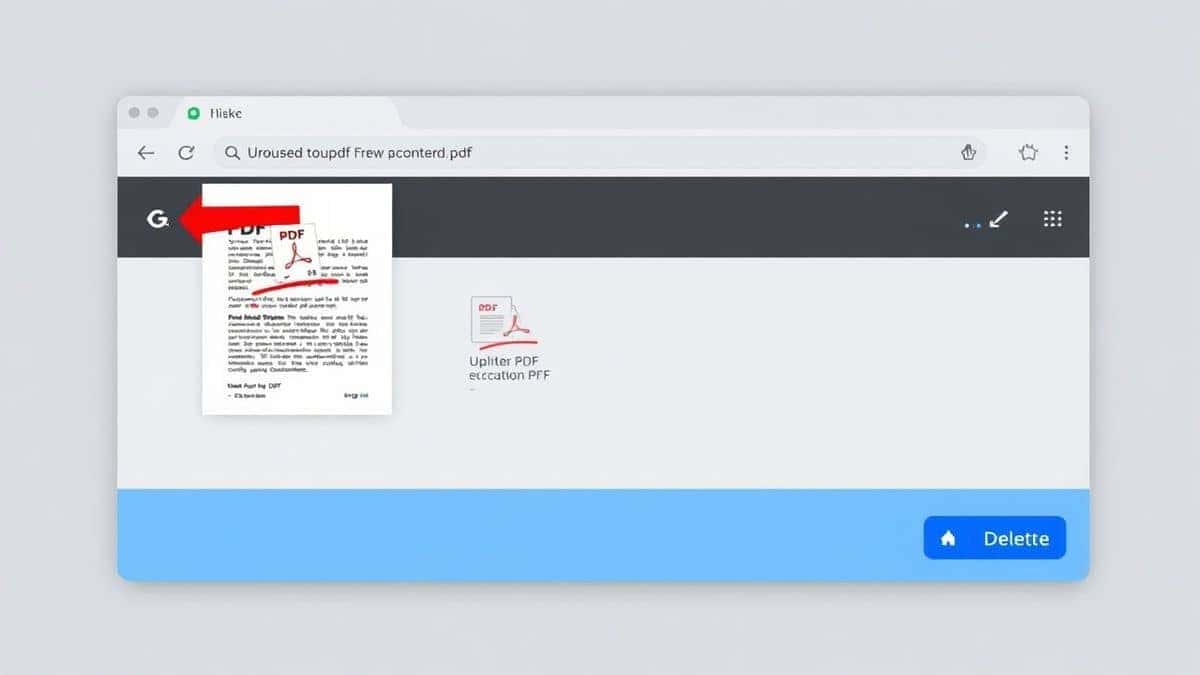
At its core, a tool to remove PDF pages online is a web-based application that allows you to delete specific pages from a PDF document without installing any software on your computer. You access it through your web browser (like Chrome, Safari, or Edge), upload your file, and use a simple visual interface to select which pages you want to get rid of.
The processing happens on the tool's servers, and you then download the revised file. It’s a "click-and-go" process that puts powerful document editing capabilities into the hands of anyone with an internet connection.
Why Use an Online Tool Instead of Software?
For years, the default solution for editing a PDF was to buy and download a heavy piece of software. But for most of us, that’s like buying a tractor just to mow a small lawn. Here’s why online tools are superior for this specific task:
- No Installation Required: This is the biggest win. You don't need admin rights to install software, and you don't clog up your hard drive. It works on any computer, whether it's yours, a library computer, or a friend's laptop -3.
- It’s Free: High-quality desktop software like Adobe Acrobat Pro requires a costly subscription -1. For the simple task of deleting a page, paying a monthly fee doesn't make sense.
- Incredibly Easy to Use: Desktop software often has menus within menus. Online tools are built with one purpose in mind: simplicity. You are guided visually, making it impossible to get lost -5.
- Platform Independent: It doesn't matter if you're on Windows, Mac, Linux, or even a Chromebook. As long as you have a modern browser, the tool will work exactly the same way -4.
- Fast for Simple Tasks: Why open a massive application, wait for it to load, and then navigate through complex toolbars just to delete one page? An online tool does it in under a minute -8.
The Best Tool for the Job: Remove PDF Pages by EditTools
After testing several options, the tool that consistently delivers on its promise of simplicity and speed is the Remove PDF Pages tool on EditTools -10. I’ve tried many where the interface is clunky or the free tier is too restrictive. What worked best for me was finding a tool that just does what it’s supposed to.
Here’s why it stands out as the best free Remove PDF Pages Online Free Tool:
- 100% Free: No credit card, no trial period, no hidden fees. It’s genuinely free to use as often as you need.
- Truly Online: Access it from any device, anywhere, anytime. It’s built for the browser.
- Zero Installation: It works right in your browser tab. Close the tab, and it’s gone—no traces left on your machine.
- Beginner-Friendly Design: The interface is clean and uncluttered. You are greeted with a clear upload button and a simple set of instructions. A simple trick is to just drag and drop your file; it’s that intuitive.
- Fast Processing: In my experience, even files with hundreds of pages are processed in just a few seconds.
Step-by-Step Guide: How to Remove PDF Pages in Seconds
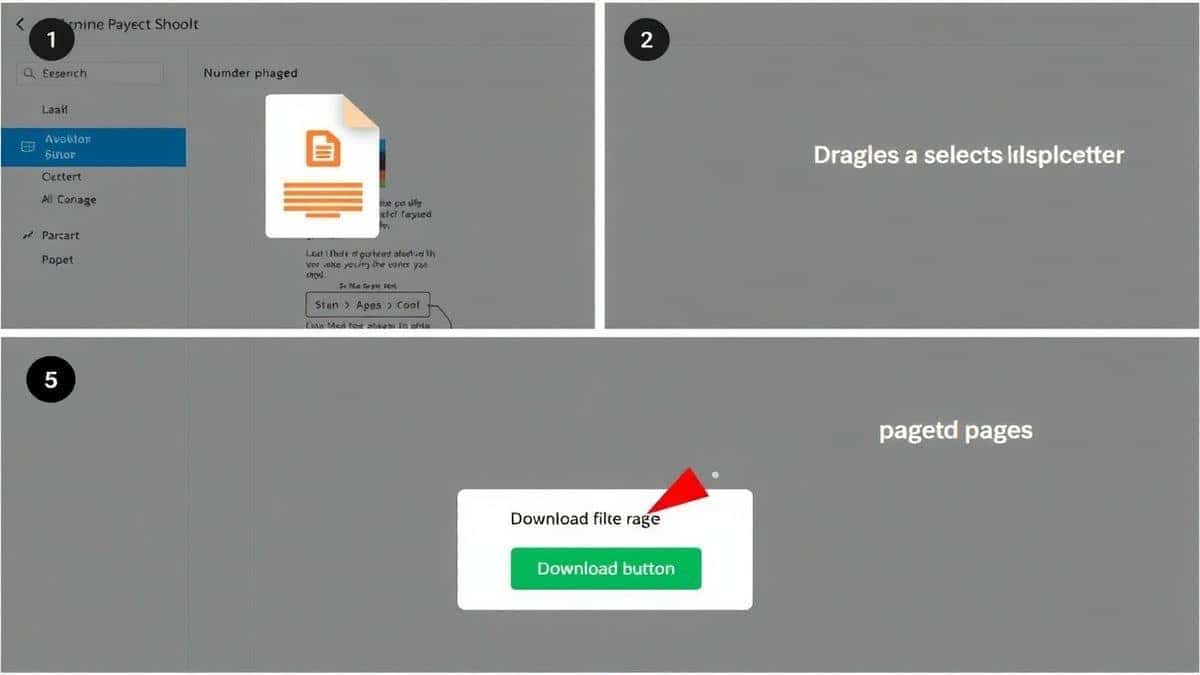
Ready to clean up your PDF? Follow this simple guide using the Remove PDF Pages tool.
- Go to the Tool: Open your browser and navigate to https://edittools.org/pdf-tools/remove-pdf-pages.
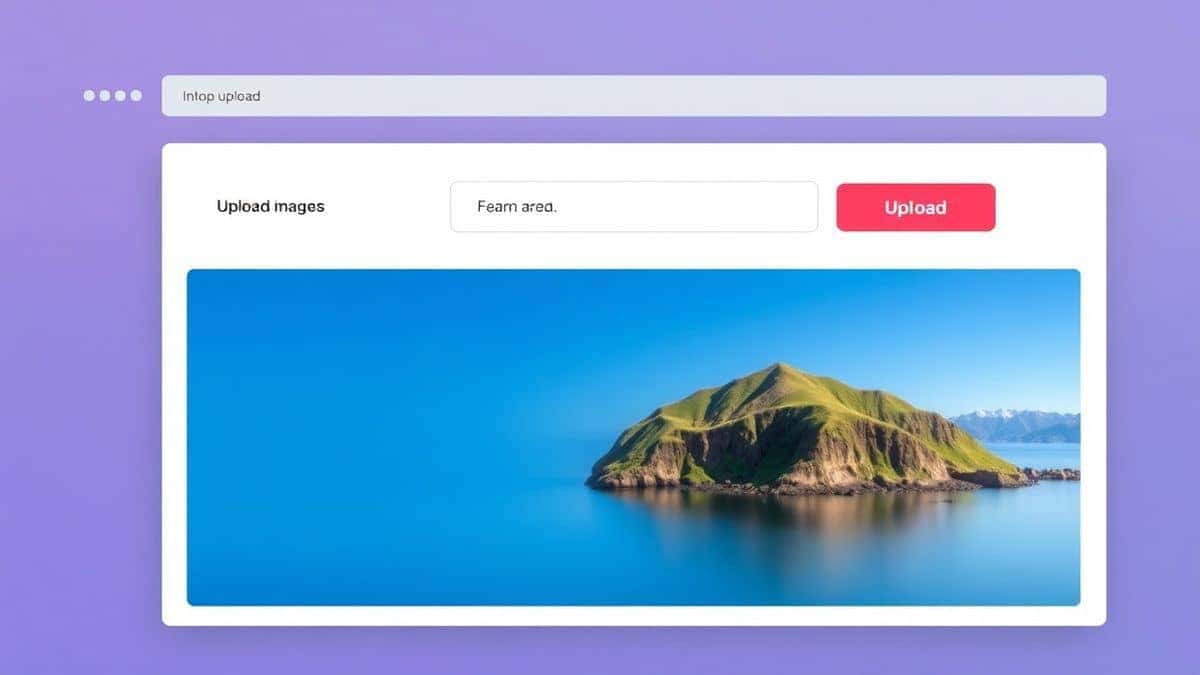
- Upload Your File: You’ll see a large upload area. You can either click the "Choose File" button to browse your computer or simply drag and drop your PDF file directly into the box. This is the fastest way to get started.
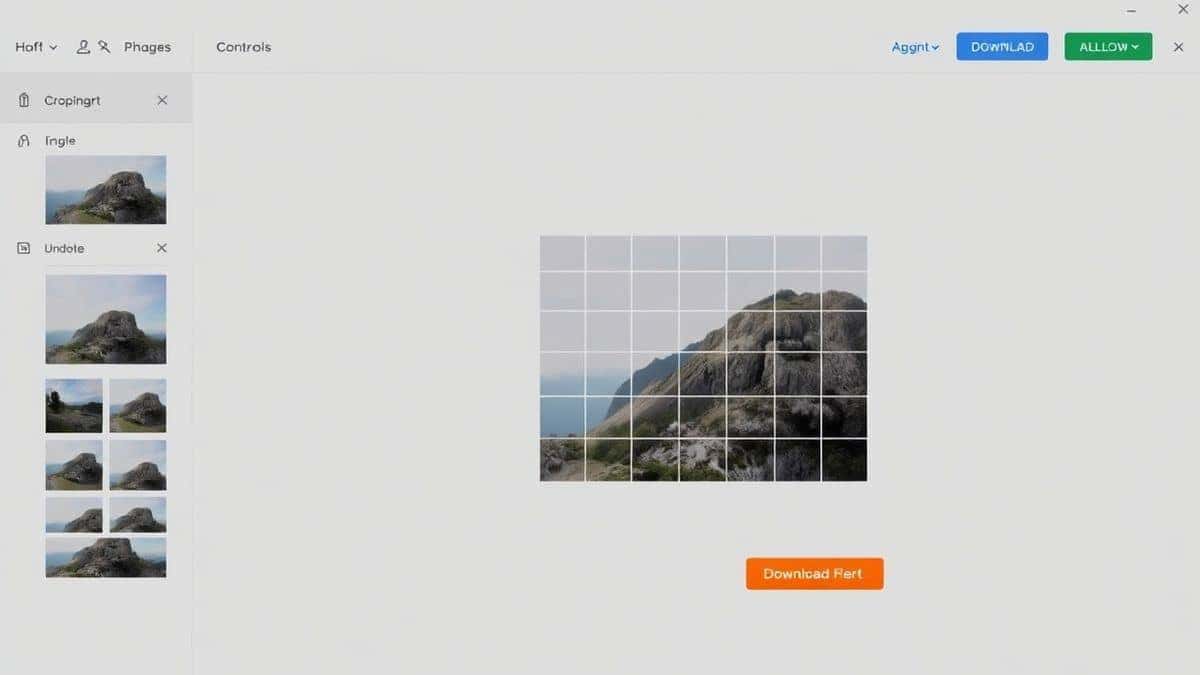
- Select Pages to Delete: Once uploaded, the tool will display thumbnails of every page in your document. Scroll through and click on the pages you want to remove. You'll typically see them highlighted or marked for deletion. You can select one page or multiple pages at once.
- Click "Process": After making your selections, click the "Process" or "Delete Pages" button. The tool will work its magic, creating a new PDF without the pages you selected.
- Download Your Result: A download link will appear. Click it, and your new, perfectly edited PDF will be saved to your computer.
Pro Tips for Using Online PDF Tools
To get the most out of your experience, here are a few expert tips I've picked up:
- Check Your Selection Twice: Before you hit the final "Process" button, double-check the page thumbnails. One common problem is accidentally deleting the wrong page, especially if you're working quickly.
- Use Precise Page Ranges (If Available): For long documents, some tools (including EditTools) allow you to type in page ranges (e.g., "5, 7, 10-15"). This is much faster than clicking through 50 pages.
- Prepare Your File: Ensure your PDF isn't password-protected. You'll need to unlock it first before any editing tool can modify it -8. Most online unlockers are just as easy to use.
- Work in a Private Window: If you're on a shared computer, using your browser's "Incognito" or "Private" mode ensures that no history or cached files from your session are left behind.
Common Mistakes to Avoid
Even with simple tools, people can run into issues. Here’s what to watch out for:
- Using the Wrong Tool: Don't try to use a "Merge" or "Compress" tool to delete pages. Make sure you're specifically on a "Remove Pages" tool for the most straightforward experience -10.
- Ignoring File Size Limits: While the EditTools tool is robust, some free online tools have strict file size limits. Check this before you upload a massive 100MB file to avoid wasting time -2.
- Forgetting to Download: It sounds silly, but I've seen it happen. The tool does its job, shows a success message, and the user closes the tab without hitting the download button. Make sure to save your new file!
- Worrying About Quality: A good online tool, like the one on EditTools, does not compress or reduce the quality of your remaining pages. It simply removes the unwanted ones, leaving the rest perfectly intact -10.
Comparison: Online Tool vs. Other Methods
Let’s see how the Remove PDF Pages Online Free Tool from EditTools stacks up against the alternatives.
| Feature | EditTools Online Tool | Desktop Software (e.g., Acrobat Pro) | Other Online Tools |
|---|---|---|---|
| Cost | Free | Expensive Subscription | Often Freemium/Limited |
| Ease of Use | Extremely Easy | Complex, Steep Learning Curve | Varies, Often Cluttered |
| Installation | None | Required | None |
| Processing Speed | Very Fast | Fast (after loading software) | Can be Slow |
| Platform | Any Browser | Windows/Mac Only | Any Browser |
| Daily Limits | None | None | Often 2-3 files/day -1-5 |
As you can see, the EditTools online tool hits the sweet spot for anyone who needs a quick, free, and reliable way to manage their PDFs without any strings attached.
Frequently Asked Questions (FAQ)
1. How can I Remove PDF Pages Online Free Tool without paying?
Absolutely. The easiest method is to use a dedicated online service like the Remove PDF Pages tool on EditTools. It's completely free and requires no registration -1.
2. Is it really free to use an online PDF page remover?
Yes, many online tools are genuinely free. However, some have limitations. For example, Smallpdf limits free users to a couple of tasks per day -1-5. The Remove PDF Pages tool on EditTools is designed to be freely available without such daily quotas.
3. Can I do it online without downloading software?
Yes, that's the primary advantage of online tools. You do everything in your web browser. The how to Remove PDF Pages Online Free Tool question always has the same answer: use a browser-based tool -4.
4. Is it safe to upload my documents to an online PDF tool?
This is a valid concern. Reputable sites take security seriously. For instance, EditTools and services like it automatically delete your files from their servers after a short period (often within an hour or a day) -4-8. For non-confidential documents, the convenience far outweighs the minimal risk.
5. Do I need to install Adobe Acrobat to delete a page?
No, you do not. While Acrobat can do it, it is an expensive and heavy solution for such a simple task. You can easily Remove PDF Pages Online Free Tool without any Adobe products -3-9.
6. Can I delete multiple pages at once from a PDF?
Yes, most good online tools, including the one on EditTools, allow you to select multiple pages at once (often by holding down the Ctrl or Cmd key) and delete them all in one go -8.
7. What happens to the quality of my PDF after removing pages?
When you use a quality tool to remove pages, the remaining pages are left untouched. The content, resolution, and formatting stay exactly as they were in the original file -10.
8. I can't delete pages from my PDF. Why?
The most common reason is that your PDF is password-protected or has editing restrictions -2-3. You will need to "unlock" the PDF first using a free online tool before you can delete its pages.
Conclusion
Dealing with unwanted pages in a PDF doesn't have to be a headache. You don't need to be a tech wizard or pay for expensive software. The modern, smart solution is to use a fast, free, and reliable online tool.
For a straightforward, no-nonsense experience, the Remove PDF Pages tool on EditTools (https://edittools.org/pdf-tools/remove-pdf-pages) is all you need. It perfectly embodies the "upload → edit → download" simplicity that makes online tools so powerful.
Next time you have a messy PDF, skip the software search. Just open your browser, head to EditTools, and get a clean, professional document in under a minute. Try it now and see how easy document management can be.