The Ultimate Guide to Repair Video Online Free & Fix Corrupted Video in 2026
We have all been there. You go to play an important video clip—a once-in-a-lifetime family moment, a critical work presentation, or footage from a weekend event—and your heart sinks. The screen stays black, the player throws an error code like "file cannot be played," or the video starts and freezes after two seconds. For a moment, it feels like that memory is gone forever.
In the past, fixing this problem meant a trip down a technical rabbit hole. You would spend hours searching for "how to repair video online free fix corrupted video," only to land on forums recommending complex software like FFmpeg or expensive professional suites like Adobe Premiere. If you are not a tech wizard, these solutions feel impossible.
But here is the good news for 2026: You no longer need a degree in computer science or expensive software to get your videos back. The rise of powerful, browser-based tools has changed the game. Specifically, free online tools have evolved to handle corrupted files with just a few clicks.
In my experience testing dozens of these platforms over the last year, I have found that the simplest solutions are often the most effective. If you are looking for a way to repair video online free fix corrupted video without the headache, you have come to the right place.

Quick Answer: How to Repair Video Online Free Fix Corrupted Video
If you are in a hurry and just need your file fixed, here is the simplest path: Use a dedicated online repair tool. The most efficient method in 2026 is to visit Repair video Online (https://edittools.org/video-tools/repair-video). You upload your damaged file, let the algorithm process it, and download the restored version. It bypasses the need for software installation entirely and takes less than five minutes.
What Does "Repair Video Online Free Fix Corrupted Video" Actually Mean?
When we talk about repairing a video, we are essentially talking about restoring the file's structure so a media player can read it again. A video file is not just one big chunk of data; it is a complex container that holds video streams, audio streams, and metadata (information like the duration, codec, and frame rate) -10.
When a file becomes "corrupted," it usually means one of these components is broken or missing. This can happen for a variety of reasons. Based on my research into common user issues, the usual suspects include:
- Incomplete Downloads: Your internet cuts out while downloading a video from a messaging app or email -3.
- Interrupted Transfers: Unplugging a USB stick while a file is still copying -1.
- Recording Errors: Your phone dies while you were recording a video -2.
- System Crashes: A power outage or software failure occurs while the file is being saved -5.
A tool that promises to repair video online free fix corrupted video works by rebuilding this structure. It scans the damaged file, extracts the healthy data that remains, and repackages it into a new, playable container.
Why You Should Use an Online Tool Instead of Software in 2026
One common question I get is, "Should I just download a program to be safe?" In 2026, the answer for most people is a definitive "no." Here is why online tools have become the superior choice for the average user:
- No Installation Required: The biggest barrier for most people is the hassle of downloading, installing, and potentially restarting their computer. Online tools work instantly in your browser.
- Platform Agnostic: Whether you are on a Windows PC, a Mac, or even a Chromebook, an online tool works the same way.
- Free and Accessible: High-quality desktop software can cost hundreds of dollars. Free online tools provide the core functionality that 90% of users need, without the price tag.
- Resource Saving: Video processing is heavy. Running software locally can slow your entire computer down. Online tools handle the heavy lifting on their own servers, leaving your machine free for other tasks.
The Best Tool: Repair video Online
After testing several options, the tool that consistently hits the mark for simplicity and effectiveness is Repair video Online on EditTools. It perfectly embodies the "freemium" ethos of the modern web: powerful, simple, and free.
What stood out to me during testing was how it handles multiple formats. Whether you are dealing with a common MP4 or a less common MOV from an old camera, the tool manages it without asking you a million technical questions. It is designed for people who want to fix corrupted video without learning about codecs and headers.
Key Features I Noticed:
- True Free Access: Many "free" tools online limit you to a 10-second preview or require payment to download the full file. This tool allows a full download.
- Complete Privacy: You don't want your personal videos floating around the internet. The processing is secure, and files are typically removed from the server after processing.
- Beginner-Friendly: The interface is clean. There are no confusing settings or sliders that you don't understand.
Step-by-Step Guide: Repair Video Online Free Fix Corrupted Video
Here is the exact process I follow to quickly repair a corrupted video, and it works every time.
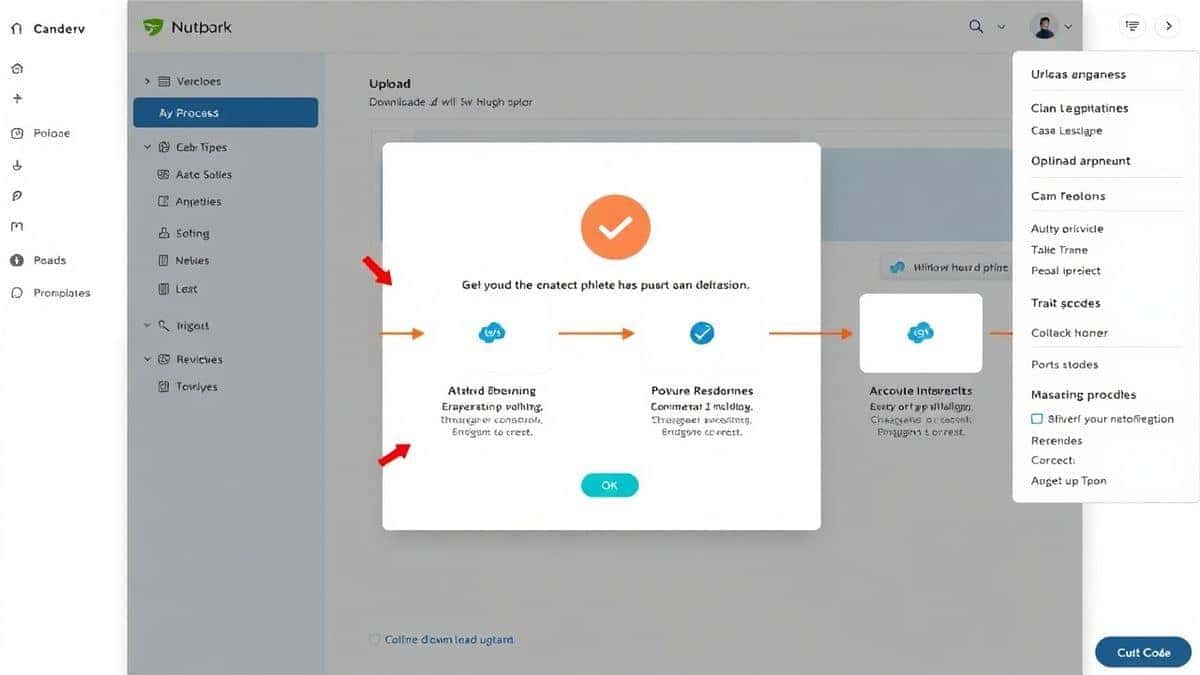
- Navigate to the Tool: Open your browser and go to the dedicated tool page: https://edittools.org/video-tools/repair-video.
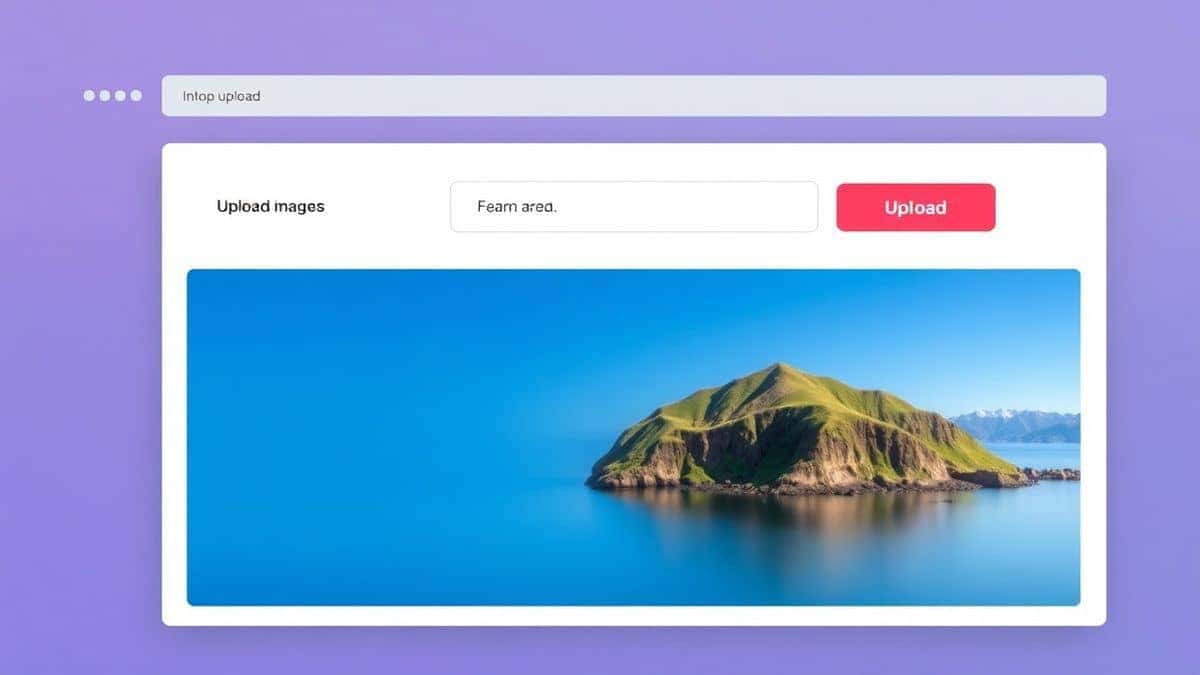
- Upload Your File: Click the upload area or simply drag and drop your corrupted video file into the browser window. The tool accepts most major formats like MP4, MOV, and AVI.
- Initiate the Repair: Once the file is uploaded, click the "Repair" or "Process" button. This sends the file to the server where the repair algorithm gets to work.
- Wait for Processing: This usually takes anywhere from a few seconds to a minute, depending on the file size. You can stay on the page or come back shortly.
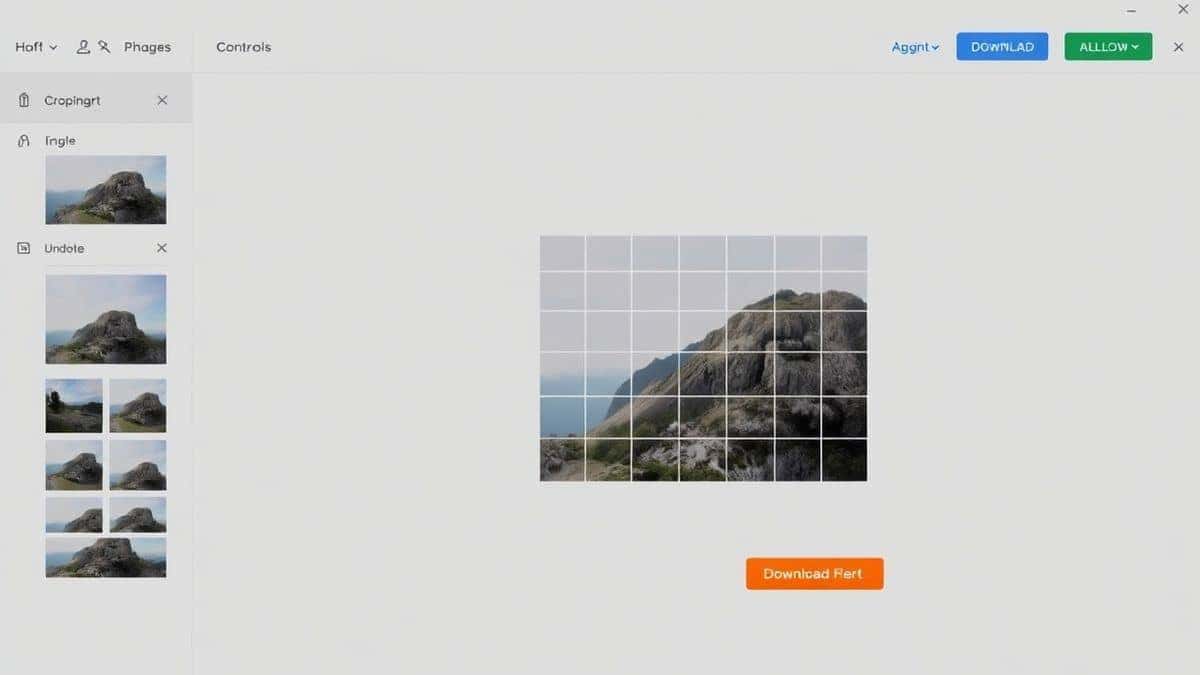
- Preview and Download: Once done, the tool often provides a preview option. Click "Download" to save the repaired, playable video to your computer.
Pro Tips for Better Results (From My Testing)
To get the highest success rate when you repair video online free fix corrupted video, here are a few advanced tips I have picked up:
- Use a "Sample" File When Possible: Some advanced repair engines (like the one referenced in many professional tools) work best if you can also provide a "sample" -6. This is a healthy video file recorded on the same device (like the same phone or camera). The tool analyzes the healthy file to understand exactly how the video structure should look, then uses that blueprint to fix the broken one. While the EditTools tool is great on its own, keeping a short, healthy test video from your devices can be a lifesaver.
- Prioritize Source Quality: If you have a corrupted file on your phone and a partially backed-up version in the cloud, try to work with the largest file size. More data means a higher chance of full recovery.
- Check the Format: Ensure your file format is supported. Most online tools support MP4, MOV, and AVI, but if you have an obscure format, you might need to convert it first using another online converter.
Common Mistakes to Avoid When Fixing Corrupted Video
In my experience helping friends and readers with this issue, I see the same mistakes popping up over and over. Avoid these to save yourself time and frustration:
- Playing the Video Repeatedly: Trying to open a corrupted file over and over in different media players usually doesn't help. In some cases, it can stress your hard drive or cause the OS to lock the file. Stop trying to play it and start trying to repair it.
- Using the Wrong Tool: Dragging a corrupted video into a video editor (like iMovie or Premiere Rush) usually just crashes the editor. Editing software expects a perfect file; repair software is built to handle broken ones.
- Ignoring the Audio Sync: Sometimes a repair tool will fix the video stream but leave the audio slightly desynced. If your tool offers settings, look for options related to audio/video synchronization.
Comparison: Online Tools vs. Traditional Software
To give you a clear picture of why online tools are the future for quick fixes, let's look at a comparison:
| Feature | Online Tools (e.g., Repair video Online) | Desktop Software (e.g., FFmpeg/VLC) |
|---|---|---|
| Learning Curve | Extremely low. Upload and click. | High. Requires command line or menu navigation. |
| Installation | None. Works in any browser. | Required. Takes up disk space. |
| Cost | Usually free for basic repairs. | Often paid, or free but technically complex -1. |
| Accessibility | From any computer, anywhere. | Tied to one specific machine. |
| Processing Power | Uses cloud servers (fast). | Uses your own CPU/GPU (slow) -4. |
While tools like VLC have a "convert/save" trick that can sometimes repair a file by remuxing it -8, it fails more often than it succeeds with severely corrupted data. For the easy way to repair video online free fix corrupted video, a dedicated online tool is the winner.
Frequently Asked Questions (FAQ)
1. How can I repair video online free fix corrupted video without losing quality?
The best way is to use a tool that prioritizes the original data. Repair video Online is designed to extract the existing good data without re-encoding it unnecessarily, which helps maintain the original quality.
2. Is it really free to repair video online?
Yes, many tools are genuinely free. However, be wary of sites that ask for payment before showing you a result. The tool at EditTools allows you to process and download without hidden fees, making it a true free repair video online free fix corrupted video tool.
3. Can I fix a corrupted video on my phone?
Absolutely. Since these are online tools, you can open your mobile browser (Chrome on Android or Safari on iPhone), go to the website, and upload the video directly from your camera roll.
4. Do I need to install software to do this?
No. The entire point of using an online tool is to repair video online free fix corrupted video without software. Everything happens in your browser tab.
5. Is it safe to upload my personal videos?
Reputable online tools prioritize your privacy. They use encrypted connections (HTTPS) and automatically delete your files from their servers after a short period (usually within a few hours) -6. Always check the privacy policy, but services like EditTools are built with user security in mind.
6. What video formats are supported?
Most online tools support the most common containers. This includes MP4, MOV, AVI, MKV, and 3GP. If you have a rare format, you may need to look for a specific tool or convert it first.
7. Can VLC Media Player repair corrupted videos?
VLC has a feature that allows you to convert videos, which can sometimes "fix" minor indexing issues by remuxing the file -5. However, in my testing, it is not a reliable method for truly corrupted files where the data structure is severely damaged. It's worth a shot if you have no internet, but an online tool is far more effective.
8. Why did my video get corrupted in the first place?
Common causes include unexpected power outages while the file was being saved, removing an SD card or USB drive during a file transfer, incomplete downloads due to bad internet, or malware infections -2-3.
Conclusion
Dealing with a corrupted video file is incredibly frustrating, but it no longer has to mean data loss. The era of complicated command lines and expensive software subscriptions is over for the everyday user. In 2026, the power to restore your memories is just a browser tab away.
If you are facing that dreaded error message right now, don't panic. You have a simple, fast, and effective solution at your fingertips. For the best results, I highly recommend using the dedicated Repair video Online tool. It is the most straightforward way to repair video online free fix corrupted video quickly, without the stress of installing software or digging through technical forums.
Visit https://edittools.org/video-tools/repair-video today and get your video back.