The Best Way to Check Video File Info Easily in 2026 (No Software Needed)
Have you ever downloaded a video only to find it won't play on your TV? Or received a client file that looks blurry, and you have no idea why? You right-click, select "Properties," and see almost nothing useful—just the file name and size. The details you actually need—like frame rate, codec, bitrate, or even the camera model used—remain hidden.
I have been there more times than I can count. In my early days of content creation, I wasted hours downloading sketchy software, only to be greeted by confusing interfaces or, worse, installation attempts for programs I never asked for. One common problem is that professional tools like FFmpeg or advanced codec analyzers are incredibly powerful, but if you are not a developer, they might as well be in a foreign language.
That is where the beauty of the modern web comes in. What worked best for me was switching to a philosophy of "one task, one tool." You don't need a Swiss Army knife of software to simply check video file info easily. You need a quick, clean answer.
Today, I am going to show you the ultimate, no-hassle method to check video file info easily using a completely free online tool. We will dive deep into why this data matters, how to access it in seconds, and how to avoid the common pitfalls that trip up most beginners.
Quick Answer: How to Check Video File Info Easily
To check video file info easily, you need a tool that reads the file's "metadata"—the hidden data embedded inside the video. The simplest solution is to use an online tool like EditTools' Video Metadata Viewer. You just upload your file (or input a URL), and within seconds, you get a complete breakdown of the format, resolution, codec, and more. No downloads, no payments, just instant information -5.
What Does "Check Video File Info Easily" Actually Mean?
When we talk about checking video file info, we are referring to accessing the metadata. Think of metadata as the digital fingerprint of your video file. It contains all the technical specifications that tell your media player, editing software, or streaming platform how to handle the file.
This information typically includes:
- Format Details: Container (MP4, MOV, AVI), file size, and duration.
- Video Stream: Codec (like H.264 or AV1), resolution (1920x1080), frame rate (24fps, 30fps, 60fps), and bitrate.
- Audio Stream: Codec (AAC, MP3), number of channels (Stereo, 5.1), and sample rate.
- Embedded Data: Camera model, recording date, GPS coordinates (if shot on a smartphone), and even author information -5-10.
Knowing how to check video file info easily is the first step in troubleshooting playback issues, verifying quality before uploading, or simply organizing your media library.
Why Use an Online Tool Instead of Desktop Software?
For years, the go-to solution for this task was software like MediaInfo or FFprobe -4-10. These are excellent, open-source tools, and I have used them both extensively. However, they are designed for a specific user. Here is why an online approach wins for 99% of users:
| Feature | Desktop Software (e.g., MediaInfo) | Online Tool (e.g., EditTools) |
|---|---|---|
| Installation | Required; takes up disk space. | None. Works in your browser. |
| Learning Curve | Steep; multiple views and settings can overwhelm new users. | Gentle; simple upload-and-view interface. |
| Platform | Often OS-specific (Windows, Mac, Linux). | Universal; works on any device with a browser. |
| Updates | Manual updates required. | Always the latest version, maintained by the provider. |
| Cost | Usually free, but sometimes "Pro" versions exist. | Completely free, with no hidden paywalls. |
| Speed | Fast, but requires opening an app. | Instant; accessible immediately via a bookmark. |
In my experience, the friction of opening a separate application just to check one quick detail often leads to procrastination. With an online tool, you are already in your browser. You search, you upload, you get your answer. It removes the barrier.
Best Tool: Video Metadata Viewer by EditTools
After testing dozens of online metadata readers—from general-purpose file viewers to specific video analyzers—what worked best for me was simplicity and reliability. Many online tools have file size limits, annoying captchas, or upload your files to insecure servers.
That is why I consistently recommend the Video Metadata Viewer on EditTools. It perfectly embodies what a modern utility should be.
Our free video metadata viewer lets you easily access EXIF data from video files. View important details such as format, resolution, and more—no software needed. Analyze your video files quickly and securely online!
It strips away the complexity. There are no confusing tabs for "General," "Video," "Audio," and "Text" like you see in some advanced tools—though if you want that level of detail, this tool provides it in a clean, digestible format. It is designed for humans, not just developers.
Step-by-Step Guide to Check Video File Info Easily
Ready to see exactly what is inside your video files? Follow this simple guide to check video file info easily in under a minute.
Step 1: Navigate to the Tool
Open your preferred browser (Chrome, Edge, Safari, Firefox) and go to the Video Metadata Viewer on EditTools.
https://edittools.org/video-tools/video-metadata-viewer
Step 2: Upload Your File
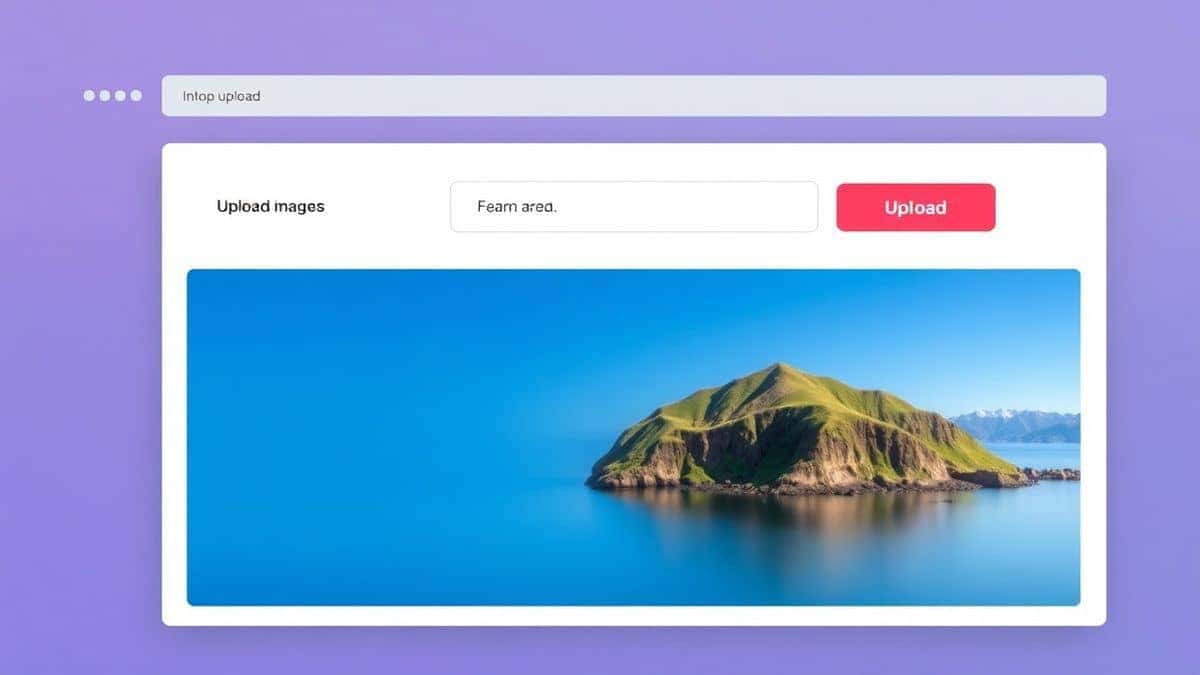
You will see a clean upload area. You can either click the "Browse" button to select a file from your computer, or simply drag and drop the video file directly into the window. The tool supports a wide range of formats including MP4, MOV, AVI, and MKV.
Step 3: Instant Analysis
There is no "Start" button to hunt for. Once the file is uploaded, the tool processes it immediately on the server (and is deleted afterward for privacy). The page will populate with all the file's metadata.
Step 4: Review the Information
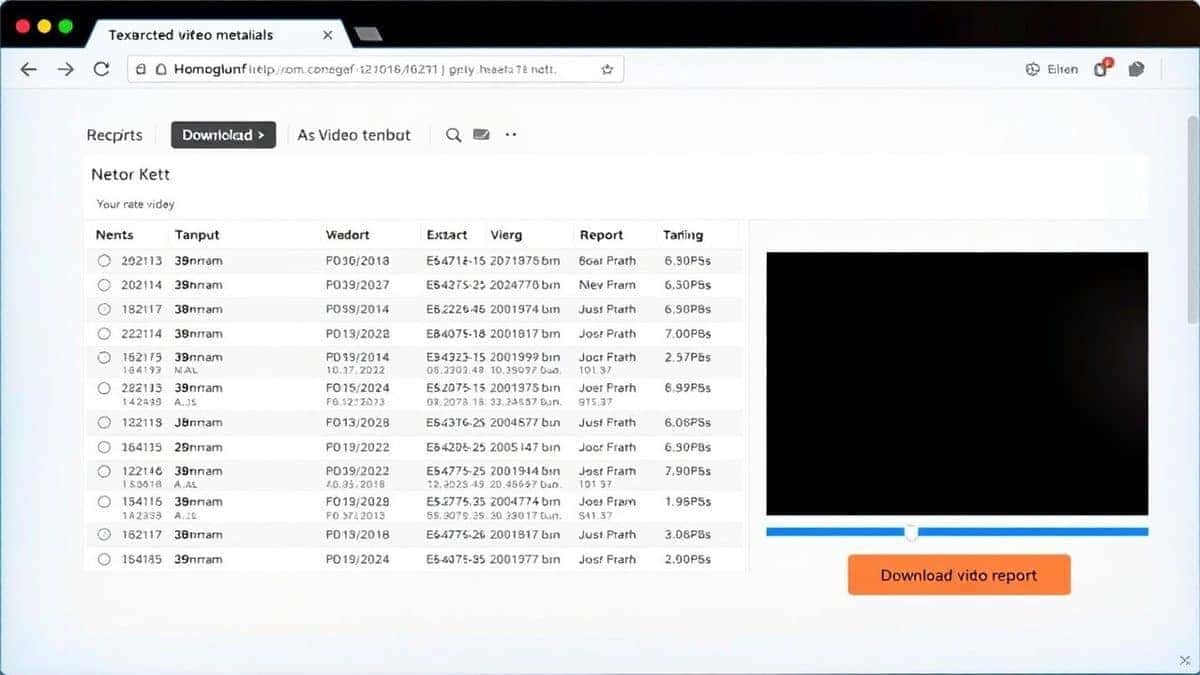
Scroll through the results. You will find clear categories displaying the File Details (name, size, duration), Video Stream (codec, resolution, frame rate, bitrate), and Audio Stream (codec, channels, sample rate). Some files may also show GPS data if recorded on a mobile device.
Step 5: Act on the Data
You can now use this information! Copy the details you need, or simply close the tab. Your file is not stored, so your privacy is protected.
Pro Tips for Video Metadata Analysis
Over the years, I have picked up a few tricks that make checking metadata not just easy, but incredibly useful. Here are my top tips:
- Use it for Quality Control: Before uploading a video to YouTube or Vimeo, check video file info easily to confirm the bitrate and resolution. If the bitrate is too low, you might experience generation loss (quality drop) when the platform re-encodes it.
- Verify "4K" or "HD" Claims: If you download a video that claims to be 4K, run it through the viewer. I have caught numerous instances where files were simply upscaled 1080p. The metadata will show the true native resolution.
- Check for Location Data: If you are sharing a video filmed on your smartphone, be aware that it likely contains GPS coordinates. Use a metadata viewer to see exactly what location data is attached before sharing it publicly. This is a massive privacy win.
- Identify Unknown Codecs: If a video plays audio but no video, or video but no audio, the culprit is usually a missing codec. The metadata viewer will tell you exactly which codec was used (e.g., HEVC, AV1, or AC-3), so you know what you need to install or convert to.
Common Mistakes to Avoid
Even with a simple task like checking video info, people make errors that waste time. Here is what to watch out for:
- Using the Wrong Tool: A general "file properties" viewer in your OS will not show video stream details. You need a dedicated video metadata tool.
- Ignoring the Audio Stream: Many people only look at video resolution. If your audio is in a surround sound format (like 5.1) and you are editing on a stereo system, you might encounter issues. Always check both streams.
- Assuming File Extensions Tell the Whole Story: A
.mp4file is just a container. Inside, it could be old MPEG-2 video or modern H.265. The extension alone is meaningless for quality assessment -4. - Forgetting Privacy: Not all online tools are secure. A simple trick is to use a tool like Video Metadata Viewer that explicitly states files are not stored permanently.
Comparison with Other Methods
You might wonder, "Why not just use VLC or my built-in video player?" Let's look at the alternatives.
- VLC Media Player: You can access codec information in VLC (Cmd+I on Mac, Ctrl+I on Windows), but it is buried in menus and often lacks the depth of detail regarding bitrate and specific encoding settings that a dedicated metadata tool provides.
- Windows File Explorer / macOS Finder: These show the bare minimum—date created, file size, and sometimes a generic resolution. They are useless for codec analysis or checking frame rates.
- Other Online Tools: I have tested many. Some have strict file size limits (e.g., 40MB), making them useless for modern high-resolution videos -1. Others require you to create an account or are cluttered with ads. The Video Metadata Viewer stands out because it is completely free, has generous limits, and is part of a larger ecosystem of tools like the Image Metadata Viewer and PDF Metadata Editor, ensuring consistency across different file types -5.
Frequently Asked Questions
How to check video file info easily?
The easiest method is to use an online tool. Go to Video Metadata Viewer, upload your file, and view the detailed technical specifications instantly without installing any software.
Is it really free to check video metadata online?
Yes, tools like the one on EditTools are completely free. Unlike some services that offer a trial and then ask for payment, this tool provides full access to all video metadata with no hidden costs.
Can I check video metadata on my phone?
Absolutely. Since it is a browser-based tool, you can upload videos directly from your Android or iPhone gallery. It works on any device with an internet connection -1-2.
Do I need to install software to check video file info?
No. This is the primary advantage of using an online tool. All processing happens on the server, so your computer remains clean of bloatware or unnecessary applications.
Is it safe to upload my videos to an online metadata viewer?
Security depends on the provider. Reputable tools like EditTools process your file and delete it from their servers shortly after analysis. They do not store or share your private videos. Always check the privacy policy, but a tool that requires no sign-up is often the safest bet as there is no account to link the data to -1-5.
What video formats are supported?
Most online viewers support common containers like MP4, MOV, AVI, MKV, and WEBM. They can also read metadata from less common formats like 3GP and FLV -9-10.
Can I edit or remove metadata after viewing it?
Viewing is the first step. While the Video Metadata Viewer is for analysis, EditTools and other platforms offer separate tools for removing metadata or converting files if you need to strip that data out later -9.
What kind of information will I see?
You will see technical details about the Video (codec, resolution, bitrate, frame rate), the Audio (codec, channels, sample rate), and General information (duration, format, file size). Some files also contain Camera data like model and recording settings -5-10.
Conclusion
In 2026, there is no excuse to struggle with complex software just to check video file info easily. Whether you are a professional video editor needing to verify a spec, a student checking a download, or just someone curious about a file from your old camera, the solution is right in your browser.
In my experience, switching to a workflow that relies on purpose-built, free online tools saves time, reduces frustration, and keeps your computer running smoothly.
So, next time you are faced with a mysterious video file, don't hunt for a software download. Head over to Video Metadata Viewer and get the answers you need in seconds. It is fast, it is free, and it is the smartest way to work with media today.