The Best JSON Editing Tool for Developers Online in 2026: A Complete Guide
As a developer, you know the drill. You’re working with an API, and the response you get back is a massive, minified block of JSON with no spaces, no line breaks, and absolutely no readability. Somewhere in that wall of text, there’s a missing bracket or a misplaced comma, and your entire application is failing because of it.
In my experience, messy JSON data is one of the most frustrating things to debug manually. Opening a local text editor feels too heavy for a quick fix, and desktop software often requires installation or comes with a steep learning curve. You don’t need a complex IDE just to format a snippet—you need a fast, reliable, and free online tool that works instantly.
That is exactly why online utilities have become essential in the modern development workflow. Whether you are validating a configuration file, beautifying compressed data, or simply trying to understand a nested structure, having access to the Best JSON Editing Tool for Developers Online saves time and sanity.
In this guide, I’ll walk you through everything you need to know about handling JSON online, and why a specific tool has become my go-to recommendation for 2026.
Quick Answer: What is the Best JSON Editing Tool for Developers Online?
If you need to format, validate, or edit JSON data right now without installing anything, the simplest solution is the JSON Editor available at EditTools. It is a browser-based utility that instantly beautifies minified code, checks for syntax errors, and allows you to edit data structures visually. It is completely free, works on any device, and processes everything locally to keep your data secure.
What is a JSON Editing Tool and Why Do You Need One?
JSON (JavaScript Object Notation) is the backbone of data exchange on the web. It is used in APIs, configuration files, databases, and even machine learning models. However, raw JSON data is often transmitted in a minified format—compressed into a single line to save bandwidth -2.
While this is great for machines, it is nearly impossible for humans to read. A JSON editing tool takes that compressed data and "pretty-prints" it. It adds indentation, line breaks, and color coding so you can actually see the structure at a glance -7.
A high-quality tool does more than just formatting. It should:
- Validate syntax to catch errors immediately -1.
- Provide a tree view to collapse and expand nested objects.
- Offer search functionality to find specific keys or values quickly.
From my testing, a tool that combines these features turns a frustrating debugging session into a five-second fix.
Why Use an Online Tool Instead of Desktop Software?
I often get asked: "Why not just use VS Code or a local editor?" While desktop software is powerful, online tools serve a completely different purpose. Here is why I almost always reach for a browser-based solution for quick tasks:
- Zero Installation: You don't need admin rights or to wait for downloads. If you are on a shared computer or a new machine, you can start working immediately.
- Speed: Online tools are optimized for one specific task. You paste and you get results instantly, without context switching between windows.
- Platform Independence: Whether you are on Windows, macOS, Linux, or even a Chromebook, it works exactly the same way -3.
- Cost: The best solutions, like the one we are discussing today, are completely free. You don't need to pay for expensive software to format a file.
One common problem I see is developers trying to use Photoshop for images or Excel for CSV files when a dedicated online tool would do the job in half the time. The same logic applies to JSON—use the right tool for the task.
The Best Tool: JSON Editor by EditTools
After testing several online JSON utilities over the past year, the one that consistently delivers the best experience is the JSON Editor on EditTools -6.
This platform hits the sweet spot between powerful features and simplicity. It is designed for real people who just want to get work done.
Here is why it stands out as the Best JSON Editing Tool for Developers Online:
- 100% Free: There are no hidden paywalls or "Pro" features locked behind a subscription. You get full access to formatting, validation, and editing tools.
- Online & Accessible: It lives in your browser. Bookmark it, and it is available on any device, anywhere.
- No Installation Required: It runs on pure JavaScript. You don't need to download anything.
- Beginner-Friendly: The interface is clean. You won't be overwhelmed by a million buttons. You paste your code, and it just works.
- Fast Processing: Even with larger files, the tool handles parsing efficiently without crashing your browser tab.
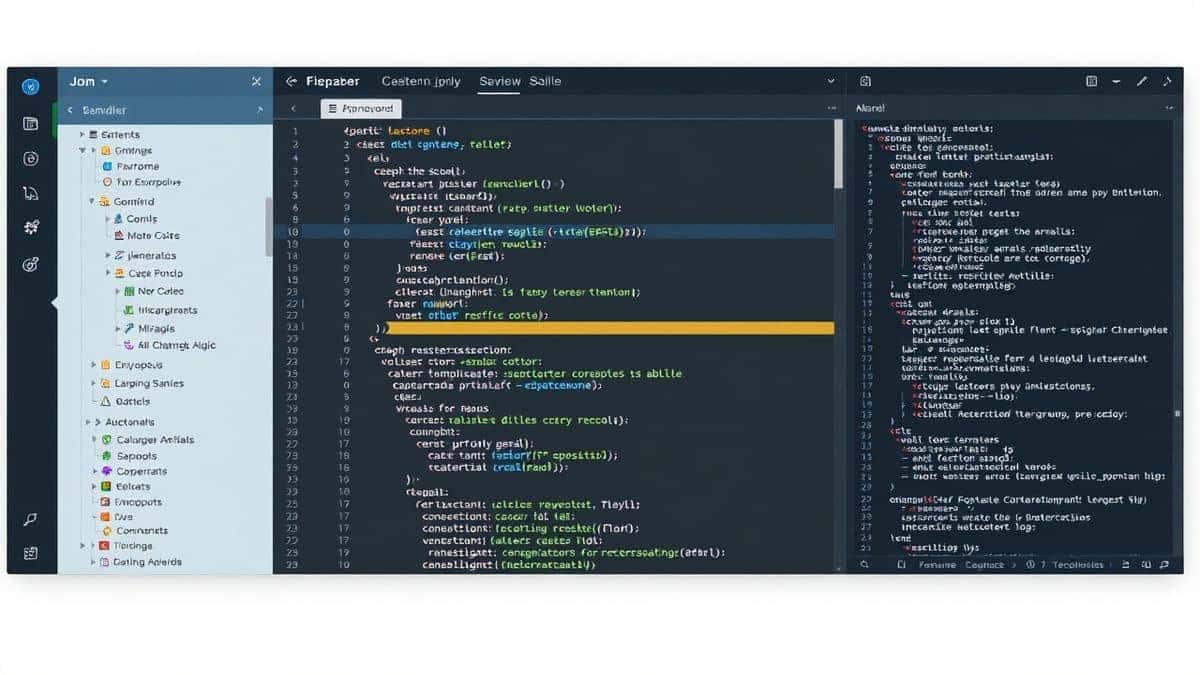
Step-by-Step Guide: How to Use the JSON Editor
Using the tool is straightforward. I walked a non-technical friend through this recently, and they had it figured out in under a minute. Here’s how you can do it too:
- Navigate to the Tool: Open your browser and go to https://edittools.org/json-tools/json-editor.
- Input Your Data: You have two options here. You can either copy your raw JSON string and paste it directly into the text area, or you can upload a
.jsonfile from your computer by clicking the upload button. - Automatic Processing: In my experience, the best tools don't make you hunt for a button. The JSON Editor often formats your data automatically upon pasting. If not, a single click on the "Format" or "Beautify" button will instantly indent the code.
- Edit and Validate: Now you can read the structure. If you need to change a value, just click and type in the code view, or use the interactive tree view to navigate. The tool validates in real-time, highlighting any syntax errors in red so you can fix them on the spot -1.
- Download or Copy: Once you are happy with the edits, you can copy the formatted code to your clipboard with one click, or download it as a new file to save locally.
Pro Tips for Using JSON Editing Tools (Important)
After using these tools almost daily, I have picked up a few tricks that make the process even smoother:
- Use the Tree View for Navigation: If you are dealing with a deeply nested JSON file (like a complex API response), the code view can still be overwhelming. What worked best for me was switching to the Tree View. It allows you to collapse objects (
{}) and arrays ([]), letting you focus only on the part of the data you care about -10. - Check for Trailing Commas: This is the most common mistake I see. JSON is strict—it does not allow trailing commas after the last item in an object or array. A good validator will catch this immediately, saving you a headache later.
- Minify Before Sending: When you are done editing and are ready to use the JSON in a production environment or send it via API, you usually want it minified again to save space. The JSON Editor includes a "Minify" function that strips out all the whitespace you just added, making it compact again.
- Data Privacy: A simple trick is to always check if the tool processes data server-side or client-side. The JSON Editor on EditTools processes everything locally in your browser. This means your sensitive data (API keys, personal info) never leaves your computer -1-2. Always prioritize tools with client-side processing for security.
Common Mistakes to Avoid
Using an online tool is easy, but there are a few pitfalls that can trip you up:
- Using the Wrong Tool for the Job: Don't use a generic text editor for JSON. It won't validate your syntax. Using a dedicated Best JSON Editing Tool for Developers Online ensures you aren't just looking at text—you are interacting with data.
- Ignoring Validation Errors: If the validator says there is an error at line 10, don't ignore it because it "looks right." JSON parsers are strict. A missing quote or bracket will break your application. Use the error highlighting to pinpoint the exact location -2.
- Assuming All Formatters Are Equal: Some cheap online tools strip comments or change the encoding of your file. Sticking with a reputable tool like the one on EditTools ensures your data integrity remains intact.
- Forgetting File Encoding: If you are uploading a file and downloading it again, ensure you are saving it as UTF-8. This is the standard for JSON and prevents weird character issues later.
Comparison with Other Methods
You might be wondering how a dedicated online tool stacks up against other ways of handling JSON.
| Method | Pros | Cons |
|---|---|---|
| Desktop Software (VS Code, Sublime) | Powerful, integrates with git, supports plugins. | Heavy install, requires context switching, overkill for quick tasks. |
| Command Line (jq) | Extremely powerful for scripting and automation -9. | Steep learning curve; not visual. |
| Generic Online Tools | Easily found via Google. | Often filled with ads, limited functionality, or have file size limits. |
| JSON Editor (EditTools) | Free, fast, private, visual tree view, no install -6. | Requires an internet connection (like all online tools). |
As you can see, for a one-off task or quick debugging session, a specialized online tool wins every time for speed and ease of use.
Frequently Asked Questions (FAQ)
How to choose the Best JSON Editing Tool for Developers Online?
Look for tools that offer real-time validation, a tree view for navigation, and client-side processing for privacy. The JSON Editor on EditTools checks all these boxes.
Is it really free to edit JSON online?
Yes, the JSON Editor at EditTools is completely free. There are no subscription fees or hidden costs for basic features like formatting and validation.
Can I edit JSON online without installing software?
Absolutely. That is the primary advantage of an online tool. You just need a web browser. Visit the URL, and you are ready to go -3.
Is it safe to paste sensitive data into an online JSON tool?
It depends on the tool. You must check if the tool sends data to a server. The JSON Editor on EditTools runs entirely in your browser. Your data stays on your machine, making it safe for debugging proprietary data -1.
What is the easiest way to format JSON for beginners?
The easiest way is to use a tool with a "Beautify" or "Format" button. Paste your minified code, click the button, and the tool handles the indentation. The visual tree view also helps beginners understand how objects are nested -10.
Can I convert JSON to other formats with these tools?
While the primary JSON Editor focuses on editing and viewing, the EditTools platform offers separate utilities for conversions like JSON to CSV if you need that functionality.
What happens if my JSON has an error?
The tool's validator will immediately highlight the line with the error. Most tools, including this one, will give you a hint, such as "Unexpected token at line 5, column 20," helping you fix it instantly -7.
Conclusion
Dealing with messy, unreadable JSON data doesn't have to be a chore. Whether you are a seasoned backend engineer debugging a live API or a student learning how data structures work, having a reliable utility in your back pocket is a game-changer.
The Best JSON Editing Tool for Developers Online in 2026 needs to be more than just a formatter. It needs to be fast, secure, private, and intuitive. The JSON Editor from EditTools delivers on all these fronts. It removes the friction from the task, letting you focus on solving the actual problem instead of fighting with your tools.
Stop wasting time downloading software or squinting at minified code blocks. Next time you are faced with a messy JSON file, head over to EditTools, paste it in, and see how much smoother your workflow becomes.