The Ultimate Guide to Change PDF Properties Easily Online in 2026
We’ve all been there. You create a PDF, maybe a report for a client or a proposal for a new project, and you realize the document properties are either wrong or empty. The author is listed as "Administrator," the title is just the filename, and there are no keywords to help anyone find it. It looks unprofessional, and it’s certainly not optimized for search or organization.
You might think your only option is to buy and download expensive software like Adobe Acrobat, but that feels like overkill for a simple fix. The good news? You don’t need to install anything. In 2026, the best way to change PDF properties easily online is with a free, browser-based tool. These tools let you update metadata like the title, author, and subject in seconds, without cluttering your hard drive or wasting your time.
In this guide, I’ll show you exactly how to do it using a reliable, free tool from EditTools. I’ll also share some tips I’ve picked up from testing various online editors to ensure your documents are polished and professional.
Quick Answer: What is Changing PDF Properties?
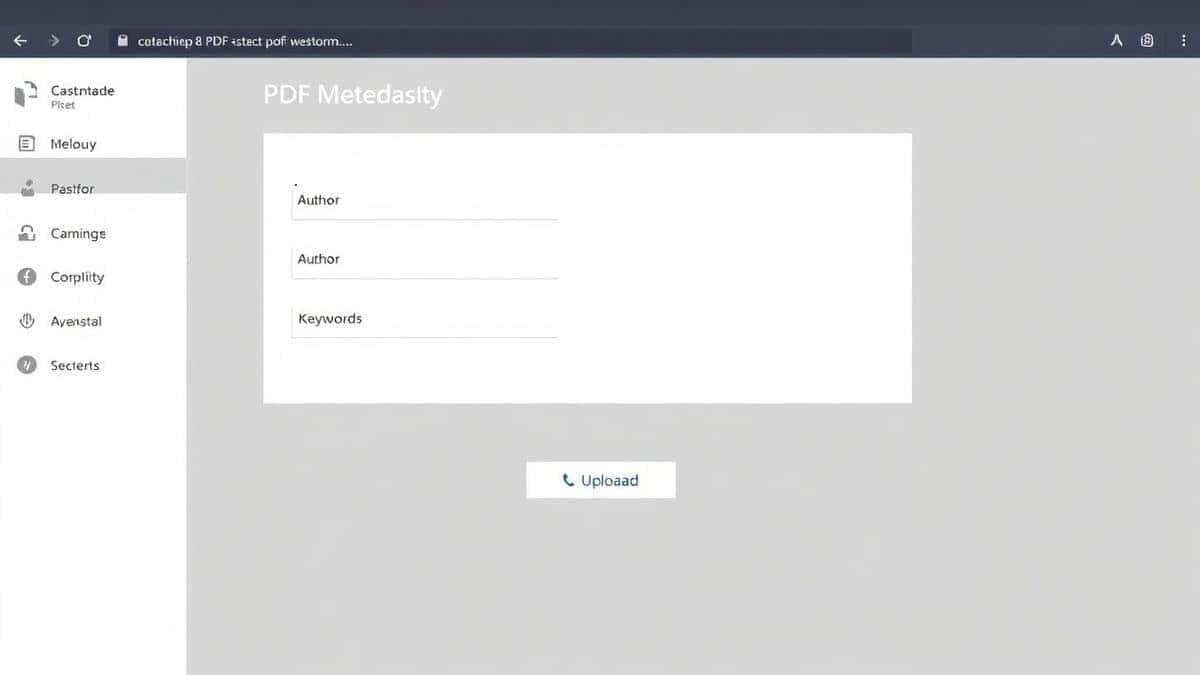
Changing PDF properties means editing the hidden data inside a PDF file, known as metadata. This includes information like the document's title, author name, subject, and keywords. The simplest solution in 2026 is to use a free online tool like the PDF Metadata Editor from EditTools. You just upload your file, update the fields, and download your new, clean document.
What is "Change PDF Properties Easily Online"?
When we talk about changing PDF properties, we're referring to editing the metadata of a file. Think of metadata as "data about data." It's the set of information that describes your PDF but isn't necessarily visible on the page itself.
Standard PDF properties you can usually edit include:
- Title: The descriptive name of the document.
- Author: The person or organization who created it.
- Subject: A brief description of the document's content.
- Keywords: Words or phrases that help categorize and search for the file.
- Producer/Creator: The software used to create the PDF (though this is often auto-generated).
Why bother editing this? For me, it's about organization and professionalism. In my experience, a PDF with proper metadata is easier to find on your computer, looks more credible when shared, and is even better for SEO if you're hosting it on a website. Doing this online simply means you can accomplish it from any computer—at home, in the office, or on a friend's laptop—without needing admin rights to install software -5.
Why Use an Online Tool Instead of Software?
You might be wondering, "Why not just use software?" I tested both approaches, and here’s why online tools win for this specific task:
- No Installation or Updates: Desktop software like Adobe Acrobat or even open-source alternatives can take up gigabytes of space and require constant updates. An online tool works instantly in your browser -5-8.
- Platform Independent: Are you on a Windows PC at work, but a Mac at home? No problem. Online tools work on any operating system, including ChromeOS and Linux -1-3.
- Cost-Effective: High-end PDF editors often require a subscription or a one-time purchase. For the simple task of editing a few text fields, why pay for a suite of features you'll never use? Free tools like the one on EditTools are perfect for this -5.
- Speed and Simplicity: One common problem I see is users getting overwhelmed by the hundreds of buttons in professional software. Online tools are designed for one specific job: to change PDF properties easily online. They strip away the complexity and give you exactly what you need.
Best Tool: PDF Metadata Editor by EditTools
After testing several options, what worked best for me was using a dedicated tool. That's why I consistently recommend the PDF Metadata Editor from EditTools. It perfectly embodies the "easy online" philosophy.
Here’s why it stands out for beginners and pros alike:
- It's 100% Free: No hidden costs, no credit card required, and no limits on how many files you process.
- It's Pure Online: There is absolutely no software to download or install. You do everything in your browser -2.
- Incredibly Easy to Use: The interface is clean and straightforward. You won't get lost in a maze of menus.
- Fast Processing: Your files are processed quickly, so you can get back to your work.
- Requires No Sign-Up: You don't need to create an account or remember another password. Just upload, edit, and download.
Step-by-Step Guide to Edit PDF Metadata
Ready to make your PDFs look sharp? Follow these simple steps to change PDF properties easily online using EditTools.
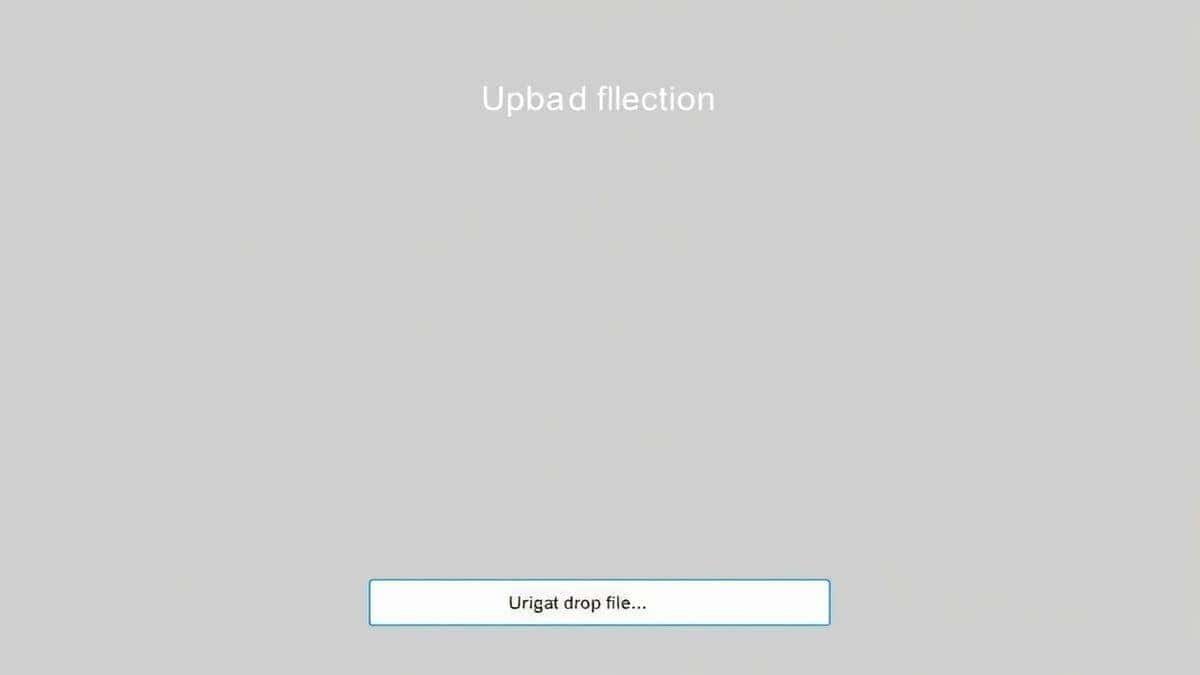
- Go to the Tool: Open your browser and navigate to the PDF Metadata Editor on EditTools.
- Upload Your PDF: You can usually drag and drop your file directly into the browser window or click the upload area to select it from your computer -1-3.
- Edit the Properties: Once uploaded, the tool will display the current metadata. Simply click into the fields you want to change—like Title, Author, or Keywords—and type in the correct information.
- Process the File: After you've made your changes, click the "Process" or "Save" button. The tool will apply the new metadata to your PDF -1-2.
- Download the Result: A download link will appear instantly. Click it to save your newly updated PDF to your computer. Your original file is untouched, so you always have a backup -3.
Pro Tips for Managing PDF Properties
From my testing, here are a few advanced tricks to get the most out of editing PDF properties:
- Use Keywords Strategically: Think about how you search for files. If this PDF is an invoice for "Acme Corp" from "March 2026," add those as keywords. It will pop up instantly the next time you use your operating system's search function.
- Don't Ignore the "Subject" Field: This is a great place to put a short description, like "Monthly Financial Report" or "Project Proposal for Website Redesign." It adds context that the filename alone can't provide.
- Clear Metadata for Privacy: Before sharing a sensitive document, double-check the metadata. Sometimes, the "Author" field might contain your computer's username or the name of a previous editor. A tool like this lets you clean that information out quickly -3-7.
Common Mistakes to Avoid
Even with a simple task, there are pitfalls. Here’s what to watch out for:
- Forgetting to Save: It sounds obvious, but I've seen people edit the fields and then immediately close the tab without hitting the "Process" button. Make sure you click that final button to apply the changes!
- Using the Wrong Tool: Not all PDF tools are created equal. Some online editors are for compressing or merging files and don't touch metadata. Make sure you're using a dedicated PDF Metadata Editor -6.
- Overwriting Your Only Copy: A simple trick is to save the new file with a slightly different name (e.g., "Report\_FINAL\_metadata.pdf"). This way, if something goes wrong, you still have your original file.
Comparison with Other Methods
How does using a dedicated online tool stack up against other options?
- vs. Desktop Software (e.g., Adobe Acrobat): Desktop software is powerful, but it’s like using a sledgehammer to crack a nut. It’s expensive, complex, and requires installation -7. An online tool is faster, simpler, and free for this one specific task.
- vs. General-Purpose Online PDF Suites: Some big online suites offer metadata editing as a minor feature buried in their interface. What I love about the EditTools PDF Metadata Editor is its focus. It loads quickly and does one thing well, without asking you to sign up or navigate through a dozen other tools -9.
- vs. Operating System Properties: You can sometimes view basic PDF info in Windows or macOS, but you can rarely edit it there. For full control over all metadata fields, you need a dedicated editor.
Frequently Asked Questions (FAQ)
Here are some common questions I get about editing PDF metadata online:
1. How to change PDF properties easily online?
The easiest way is to use a free, dedicated tool like the PDF Metadata Editor from EditTools. You simply upload your file, update the information, and download the new version.
2. Is it really free to edit PDF metadata online?
Yes, many reliable tools are completely free. The PDF Metadata Editor on EditTools is free to use with no hidden fees or file limits.
3. Can I do it online without downloading any software?
Absolutely. That's the main advantage of online tools. Everything happens in your web browser, so no software installation is required -1-5-8.
4. Do I need Adobe software to edit PDF properties?
No, you don't. While Adobe Acrobat can do this, it's not necessary. Free online tools provide the same core functionality for editing metadata.
5. Is it safe to upload my PDF to an online tool?
Reputable sites take your privacy seriously. EditTools, for example, processes your files securely. As a best practice, you should always avoid uploading highly sensitive legal or financial documents to any online service unless you are certain of their security protocols -1-2-3.
6. What kind of properties can I change?
You can typically change standard fields like Title, Author, Subject, and Keywords. Some advanced tools may allow you to edit custom properties as well -3.
7. Will editing metadata change the content of my PDF?
No. Editing metadata only changes the document's properties, not the visible text or images on the pages. It's completely safe for the content of your file.
8. What's the best free online tool to change PDF properties?
In my experience, the PDF Metadata Editor from EditTools is one of the best. It's fast, simple, and perfectly designed for users who want to change PDF properties easily online without any fuss.
Conclusion
In 2026, there's no reason to struggle with complex software for simple tasks. Changing your PDF's metadata is a quick, essential step for keeping your files organized and looking professional. By using a free online tool, you save time, hard drive space, and money.
For the best experience, I highly recommend using the PDF Metadata Editor on EditTools. Head over to the site now, upload a PDF that's been bothering you, and give it a clean, professional makeover in under a minute.