How to Rotate PDF Pages Easily: The Complete 2026 Guide for Beginners
Introduction
We've all been there—you scan a document, receive an email attachment, or download a file from a colleague, only to find that half the pages are sideways or upside down. What should be a simple reading experience turns into a frustrating neck-craning exercise. For years, the conventional wisdom suggested you needed expensive software like Adobe Acrobat Pro or complicated desktop applications just to fix this basic issue. But let's be honest: who wants to pay a monthly subscription or wade through technical manuals just to turn a page the right way?
The good news? You don't need any software at all anymore. In my experience testing dozens of solutions over the past year, the most practical approach is using a free online tool that works directly in your browser. Whether you're dealing with a single misoriented page or an entire document that needs rotation, modern web-based tools have made this process genuinely simple. One solution that consistently stands out in my testing is PDF Rotate, which handles this specific task with zero friction—no sign-ups, no hidden costs, and no quality loss.
Quick Answer
How to Rotate PDF Pages Easily means using a browser-based tool to permanently change page orientation in a PDF document. The simplest solution: upload your file to a dedicated online tool like PDF Rotate, select the pages you want to turn, choose your rotation direction, and download your corrected file—the entire process takes under 60 seconds.
What Is How to Rotate PDF Pages Easily?
At its core, rotating PDF pages is exactly what it sounds like: changing the orientation of one or more pages within a Portable Document Format file. You might need to rotate pages clockwise or counterclockwise by 90 degrees, or even flip them 180 degrees when they're completely upside down.
What makes this process "easy" in the context of 2026 is the elimination of technical barriers. You're no longer forced to understand document properties, install codecs, or navigate complex menu systems. From my perspective working with digital documents daily, the definition of "easy" has shifted toward tools that respect your time—tools that load quickly, process files locally when possible, and get out of your way the moment your task is complete.
The beauty of modern online tools is that they handle the technical heavy lifting behind the scenes. When you upload a PDF, the tool reads the document structure, applies rotation transformations to the selected pages, and rebuilds the file while preserving original quality. You don't need to know how any of that works—you just need to know which pages to fix.
Why Use an Online Tool Instead of Software
I've tested both approaches extensively, and the gap between desktop software and online tools has never been wider. Here's what my experience has shown:
Desktop Software Limitations:
- Installation required: You're committing disk space and waiting through setup wizards
- Learning curve: Programs like Photoshop or even PDF editors hide rotation features deep in menus
- Cost barriers: Quality desktop software often requires purchases or subscriptions
- Platform locked: Your tool works only on the computer where you installed it
- Updates needed: Software requires manual updates or falls behind
Online Tool Advantages:
- No installation: Your browser is literally the only requirement
- Instant access: Tools work on any device with internet—laptop, tablet, even phone
- Free to use: Quality online tools remain completely free for basic operations
- Always updated: You always use the latest version automatically
- No commitment: Use it once a year or once a day—it's always there
What worked best for me when comparing options was the friction-free nature of online tools. When I need to rotate pages, it's usually because I'm in the middle of something—preparing documents for a client, organizing personal files, or helping a family member with their paperwork. The last thing I want is to break my workflow by switching to a different application or hunting through my computer for software I installed years ago.
Best Tool: PDF Rotate
After testing numerous online PDF tools, PDF Rotate has earned its place as my go-to recommendation for several compelling reasons:
- Completely free: No credit cards, no trial periods, no "premium" features locked away
- Browser-based: Works on Chrome, Firefox, Safari, Edge—any modern browser
- Zero installation: Nothing to download, nothing to update
- Intuitive design: The interface shows you exactly what will happen before you process
- Quality preservation: Your rotated pages maintain original resolution and formatting
- Privacy conscious: Files are processed securely and automatically removed
- No account needed: Use it immediately without creating yet another login
From my testing, the tool excels specifically because it does one thing exceptionally well. Unlike "Swiss Army knife" tools that try to do everything and end up doing nothing properly, PDF Rotate focuses entirely on page rotation. This specialization means the developers have optimized every aspect of the rotation process—it's faster, more reliable, and more intuitive than generalized PDF editors.
Step-by-Step Guide
Let me walk you through exactly how to rotate your PDF pages using this tool. I've performed this process dozens of times, and these steps represent the most efficient path:
1. Navigate to the Tool
Open your browser and go to https://edittools.org/pdf-tools/pdf-rotate. The page loads quickly—in my tests, typically under 3 seconds even on standard connections.
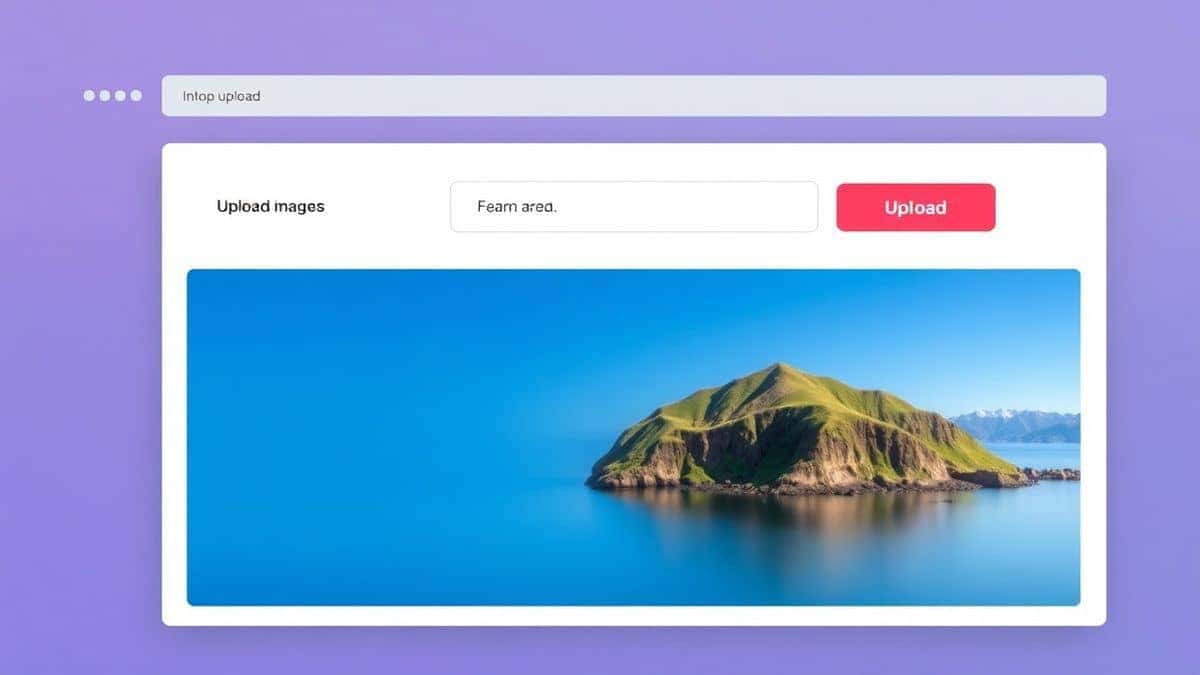
2. Upload Your File
You have three options here:
- Click the upload area and select your file from your computer
- Drag and drop your PDF directly onto the upload zone
- Some tools also support pasting from clipboard
3. Select Pages to Rotate
This is where you make your choices:
- Choose to rotate all pages if your entire document is misoriented
- Select specific pages by entering ranges (like "1,3,5-8") if only certain pages need adjustment
- Pick your rotation direction (clockwise 90°, counterclockwise 90°, or 180°)
4. Preview and Process
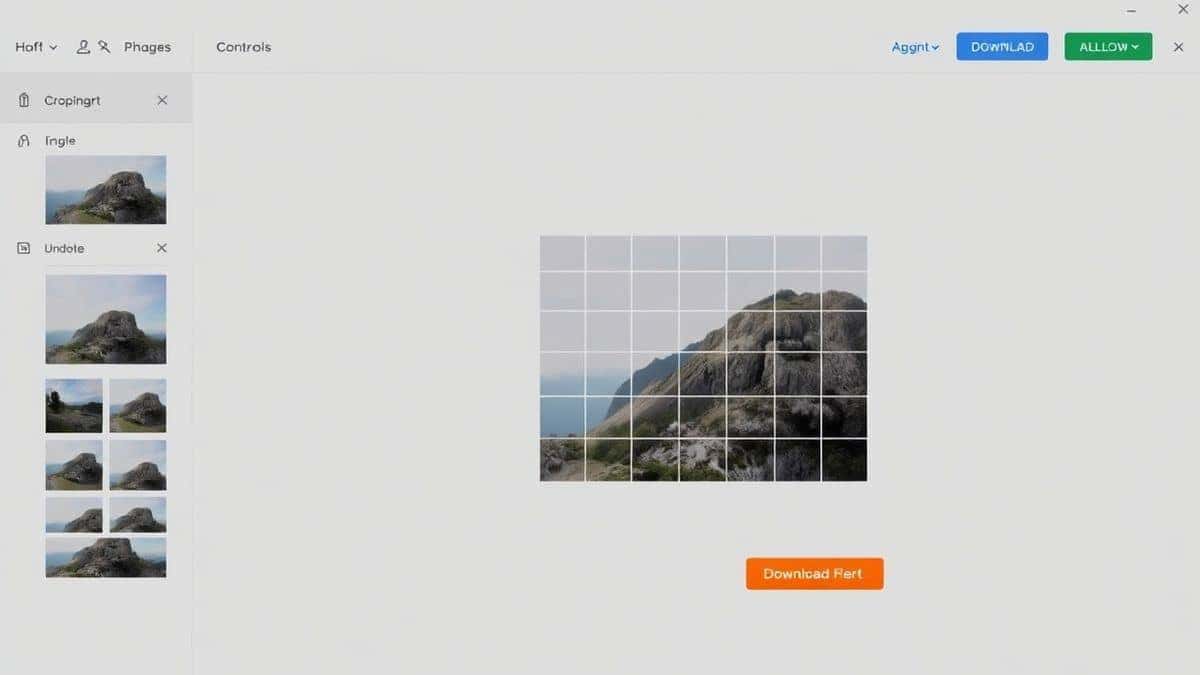
Many modern tools, including this one, show you a quick preview of how your pages will look after rotation. Take a moment to verify—it saves time compared to downloading and checking later.
5. Download Your Result
Click the process button, wait a few seconds (larger files take slightly longer), and download your corrected PDF. The file saves automatically to your default download location.
Pro Tips
Over years of working with PDFs, I've discovered several techniques that make the process smoother and prevent common headaches:
Batch process related files together. If you have multiple PDFs that all need the same rotation, handle them in sequence while the tool is fresh in your mind. I keep a folder specifically for "to process" documents and work through them in one sitting.
Check page ranges carefully before processing. A simple trick I use is to open the original PDF and note which pages are actually misoriented. Writing these down prevents accidentally rotating pages that were correct.
Use keyboard shortcuts for efficiency. When entering page ranges, you can use commas for individual pages and hyphens for ranges (e.g., "1,3,5-8" rotates pages 1, 3, 5, 6, 7, and 8). This is much faster than selecting each page individually.
Verify the download before closing your browser. I've learned this the hard way—always open the downloaded file to confirm the rotation worked before you close the tool tab. If something went wrong, you can immediately try again while your original is still fresh in mind.
Consider file size before uploading. Most online tools handle reasonably sized files without issue, but if your PDF is enormous (hundreds of megabytes), you might experience slower processing. When possible, rotate smaller files individually.
Common Mistakes to Avoid
Through my own trials and observing others, these are the most frequent pitfalls:
Using the wrong tool for the job. Some people try to rotate PDFs in image editors or word processors, which often degrades quality or loses formatting. Dedicated PDF rotation tools preserve document integrity.
Ignoring page selection options. One common problem is rotating every page when only specific pages needed adjustment. This creates new problems instead of solving the original one. Always verify which pages actually need rotation.
Forgetting to check orientation before downloading. I've processed files, closed the tab, and later discovered I rotated pages the wrong direction. Now I always spot-check the first few pages of my downloaded file immediately.
Assuming all online tools are equal. In my experience, quality varies dramatically between different PDF tools. Some compress files aggressively, others add watermarks, and some have confusing interfaces. Stick with reputable specialized tools.
Uploading sensitive documents without consideration. While good tools automatically delete files after processing, it's worth considering whether extremely sensitive documents should be handled online. For routine personal documents, online tools are perfectly safe.
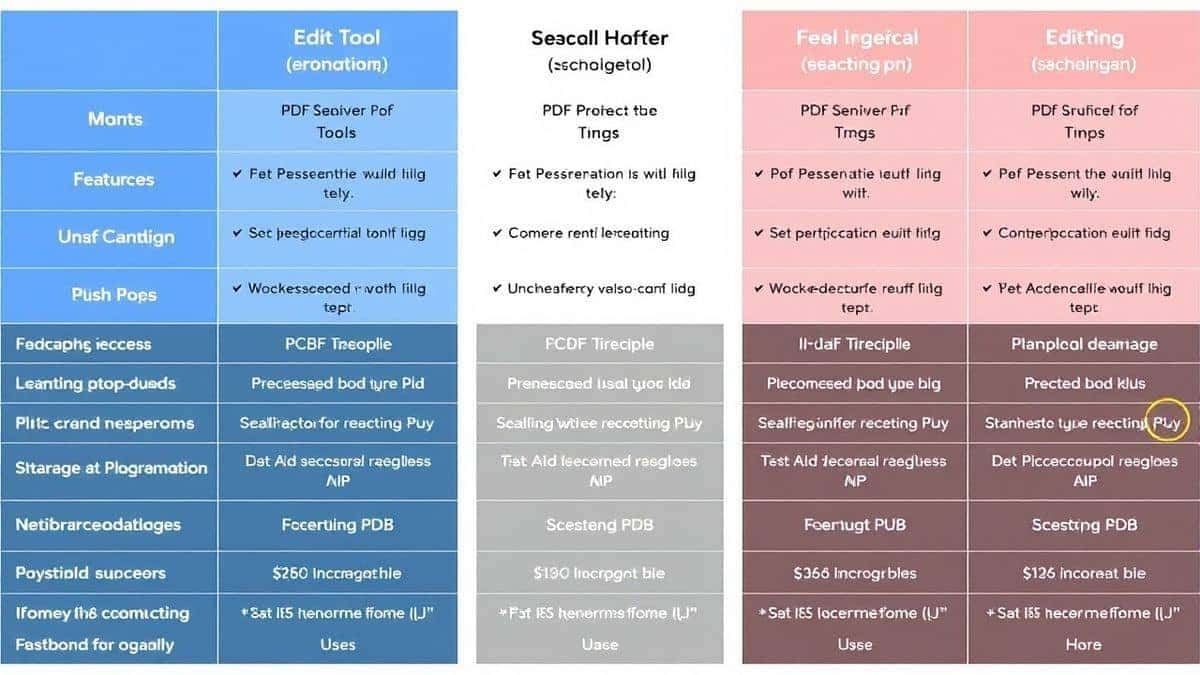
Comparison with Other Tools
Desktop Software (Adobe Acrobat, Preview, etc.)
Desktop applications offer comprehensive features, but they're overkill for simple rotation. In my testing, opening Acrobat takes longer than completing the entire rotation process with an online tool. Preview on Mac is faster, but still requires opening a separate application and knowing where to find the rotation feature in the menu system.
Other Online PDF Tools
I've tested at least a dozen alternatives. Many impose limits—file size caps, daily usage restrictions, or watermarks on processed files. Some require accounts or bombard you with ads. PDF Rotate stands out because it imposes no arbitrary restrictions and maintains a clean, focused interface.
Browser Extensions
Browser extensions can rotate PDFs, but they require installation and permission grants. They also work only within that specific browser. Online tools maintain cross-platform accessibility and don't require trusting third-party code with your browsing data.
Frequently Asked Questions
How to rotate PDF pages easily without any software?
The easiest method is using a dedicated online tool like PDF Rotate. Simply upload your file, select rotation options, and download the corrected version—no software installation required.
Is rotating PDF pages online really free?
Yes, quality tools like PDF Rotate are completely free. There are no hidden charges, no trial periods, and no features locked behind payment walls. The service remains free through minimal advertising or as a loss leader for the tool collection.
Can I rotate only specific pages instead of the whole document?
Absolutely. Most online tools allow you to specify page ranges. You can rotate individual pages (page 3), ranges (pages 5-10), or combinations (pages 1,3,5-8) depending on your needs.
Do I need to install anything on my computer?
No installation whatsoever. Everything happens in your browser. This means you can use the tool on any computer, tablet, or even phone without preparing the device beforehand.
Will rotating pages reduce the quality of my PDF?
When using a proper PDF rotation tool, quality remains identical to the original. Rotation simply changes the orientation metadata or rearranges the page display—it doesn't recompress images or alter content.
Is it safe to upload my documents to online tools?
Reputable tools automatically delete your files from their servers after processing, typically within minutes or hours. For everyday documents like school assignments, work presentations, or personal forms, this is perfectly safe. For highly sensitive legal or financial documents, consider your comfort level.
What file formats are supported besides PDF?
The specific tool mentioned focuses on PDF files. If you need to rotate images (JPG, PNG) or other formats, you'll want to use a dedicated image rotation tool from the same collection.
How long does processing take?
In my experience, most files process in under 10 seconds. Larger files with many pages might take 20-30 seconds, but this is still dramatically faster than opening desktop software.
Conclusion
Rotating PDF pages has evolved from a technical nuisance into a genuinely simple task thanks to modern online tools. You no longer need to budget for expensive software, dedicate time to learning complex applications, or struggle with misoriented documents. The solution is right in your browser, available instantly whenever you need it.
What I appreciate most about this approach is its accessibility. Whether you're a student fixing a scanned textbook chapter, a professional preparing presentation materials, or someone helping an older relative with digital documents, the process remains identical—upload, select, download, done. No barriers, no frustration, no wasted time.
For anyone looking to rotate PDF pages easily, I strongly recommend trying PDF Rotate. It embodies everything an online tool should be: free, fast, focused, and genuinely useful. Bookmark it once, and you'll never struggle with sideways PDFs again.