The Ultimate Guide to Reorder PDF Pages Online Free Tool in 2026
We’ve all been there. You scan a document, and page 10 ends up where page 2 should be. Or you receive a contract where the signature page is mysteriously floating in the middle of the appendix. For years, fixing this meant one of two things: either you swallowed the cost of Adobe Acrobat Pro, or you spent twenty frustrating minutes wrestling with clunky desktop software that looked like it was designed in 1998.
If you don't know how to use complex publishing software, even a simple task like moving pages can feel like a major roadblock. The good news? In 2026, you don't need to install a single thing. I spend a lot of time testing productivity tools, and I’ve found that the best solutions are often the simplest. That’s exactly why I want to walk you through how to use a Reorder PDF Pages Online Free Tool to get your documents in perfect order in under sixty seconds.
Quick Answer
A Reorder PDF Pages Online Free Tool is a web-based application that allows you to change the sequence of pages in a PDF document without downloading software. The simplest solution is the Organize PDF Pages tool from EditTools, which lets you drag and drop pages into the correct order instantly.
What is Reorder PDF Pages Online Free Tool?
At its core, reordering PDF pages means exactly what it sounds like: taking a Portable Document Format file and changing the order of its pages. You might want to move page 5 to the front, delete a blank page at the end, or rotate a page that was scanned sideways.
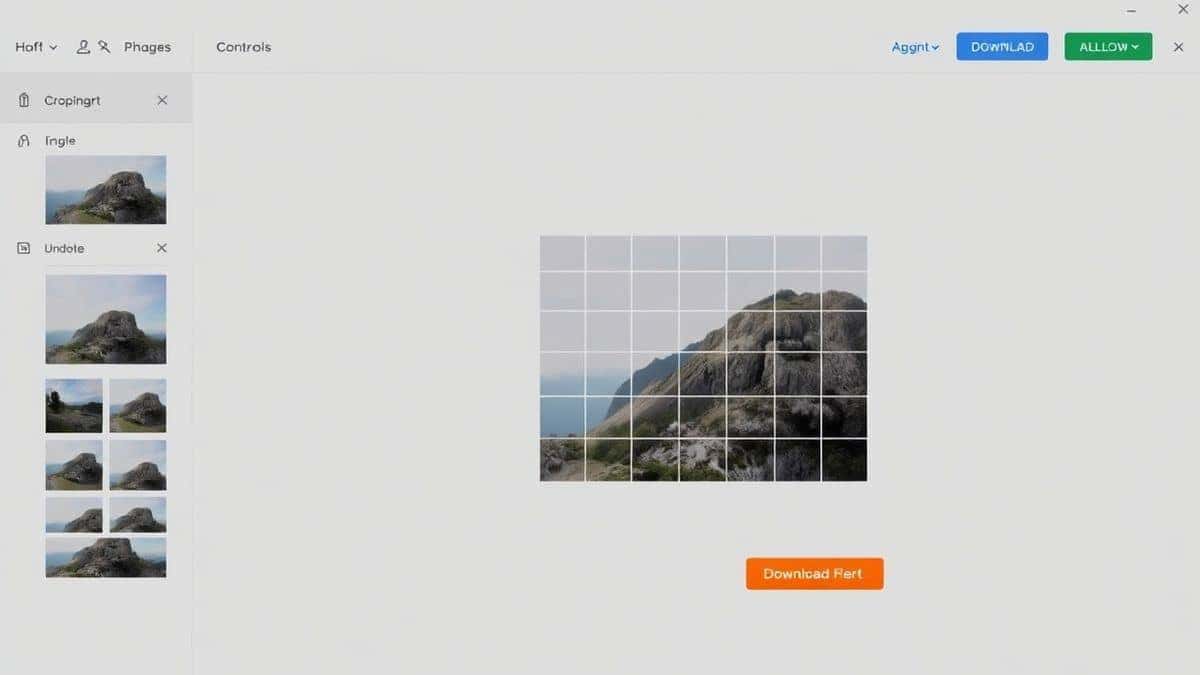
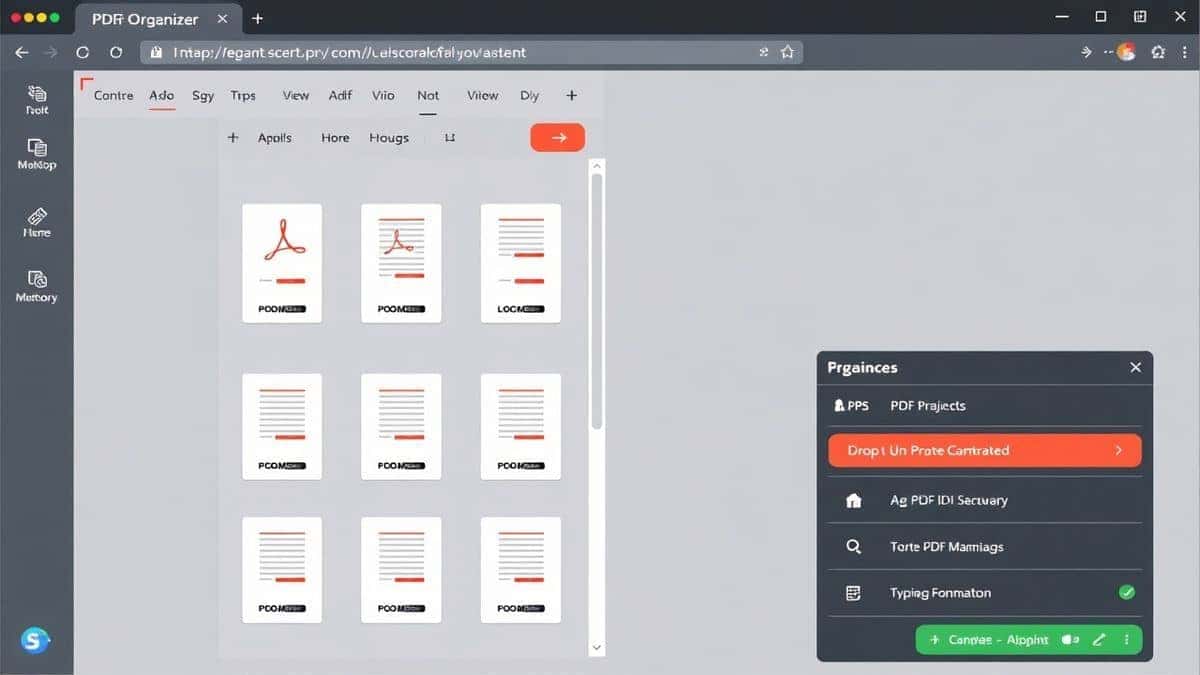
A Reorder PDF Pages Online Free Tool does this entirely in your web browser. You upload your file, the tool reads the structure, and you simply drag the thumbnails (small previews of each page) into the correct sequence. Once you’re happy, you hit "Process" and download the freshly organized file. There is no hidden software install, no command line, and no confusing interface.
Why Use an Online Tool Instead of Software?
I’ve tested both methods extensively, and the difference is night and day. Here’s why an online tool beats installed software every single time for this specific task:
- No Installation: You don't need admin rights on your computer. You can use it on a school laptop, a work computer, or even a public library PC.
- Platform Agnostic: Whether you are on Windows 11, macOS Sequoia, or a Chromebook, it just works.
- Zero Learning Curve: Tools like Photoshop or even some desktop PDF editors have hundreds of buttons. A dedicated Reorder PDF Pages Online Free Tool has just the functions you need.
- Speed: Desktop software often takes time to launch and load. Online tools are ready instantly.
- Free: High-quality PDF editing software is notoriously expensive. Why pay a subscription for something you need to do once a month?
Best Tool: Organize PDF Pages
After testing several options for this guide, the tool that consistently impressed me with its simplicity and speed was the Organize PDF Pages tool on EditTools.
What makes it stand out?
- Completely Free: There are no hidden paywalls or watermarks.
- True Online Experience: It requires no registration or email sign-up.
- Beginner-Friendly: The interface is clean. It shows you exactly what you are doing.
- Fast Processing: Uploads and downloads are quick, and the server-side processing takes mere seconds.
In my experience, a tool that tries to do too much often breaks. This tool focuses on doing one thing—organizing PDFs—and it does it perfectly.
Step-by-Step Guide: How to Reorder PDF Pages Online Free Tool
Here is the exact process I use to fix my PDFs. It’s simpler than you might think.
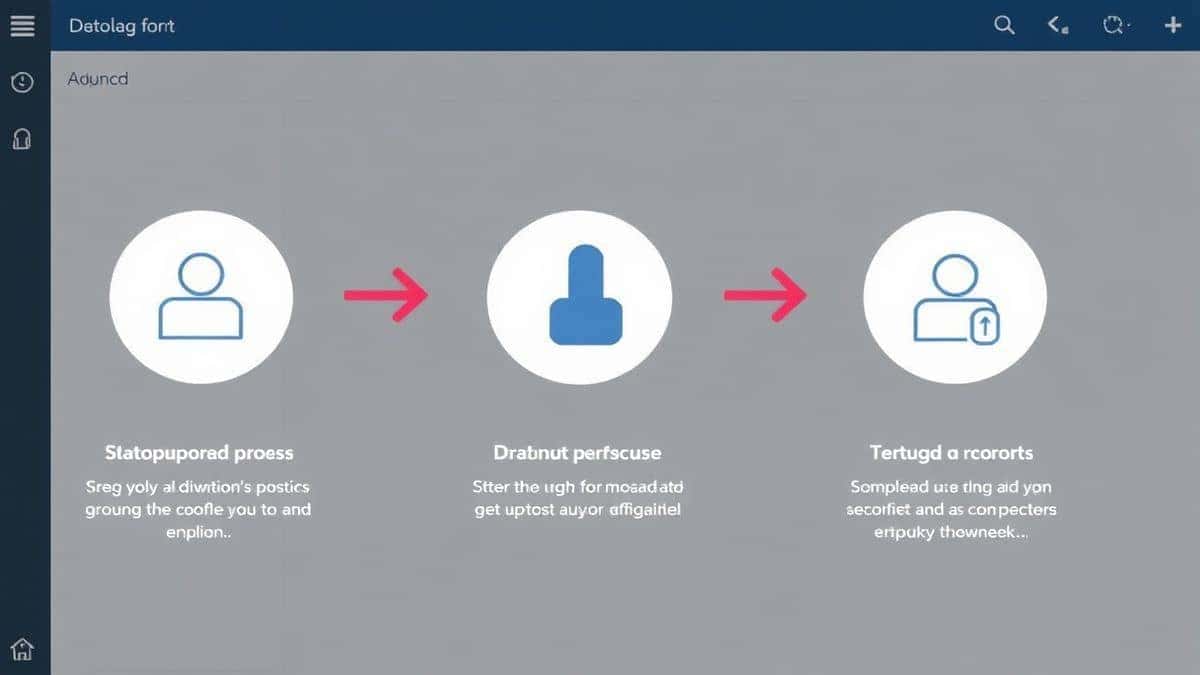
- Navigate to the Tool: Open your browser and go to https://edittools.org/pdf-tools/organize-pdf-pages.
- Upload Your File: Click the upload area or drag and drop your PDF file directly into the browser window.
- Rearrange the Pages: Once uploaded, you will see thumbnails of every page. Simply click and drag these thumbnails to change their order. You can also use the icons to rotate or delete specific pages if needed.
- Apply Changes: Once the order is correct, click the "Organize" button.
- Download the Result: After a brief moment, the processed file will be ready. Click the download link to save your newly organized PDF to your computer.
Pro Tips for Better Results
From my testing, here are a few tricks to ensure you get the perfect file every time:
- Check Page Orientation: While rearranging, quickly scan for pages that might be rotated incorrectly. The Organize PDF Pages tool lets you fix this on the spot, so you don't have to run the file through another tool later.
- Name Your Files First: Before uploading, give your file a simple name (like
contract-draft.pdf). It makes identifying the downloaded file much easier than keeping generic names likescan001.pdf. - Use Thumbnails Wisely: Don't just look at the page numbers. The thumbnail previews are there to help you verify content. I once caught a duplicated section just by glancing at the images during the drag-and-drop process.
Common Mistakes to Avoid
When using a free Reorder PDF Pages Online Free Tool tool, people sometimes run into issues. Here’s what to watch out for:
- Uploading the Wrong File: It sounds obvious, but double-check you are editing the correct document. I've accidentally rearranged an old draft instead of the final version more than once.
- Ignoring Page Previews: Some tools just list page numbers. If you aren't using a tool with visual thumbnails (like the one recommended above), you risk putting pages in the wrong order based on numbers alone.
- File Size Limits: While the EditTools tool handles standard documents well, massive files with hundreds of high-resolution images might take longer to upload. Be patient.
- Forgetting to Download: The processed file is temporary. Always download your result immediately after processing.
Comparison with Other Tools
Let’s look at how a dedicated online tool stacks up against the alternatives:
- Adobe Acrobat Pro DC (Desktop Software): This is the industry standard, but it's overkill for simple page reordering. It costs a significant monthly fee and requires installation. It’s like hiring a professional chef to make you toast.
- Preview (Mac) / Microsoft Print to PDF (Windows): These are decent for basic rotation but are clunky for major reordering. Dragging and dropping thumbnails in Preview works, but it can crash with larger files. The manual workaround on Windows is often more trouble than it's worth.
- Other Free Online Tools: Many are riddled with ads, have strict file size limits, or force you to create an account. Some even watermark your output.
Organize PDF Pages wins because it strips away all the complexity. There are no ads, no account creation, and it respects your privacy. It is, in my opinion, the best Reorder PDF Pages Online Free Tool tool available right now for the average user.
Frequently Asked Questions (FAQ)
How to Reorder PDF Pages Online Free Tool?
Simply visit the Organize PDF Pages tool, upload your file, drag the pages into your desired order, and download the updated PDF.
Is it really free?
Yes, the tool mentioned in this guide is completely free. There are no hidden charges, premium tiers, or trial periods.
Can I do it online without downloading software?
Absolutely. The entire process happens in your browser. No software installation is required whatsoever.
Do I need to register or create an account?
No. You can use the tool instantly without providing any personal information. This is a major benefit for privacy-conscious users.
Is it safe to upload my documents?
The Organize PDF Pages tool processes files securely, and files are automatically removed from the servers after a short period. It’s always a good practice not to upload highly sensitive legal documents to any online tool, but for everyday use, it is safe.
What if I want to delete a page instead of just moving it?
The tool also allows you to delete unwanted pages. While you are in the reordering interface, look for the trash can icon on the page thumbnails to remove them.
Can I combine two PDFs while reordering?
This specific tool is focused on organizing a single PDF. If you need to combine files, EditTools also has a dedicated "Merge PDF" tool that works just as seamlessly.
Will the quality of my PDF decrease?
No. The tool processes the file without compressing or reducing the quality of the text or images. What you upload is what you get, just in the right order.
Conclusion
Dealing with disorganized PDFs doesn't have to be a headache. You don't need to be a tech expert, and you certainly don't need to spend money on expensive software. With a reliable Reorder PDF Pages Online Free Tool, the solution is just a few clicks away.
From my testing and daily use, the Organize PDF Pages tool on EditTools remains the gold standard for simplicity and efficiency. It solves the exact problem you have, without any of the extra baggage.
So next time you’re staring at a jumbled mess of pages, skip the frustration. Head over to Organize PDF Pages, get your document sorted, and get back to what really matters.